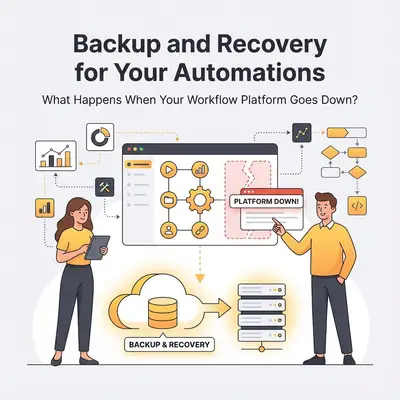
A marketing agency's customer onboarding automation processes 50 new signups daily. Monday morning, the automation platform experiences a 4-hour outage. During that time, 12 new customers sign up. They receive no welcome emails. Their accounts aren't created in the CRM. Their onboarding sequences never start. By the time the platform comes back online, those customers have moved on to competitors.
This scenario plays out regularly for businesses that rely on automation platforms without backup and recovery plans. Platform outages happen. API changes break integrations. Accidental deletions destroy workflows. When these incidents occur, businesses without recovery strategies face lost revenue, damaged customer relationships, and operational chaos.
Reality Check: Automation platforms, like all cloud services, experience outages. Even a platform advertising 99.9% uptime is advertising roughly nine hours of downtime a year. Those hours arrive whenever they arrive, including on the day you most needed the automation to run.
The difference between a minor inconvenience and a business crisis comes down to preparation. Understanding what to backup, how to create fallback processes, and when to implement redundancy transforms automation from a single point of failure into a resilient business system.
The Reality: Automation Platforms Can Have Outages
Automation platforms are cloud services. They experience outages, maintenance windows, and unexpected downtime just like any other SaaS platform. Understanding this reality is the first step toward building resilient automations.
Why Outages Happen
Platform outages occur for several reasons:
- Infrastructure failures: Server crashes, network issues, data center problems
- Software bugs: Updates that introduce errors, configuration mistakes
- Scaling issues: Sudden traffic spikes that overwhelm systems
- Third-party dependencies: Failures in services the platform depends on
- Security incidents: Cyberattacks, data breaches requiring emergency shutdowns
- Scheduled maintenance: Planned downtime for updates and improvements
Real Impact on Businesses
When automation platforms go down, the impact depends on what automations are affected:
Customer-Facing Automations:
- New signups don't receive welcome emails
- Support tickets aren't created or routed
- Order confirmations don't send
- Appointment reminders fail to deliver
Internal Automations:
- Data doesn't sync between systems
- Reports don't generate
- Invoices aren't created automatically
- Employee onboarding workflows stop
Revenue-Generating Automations:
- Lead qualification workflows pause
- Sales follow-up sequences break
- Payment processing automations fail
- Contract generation stops
Each hour of downtime can cost hundreds or thousands in lost opportunities, depending on your business volume and automation criticality.
Key Insight: The cost of downtime isn't just the immediate impact. It includes lost customer trust, manual work to catch up, and potential long-term revenue loss from customers who switch to competitors during outages.
Why Having a Plan Matters
Businesses with backup and recovery plans can:
- Restore critical automations within hours instead of days
- Switch to manual processes immediately during outages
- Recover lost workflow configurations quickly
- Maintain customer service during platform issues
- Minimize revenue loss and operational disruption
Without a plan, businesses face extended downtime, data loss, and significant manual effort to restore operations.
What to Backup: Critical Automation Components
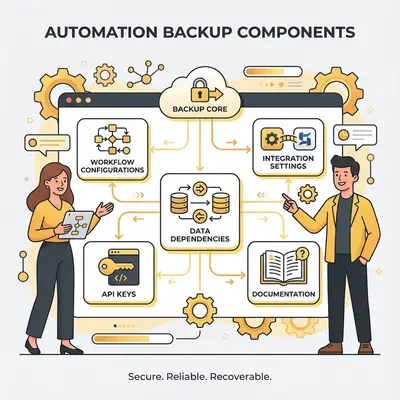
Backing up automations means more than just saving workflow configurations. You need to preserve everything required to restore and run your automations. Here's what to include:
Workflow Configurations
Your workflow configurations are the blueprints of your automations. They define:
- Trigger conditions (what starts the automation)
- Action sequences (what the automation does)
- Conditional logic (decision points in workflows)
- Data transformations (how data is processed)
- Error handling (what happens when things go wrong)
How to Backup:
- Export workflows as JSON or platform-specific formats
- Use version control systems (Git) to track changes
- Store exports in cloud storage (Google Drive, Dropbox, AWS S3)
- Document workflow purposes and dependencies
API Keys and Credentials
API keys and credentials connect your automations to external services. Without them, restored workflows can't function.
What to Backup:
- API keys for all integrated services
- OAuth tokens and refresh tokens
- Webhook URLs and secrets
- Database connection strings
- Service account credentials
Security Considerations:
- Store credentials in encrypted password managers (1Password, LastPass, Bitwarden)
- Never store credentials in plain text files
- Use environment variables or secure vaults
- Rotate credentials regularly
- Document which credentials belong to which automations
Pro Tip: Use a password manager with team sharing for API keys. This ensures credentials are accessible to authorized team members while maintaining security. Document which keys are used by which automations so you can restore them quickly.
Data Dependencies
Automations often depend on external data sources:
- Customer databases
- Product catalogs
- Pricing tables
- Configuration files
- Reference data
What to Backup:
- Data schemas and structures
- Sample data for testing
- Data mapping documentation
- Transformation rules
- Validation criteria
Integration Settings
Integration settings define how your automations connect to other systems:
- Webhook configurations
- API endpoint URLs
- Authentication methods
- Rate limiting settings
- Retry policies
How to Backup:
- Export integration configurations
- Document API versions and compatibility
- Save webhook URLs and verification tokens
- Record rate limits and quotas
- Document any custom integration code
Custom Code or Scripts
If your automations include custom code, scripts, or functions:
- JavaScript code blocks
- Python scripts
- Custom functions
- Data transformation logic
- Business rule implementations
How to Backup:
- Store code in version control (Git)
- Document code purpose and dependencies
- Include test cases and examples
- Version all code changes
- Store in cloud repositories (GitHub, GitLab)
Documentation
Documentation helps you understand and restore automations:
- Workflow descriptions and purposes
- Business logic explanations
- Dependencies and prerequisites
- Troubleshooting guides
- Recovery procedures
What to Document:
- What each automation does
- Which systems it connects to
- What data it processes
- Who depends on it
- How to test it
- How to restore it
Simple Backup Strategies
Implementing backup strategies doesn't require complex infrastructure. Here are practical approaches that work for small businesses:
Exporting Workflows
Most automation platforms allow you to export workflows:
Manual Export:
- Navigate to each workflow
- Use platform export features
- Save exports to cloud storage
- Organize by date and workflow name
Automated Export:
- Use platform APIs to export workflows programmatically
- Schedule weekly or monthly exports
- Store in version control or cloud storage
- Set up alerts if exports fail
Best Practices:
- Export after every significant workflow change
- Keep multiple versions (last 3-6 months)
- Test that exports can be imported successfully
- Document any manual steps required for restoration
Documenting Critical Automations
Create documentation for each critical automation:
Documentation Template:
- Automation Name: Clear, descriptive name
- Purpose: What business need it serves
- Trigger: What starts the automation
- Steps: What actions it performs
- Dependencies: What systems it connects to
- Criticality: Mission-critical, important, or nice-to-have
- Recovery Time: How quickly it must be restored
- Manual Fallback: Steps to perform manually if automation fails
Storage:
- Store in shared documentation (Notion, Confluence, Google Docs)
- Keep accessible to team members
- Update when automations change
- Include screenshots or diagrams
Version Control for Workflows
Use version control to track workflow changes:
Benefits:
- See what changed and when
- Roll back to previous versions
- Track who made changes
- Maintain change history
Implementation:
- Export workflows as JSON or YAML
- Commit to Git repository
- Use descriptive commit messages
- Tag important versions
- Create branches for major changes
Tools:
- GitHub (free for public repos, paid for private)
- GitLab (free private repos)
- Bitbucket (free private repos)
- Local Git repositories with cloud backup
Regular Backup Schedules
Establish backup schedules based on automation criticality:
Mission-Critical Automations:
- Daily backups
- Real-time version control commits
- Multiple backup locations
Important Automations:
- Weekly backups
- Version control on changes
- Cloud storage backup
Nice-to-Have Automations:
- Monthly backups
- Export before major changes
- Basic documentation
Automation:
- Set calendar reminders for manual backups
- Use platform APIs for automated exports
- Schedule cloud storage syncs
- Set up monitoring to alert if backups fail
Cloud Storage for Backups
Store backups in multiple locations:
Primary Storage:
- Cloud storage (Google Drive, Dropbox, OneDrive)
- Version control repositories (GitHub, GitLab)
- Automation platform's backup features (if available)
Secondary Storage:
- Different cloud provider
- Local storage (external drives)
- Team member's secure storage
Best Practices:
- Use encrypted storage
- Organize by date and automation name
- Test restoration regularly
- Keep backups for at least 90 days
- Longer retention for critical automations
Quick Win: Start with weekly manual exports of your top 5 most critical automations. Store them in a dedicated cloud folder. This simple step provides basic protection and takes less than 30 minutes per week.
Identifying Mission-Critical vs. Nice-to-Have Automations
Not all automations are equally important. Understanding which automations are mission-critical helps you prioritize backup and recovery efforts. Here's a framework for categorizing your automations:
Mission-Critical Automations
Mission-critical automations directly impact revenue, customer experience, or core business operations. If they fail, business stops or suffers significant damage.
Characteristics:
- Directly generate revenue
- Handle customer-facing processes
- Process time-sensitive transactions
- Support core business functions
- Have no easy manual alternative
Examples:
- Customer onboarding workflows
- Order processing automations
- Payment processing workflows
- Support ticket routing
- Invoice generation
- Critical data synchronization
Backup Requirements:
- Daily backups
- Real-time monitoring
- Manual fallback processes
- Redundant systems (if cost-justified)
- Recovery time objective: < 4 hours
Important Automations
Important automations improve efficiency and operations but don't stop business if they fail. You can operate manually for a period.
Characteristics:
- Improve efficiency significantly
- Support important but not critical processes
- Have manual alternatives (though slower)
- Impact productivity but not revenue directly
Examples:
- Marketing email sequences
- Data reporting automations
- Internal notification workflows
- Social media posting
- Content publishing workflows
Backup Requirements:
- Weekly backups
- Regular monitoring
- Basic manual fallback documentation
- Recovery time objective: < 24 hours
Nice-to-Have Automations
Nice-to-Have automations provide convenience but aren't essential. Business continues normally if they fail.
Characteristics:
- Save time but aren't essential
- Have easy manual alternatives
- Low impact if unavailable
- Can be rebuilt if lost
Examples:
- Automated social media scheduling
- Newsletter formatting
- Data archiving
- Non-critical reporting
- Convenience automations
Backup Requirements:
- Monthly backups
- Basic documentation
- Recovery time objective: < 1 week
Framework for Categorization
Ask these questions for each automation:
-
Revenue Impact: Does this automation directly generate revenue or prevent revenue loss?
- Yes → Mission-Critical
- Partially → Important
- No → Nice-to-Have
-
Customer Impact: Does failure directly affect customer experience?
- Significant impact → Mission-Critical
- Moderate impact → Important
- Minimal impact → Nice-to-Have
-
Time Sensitivity: How quickly must this be restored?
- Hours → Mission-Critical
- Days → Important
- Weeks → Nice-to-Have
-
Manual Alternative: Can you operate manually if it fails?
- No or very difficult → Mission-Critical
- Yes, but slow → Important
- Yes, easy → Nice-to-Have
-
Dependency: Do other critical processes depend on this?
- Yes → Mission-Critical
- Partially → Important
- No → Nice-to-Have
Priority Ranking System
Rank automations by priority:
Priority 1 (Mission-Critical):
- Immediate backup and recovery focus
- Daily monitoring
- Manual fallback processes required
- Consider redundancy
Priority 2 (Important):
- Regular backup schedule
- Weekly monitoring
- Basic fallback documentation
- Standard recovery procedures
Priority 3 (Nice-to-Have):
- Periodic backups
- Monthly review
- Minimal documentation
- Low recovery priority
Reality Check: Most businesses overestimate how many automations are truly mission-critical. Be honest in your assessment. If you can operate for 24 hours without an automation, it's probably not mission-critical. This helps you focus backup efforts where they matter most.
Creating Manual Fallback Processes
When automations fail, manual fallback processes keep your business running. Creating these processes before outages occur prevents panic and ensures continuity.
When Automations Fail
Automations can fail for several reasons:
- Platform outages
- Integration failures
- API changes
- Configuration errors
- Data issues
- Accidental deletions
Having manual processes ready means you can continue operations immediately, then restore automations when possible.
Step-by-Step Manual Processes
Create detailed step-by-step guides for each mission-critical automation:
Manual Process Template:
Automation Name: [Name] Purpose: [What it does] Frequency: [How often it runs]
Manual Steps:
- [Step 1 description]
- [Step 2 description]
- [Step 3 description] ...
Required Information:
- [Data needed to perform manually]
- [Systems to access]
- [Credentials required]
Time Estimate: [How long manual process takes]
Example: Customer Onboarding Manual Process
Automation: New customer signup workflow Purpose: Creates accounts, sends welcome emails, adds to CRM
Manual Steps:
- Check [source system] for new signups since last automation run
- For each new signup:
- Create account in CRM with customer information
- Send welcome email using email template
- Add customer to email marketing list
- Log completion in tracking spreadsheet
- Mark processed signups to avoid duplicates
- Notify team when manual process is complete
Required Information:
- Customer name, email, company
- Signup source and date
- CRM login credentials
- Email template
- Marketing list IDs
Time Estimate: 5 minutes per customer
Training Team Members
Ensure team members know how to execute manual processes:
Training Approach:
- Document processes clearly
- Create video walkthroughs for complex processes
- Conduct practice runs quarterly
- Assign process owners
- Keep documentation accessible
Process Owners:
- Assign each manual process to a team member
- Ensure they understand the process
- Test their ability to execute it
- Provide refresher training regularly
Documentation for Fallback Procedures
Store fallback documentation where it's easily accessible:
Documentation Location:
- Shared team folder (Google Drive, Dropbox)
- Internal wiki or documentation system
- Password-protected but accessible
- Available offline if possible
Documentation Contents:
- Step-by-step instructions
- Screenshots or videos
- Required credentials (stored securely)
- Contact information for support
- Escalation procedures
Testing Fallback Processes
Regularly test manual fallback processes:
Testing Schedule:
- Quarterly for mission-critical processes
- Semi-annually for important processes
- Annually for nice-to-have processes
Testing Process:
- Simulate automation failure
- Execute manual process
- Verify results match automation output
- Document any issues or improvements
- Update documentation based on findings
Testing Benefits:
- Identifies gaps in documentation
- Reveals process improvements
- Builds team confidence
- Ensures processes still work after system changes
Pro Tip: Create a "Disaster Recovery Playbook" that includes all manual fallback processes in one document. Organize by automation priority. Include quick reference guides for the most critical processes. Print a copy and keep it accessible even if systems are down.
Disaster Recovery Basics
Disaster recovery is about how quickly you can restore broken automations. Understanding recovery time objectives and having a clear restoration process minimizes downtime impact.
How Quickly Can You Restore a Broken Automation?
Recovery time depends on several factors:
- Backup availability: Do you have recent, complete backups?
- Documentation quality: Can you follow restoration steps easily?
- Complexity: How complex is the automation to rebuild?
- Dependencies: Are all required systems and credentials available?
- Team readiness: Does your team know how to restore it?
Recovery Time Objectives (RTO)
RTO defines how quickly you need to restore an automation after failure:
Mission-Critical Automations:
- RTO: < 4 hours
- Immediate manual fallback
- Priority restoration resources
- 24/7 monitoring and alerting
Important Automations:
- RTO: < 24 hours
- Manual processes available
- Standard restoration procedures
- Business hours support
Nice-to-Have Automations:
- RTO: < 1 week
- Low priority restoration
- Basic documentation
- As-time-permits recovery
Recovery Point Objectives (RPO)
RPO defines how much data loss is acceptable:
Mission-Critical Automations:
- RPO: < 1 hour (minimal data loss)
- Real-time or near-real-time backups
- Continuous monitoring
Important Automations:
- RPO: < 24 hours (acceptable data loss)
- Daily backups
- Regular monitoring
Nice-to-Have Automations:
- RPO: < 1 week (significant data loss acceptable)
- Weekly or monthly backups
- Basic monitoring
Step-by-Step Recovery Process
Follow this process to restore broken automations:
1. Assess the Situation
- Identify which automation failed
- Determine cause of failure
- Assess impact on business
- Estimate recovery time needed
2. Activate Manual Fallback
- Execute manual processes immediately
- Ensure business operations continue
- Document what's being done manually
- Track time spent on manual work
3. Gather Recovery Resources
- Locate most recent backup
- Verify backup completeness
- Collect required credentials
- Review restoration documentation
4. Restore Automation
- Import workflow configuration
- Restore integration settings
- Reconnect API keys and credentials
- Verify data dependencies
5. Test Restoration
- Test automation with sample data
- Verify all steps execute correctly
- Confirm integrations work
- Validate output quality
6. Monitor and Validate
- Monitor automation for 24-48 hours
- Compare outputs to manual process results
- Verify no data loss occurred
- Document any issues
7. Deactivate Manual Process
- Once automation is verified working
- Stop manual processes
- Update documentation
- Conduct post-recovery review
Testing Recovery Procedures
Regular recovery testing ensures your process works:
Testing Schedule:
- Quarterly for mission-critical automations
- Semi-annually for important automations
- Annually for nice-to-have automations
Testing Process:
- Simulate automation failure
- Execute recovery procedure
- Time the restoration process
- Verify automation works correctly
- Document improvements needed
Testing Benefits:
- Identifies process gaps
- Improves team readiness
- Validates backup quality
- Reduces actual recovery time
Monitoring and Alerting
Knowing immediately when something goes wrong prevents extended downtime. Effective monitoring and alerting systems detect automation failures quickly.
What to Monitor
Monitor key aspects of your automations:
Automation Health:
- Success/failure rates
- Execution frequency
- Processing times
- Error rates and types
Platform Status:
- Platform uptime and status
- API availability
- Integration health
- Service status pages
Data Quality:
- Input data validation
- Output data quality
- Data synchronization status
- Missing or incomplete data
Business Metrics:
- Customer signups processed
- Orders fulfilled
- Emails sent
- Revenue generated
Alerting Strategies
Set up alerts for critical issues:
Immediate Alerts (Mission-Critical):
- Automation failures
- Platform outages
- Integration failures
- Data processing errors
Daily Alerts (Important):
- Error rate increases
- Performance degradation
- Unusual patterns
- Backup failures
Weekly Reports (All):
- Automation performance summaries
- Error trend analysis
- Backup status
- Recovery readiness
Tools for Monitoring
Platform Monitoring:
- Built-in platform monitoring (if available)
- Status page subscriptions
- Uptime monitoring services (UptimeRobot, Pingdom)
Automation Monitoring:
- Error logging and tracking
- Performance dashboards
- Custom monitoring scripts
- Integration health checks
Alerting Tools:
- Email alerts
- Slack/Teams notifications
- SMS alerts for critical issues
- PagerDuty for on-call escalation
Escalation Procedures
Define escalation procedures for different alert types:
Level 1: Automated Response
- Platform automatically retries
- Error logged for review
- No human intervention needed
Level 2: Team Notification
- Alert sent to team channel
- Team reviews during business hours
- Manual intervention if needed
Level 3: Immediate Escalation
- Alert sent to on-call person
- Immediate investigation required
- Manual fallback activated if needed
Level 4: Critical Incident
- All hands on deck
- Manual processes activated
- Recovery procedures initiated
- Stakeholders notified
Key Insight: Monitoring is only valuable if someone responds to alerts. Set up alerting that matches your team's availability. For mission-critical automations, ensure 24/7 coverage or automated fallback processes.
When to Have Redundant Automations vs. When It's Overkill
Redundancy means having backup automations ready to take over if primary automations fail. It's powerful but expensive. Understanding when redundancy makes sense helps you make cost-effective decisions.
Decision Framework for Redundancy
Ask these questions to determine if redundancy is justified:
1. Cost of Downtime:
- How much revenue is lost per hour of downtime?
- What's the cost of manual work during outages?
- What's the impact on customer relationships?
2. Frequency of Failures:
- How often does the automation platform experience outages?
- How often do integrations fail?
- What's the historical reliability?
3. Recovery Time:
- How quickly can you restore the automation?
- Is manual fallback sufficient during recovery?
- Can you accept the recovery time?
4. Complexity:
- How complex is the automation to duplicate?
- What's the maintenance cost of redundancy?
- Are there simpler alternatives?
When Redundancy Makes Sense
Redundancy is justified when:
High Revenue Impact:
- Automation directly generates significant revenue
- Each hour of downtime costs thousands
- Manual alternatives are insufficient
Frequent Failures:
- Platform experiences regular outages
- Integrations are unreliable
- Historical data shows frequent issues
Slow Recovery:
- Recovery takes days, not hours
- Manual processes are inadequate
- Business can't wait for restoration
Example: E-commerce Order Processing
- Processes $50,000 in orders daily
- Platform outages occur monthly
- Recovery takes 6-8 hours
- Manual processing can't handle volume
- Verdict: Redundancy justified
When Redundancy Is Overkill
Redundancy is unnecessary when:
Low Impact:
- Automation doesn't directly generate revenue
- Manual alternatives work well
- Downtime has minimal business impact
Rare Failures:
- Platform is highly reliable
- Outages are infrequent and brief
- Historical reliability is excellent
Fast Recovery:
- Recovery takes hours, not days
- Manual fallback is sufficient
- Team can restore quickly
Example: Social Media Scheduling
- Saves time but doesn't generate revenue
- Platform is highly reliable
- Manual posting is easy alternative
- Recovery takes 2-3 hours
- Verdict: Redundancy overkill
Alternative Approaches to Redundancy
Instead of full redundancy, consider these alternatives:
Manual Fallback Processes:
- Well-documented manual procedures
- Team trained to execute them
- Lower cost than redundancy
- Sufficient for most situations
Partial Redundancy:
- Redundant only for critical steps
- Single automation with backup systems
- Hybrid approach reduces cost
Multiple Platform Accounts:
- Same automation on different accounts
- Protects against account-level issues
- Lower cost than full redundancy
Scheduled Backups:
- Frequent backups enable fast recovery
- Manual processes during recovery
- Cost-effective for most businesses
Reality Check: Most small businesses don't need redundant automations. Well-documented manual fallback processes and fast recovery procedures are usually sufficient. Reserve redundancy for automations that generate significant revenue and experience frequent failures.
Conclusion
Automation platform outages are inevitable. The difference between a minor inconvenience and a business crisis comes down to preparation. Understanding what to backup, creating manual fallback processes, and knowing when redundancy makes sense transforms automations from single points of failure into resilient business systems.
Start by identifying your mission-critical automations. Backup their configurations, credentials, and dependencies regularly. Create detailed manual fallback processes and train your team to execute them. Set up monitoring and alerting to detect issues immediately. Test your recovery procedures regularly.
Remember: the goal isn't to prevent all failures—it's to minimize their impact. With proper backup and recovery strategies, you can restore critical automations within hours, maintain operations during outages, and protect your business from extended downtime.
Ready to build resilient automations? Book a demo with Evalics to discuss backup and recovery strategies for your specific workflows.
Frequently Asked Questions
How often should I backup my automations?
Backup frequency depends on automation criticality. Mission-critical automations should be backed up daily or in real-time using version control. Important automations need weekly backups. Nice-to-have automations can be backed up monthly or before major changes. Always backup immediately after making significant workflow changes.
What's the difference between backup and disaster recovery?
Backup is creating copies of your automation configurations, data, and settings. Disaster recovery is the process of restoring those backups and getting your automations running again after a failure. Backup is a component of disaster recovery, but recovery also includes manual fallback processes, monitoring, and restoration procedures.
How do I know which automations are mission-critical?
Ask these questions: Does this automation directly generate revenue? Does failure significantly impact customers? How quickly must it be restored? If you can't operate manually easily, or if downtime costs significant revenue, it's mission-critical. Most businesses have 3-5 mission-critical automations and many more that are important or nice-to-have.
What happens to data if my automation platform goes down?
Data stored in the automation platform may be inaccessible during outages, but data in connected systems (CRM, databases, email platforms) typically remains accessible. However, data synchronization stops, so systems may become out of sync. This is why manual fallback processes and regular data backups are important for critical automations.
How quickly can I restore a broken automation?
Restoration time depends on backup quality, documentation completeness, and automation complexity. With good backups and documentation, simple automations can be restored in 1-2 hours. Complex automations with many integrations may take 4-8 hours. Without backups, restoration can take days or weeks. This is why regular backups and recovery testing are essential.
Should I have redundant automations on different platforms?
Redundancy is usually overkill for most small businesses. It's expensive to maintain and only justified for automations that generate significant revenue and experience frequent failures. For most businesses, well-documented manual fallback processes and fast recovery procedures are more cost-effective. Reserve redundancy for truly mission-critical, high-revenue automations.
What monitoring tools should I use?
Use a combination of tools: platform status pages for uptime monitoring, built-in platform monitoring for automation health, error logging for failure tracking, and alerting systems (email, Slack, SMS) for notifications. For mission-critical automations, consider uptime monitoring services like UptimeRobot or Pingdom. Start with free tools and add paid services as your automation portfolio grows.
By Kevin Michael Schindler, AI Automation Expert at Evalics