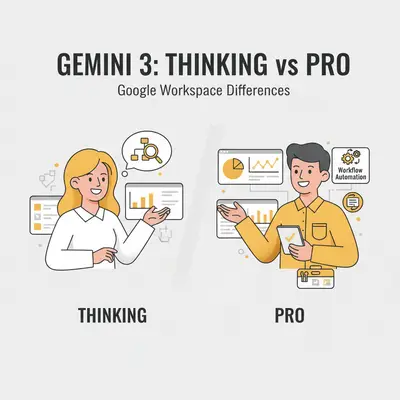
You open the Gemini interface in Google Docs or Gmail and see options for Pro mode with or without Thinking enabled. It’s not immediately clear which one you should use, or why you’d pick the slower one.
Here’s the short answer: Gemini 3 Pro is your high-speed engine for drafting, summarizing, and editing. Thinking mode (enabled on Pro) is for complex reasoning, planning, and tasks where the AI needs to "stop and think" before it types.
If you’re drafting an email, use Pro. If you’re planning a quarterly strategy, use Thinking.
Let’s break down exactly how these two modes behave in Google Workspace and which one belongs in your workflow. If you want to zoom out and see how automation fits into the bigger picture, you can also explore our guide on Google Workspace automation ideas.
The Core Difference: Speed vs. Reasoning
The distinction isn't just about "better" or "worse"—it's about the cognitive architecture behind the response.
Gemini 3 Pro
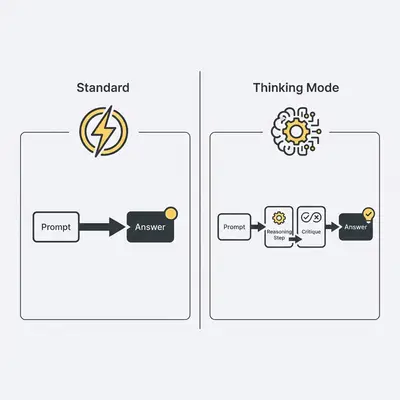
Think of this as the standard, high-performance assistant. It reads your prompt and immediately generates a response based on probability and training patterns. It’s fast, efficient, and enough for most daily tasks.
Thinking Mode (on Gemini 3 Pro)
This mode inserts a "hidden" step before generating output. It uses a chain-of-thought process to analyze your request, break it down, and critique its own assumptions. Then it formulates a final answer. This "thinking" process forces the model to slow down, reducing errors in logic and math.
Key Insight: Latency is a feature, not a bug. That pause means the model is actively reasoning through your problem, not just predicting the next word.
Feature Breakdown
Here is how they compare on the things that matter to a business owner.
| Feature | Gemini 3 Pro (Standard) | Gemini 3 Pro (Thinking Mode) |
|---|---|---|
| Speed | Typically near-instant | Noticeably slower |
| Reasoning Depth | Surface/Standard | Deep/Analytical |
| Best For | Drafting, Summaries, Formatting | Strategy, Math, Logic Puzzles |
| Hallucination Rate | Standard | Typically reduced (due to self-correction) |
| Context Awareness | High | Very High |
Real-World Scenarios in Workspace
Knowing the meaningful difference is great, but let's look at where you actually click the button in your daily apps.
1. In Google Docs
Use Pro when you need to write a blog post, fix grammar, or summarize a meeting transcript. It flows naturally and keeps up with your typing speed.
Use Thinking mode when you are staring at a blank page for a "Q3 Marketing Strategy." You can ask it to: "Review the last three project briefs attached and propose a conflicting strategy that challenges our current assumptions." It will take a minute and think through the contradictions. Then it will give you a more nuanced answer.
2. In Gmail
Use Pro to reply to clients, schedule meetings, or summarize long threads.
Use Thinking mode for high-stakes negotiation emails. If a client sends a complex contract amendment with vague terms, ask Thinking mode: "Analyze the implications of paragraph 3 and tell me if this exposes us to liability regarding X." It will reason through the legal language. In many cases, it will do this far better than the fast model.
3. In Google Sheets
Use Pro to write standard formulas (=SUM, =VLOOKUP) or clean up data columns.
Use Thinking mode when you need data interpretation. "Look at this quarterly sales data and identify three anomalies that don't match our seasonal trends." Thinking mode will actually "look" at the numbers, compare them, and check its work before flagging the outliers.
Pro Tip: For simple formula generation, Thinking mode is overkill. It will over-analyze a request for a simple sum. Stick to Pro for syntax help.
Implications for Automation
If you are building automations using Google Workspace APIs or Apps Script, this distinction is critical.
Thinking mode often has a stricter safety filter and lower throughput limits. It is not designed for high-volume, real-time customer chat bots. If you try to power a live support bot with Thinking mode, your customers will leave before the "typing..." indicator stops.
However, for backend workflows—like an automation that runs once a night to analyze daily reports—Thinking mode is superior. It catches nuances that Pro misses.
Impact on Prompts (System vs User)
One hidden difference is how they treat your instructions.
- Gemini 3 Pro (standard mode) prioritizes speed. It often "skims" long, complex prompts and focuses on the user's immediate request. In some cases, it can ignore subtle system constraints.
- Gemini 3 Pro (Thinking mode) is highly compliant. It breaks down conflicting instructions (e.g., "Be helpful" vs "Don't reveal internal data"). Then it makes sure it adheres strictly to System Prompts.
Reality Check: If your prompt has several conflicting or complex rules, Pro is more likely to drop one. Thinking is built to pause and check each one before answering.
Which One Should You Default To?
For most users, Gemini 3 Pro is the correct default. It feels like software—fast and responsive.
Switch to Thinking mode only when you hit a wall. If Pro gives you a generic answer, or if you need a "second opinion" on a complex problem, enable the Thinking toggle. Treat it like calling a senior consultant into the room. You don't need them for every email, but you definitely want them for the big decisions.
The power of Gemini 3 isn't just raw intelligence; it's the ability to choose the right tool for the job. Don't let the "Thinking" label fool you into using it for everything—speed is still the ultimate productivity hack.
Key Takeaways
When you're working in Google Workspace, remember: Gemini 3 Pro is the model, and Thinking mode is a reasoning behavior you can enable on it. Use Pro's standard mode for speed and everyday tasks—drafting emails, summarizing documents, writing formulas. Switch to Thinking mode when you need deeper analysis, complex reasoning, or strategic planning.
The choice isn't about which model is "better"—it's about matching the tool to the task. Most of the time, speed wins. But when you need that extra layer of reasoning, Thinking mode is worth the wait.
What's Next
- Try writing your next long-form document in Google Docs with Pro first, then run the same prompt in Thinking mode and compare the depth of the answers.
- In Gmail, draft a reply with Pro for speed, then ask Thinking to review it for tone, risk, or hidden assumptions before you send it.
- In Google Sheets, use Pro to generate formulas, then switch to Thinking to ask, "What patterns or anomalies do you see in this data?" and review its reasoning.
- If you build automations, set up a low-frequency backend workflow that uses Thinking once a day, while keeping your high-volume, real-time tasks on Pro.
Official Sources
- Gemini 3 Model Capabilities - Google DeepMind
- Gemini for Google Workspace Updates
- Gemini API "Thinking" Parameters
By Kevin Michael Schindler, AI Automation Expert at Evalics