Sarah built the perfect automation for your 15-person marketing agency. It syncs leads from your website to your CRM, sends follow-up emails, and creates tasks in your project management tool. It ran flawlessly for six months. Then Sarah left the company. The automation broke two weeks later. No one knew how it worked. No one could fix it. Your lead pipeline stopped flowing.
This scenario happens in growing businesses every month. One person builds critical automations, becomes the sole knowledge holder, then leaves or gets busy. The automations break, and no one knows how to fix them. The business loses productivity, data, and revenue.
Quick Win: Simple documentation practices prevent much of the chaos that builds up around shared automations, and well-documented workflows are quicker for new team members to learn and to troubleshoot. Start with clear naming conventions and basic runbooks.
Team collaboration on automations doesn't require complex tools or technical expertise. It requires clear processes, proper documentation, and smart access management. This guide shows you how to share automations with your team safely, document workflows effectively, and train team members—all without creating chaos or breaking your existing automations.
By the end, you'll know how to set up team access, create documentation that actually gets used, implement approval workflows for critical automations, and decide when to centralize versus decentralize automation management.
The Problem: Knowledge Silos and Automation Chaos
As your business grows, automations become critical infrastructure. They handle customer communications, data syncing, lead management, and more. When only one person understands how they work, you create a single point of failure.
The knowledge silo problem: One person builds an automation, understands every step, and becomes the only person who can maintain it. When they're unavailable, the automation becomes a black box. No one knows what it does, how it works, or how to fix it when it breaks.
Illustrative example (hypothetical): A 25-person consulting firm had 12 automations handling client onboarding, invoice generation, and project management. The operations manager who built them left suddenly. The team spent weeks trying to understand and fix the broken automations, and missed client communications and delayed projects cost the firm revenue.
The cost of poor collaboration:
- Downtime: When automations break, business processes stop. A broken lead sync automation can cost hundreds of leads per day.
- Lost knowledge: When team members leave, their automation knowledge leaves with them. Rebuilding takes weeks or months.
- Broken workflows: Without proper documentation, team members modify automations incorrectly, breaking downstream processes.
- Scaling challenges: As you add more automations and team members, chaos multiplies without proper collaboration processes.
Why this becomes critical as businesses grow: Small teams (2-5 people) can manage automations informally. Everyone knows what everyone else built. As you grow to 10-50 people, informal processes break down. You need structure, documentation, and clear ownership.
Reality Check: Unclear communication is a common cause of project delays. In automation projects, it shows up as broken workflows, lost data, and frustrated team members. Clear documentation and communication prevent many of these issues.
Simple Documentation Practices
Documentation doesn't need to be complex. Simple, practical documentation prevents most automation chaos. Start with these three practices: naming conventions, notes within automations, and basic runbooks.
Naming Conventions: Make Automations Self-Explanatory
Good naming conventions let anyone understand what an automation does without opening it. Use descriptive, consistent names that include the purpose, trigger, and key action.
Effective naming format: [Purpose] - [Trigger] - [Action]
Examples:
Lead Sync - Website Form - Create CRM ContactInvoice Reminder - 7 Days Before Due - Send EmailProject Task - New Client - Create Tasks in AsanaData Backup - Daily 2AM - Export to Google Drive
What to include in names:
- Purpose: What business process does this automate?
- Trigger: What starts the automation? (form submission, schedule, webhook)
- Key action: What's the main thing it does? (creates record, sends email, updates data)
What to avoid:
- Generic names like "Automation 1" or "Workflow Test"
- Names that only make sense to the creator
- Abbreviations that aren't obvious
- Dates in names (they become outdated)
Illustrative example (hypothetical): A marketing agency renamed their automations from "Zap 1," "Zap 2," "Zap 3" to descriptive names like "Blog Lead - Form Submit - Add to HubSpot" and "Newsletter - Weekly - Send Campaign." New team members could immediately understand what each automation did without asking.
Adding Notes Within Automation Platforms
Most automation platforms let you add notes or descriptions directly in workflows. Use these to document the "why" behind decisions, not just the "what."
Where to add notes:
- Make.com: Add notes to modules using the "Note" module or description fields
- n8n: Use the "Note" node or add descriptions to workflow settings
- Zapier: Add descriptions in Zap settings or use comment fields
What to document:
- Business purpose: Why does this automation exist? What problem does it solve?
- Key decisions: Why did you choose this approach? What alternatives did you consider?
- Dependencies: What other automations or systems does this depend on?
- Edge cases: What unusual scenarios does this handle? What breaks it?
- Maintenance notes: When was it last updated? What needs regular checking?
Example note format:
Purpose: Syncs new website leads to HubSpot CRM
Trigger: Form submission on /contact page
Key Steps:
1. Validates email format
2. Checks for duplicates in HubSpot
3. Creates contact with tags: "Website Lead", "Source: Contact Form"
4. Sends Slack notification to #sales channel

Dependencies: Requires HubSpot API key and Slack webhook
Last Updated: 2025-01-15
Maintenance: Check HubSpot connection monthly
Creating Simple Runbooks
Runbooks are step-by-step guides for common tasks. They help team members understand, use, and troubleshoot automations without deep technical knowledge.
What to include in runbooks:
- Overview: What the automation does and why it exists
- Prerequisites: What needs to be set up before it works
- How it works: Step-by-step explanation of the workflow
- How to use it: What team members need to do (if anything)
- Troubleshooting: Common problems and how to fix them
- Who to contact: Who owns this automation and can help
Simple runbook template:
# [Automation Name]

## Overview
[One paragraph explaining what this automation does and why it exists]

## Prerequisites
- [ ] [Requirement 1]
- [ ] [Requirement 2]

## How It Works
1. [Step 1 description]
2. [Step 2 description]
3. [Step 3 description]

## How to Use
[Instructions for team members who interact with this automation]

## Troubleshooting
**Problem:** [Common issue]
**Solution:** [How to fix it]

**Problem:** [Another common issue]
**Solution:** [How to fix it]

## Owner
[Name and contact information]
Illustrative example (hypothetical): A consulting firm created runbooks for their 8 critical automations. Each runbook was 1-2 pages and included screenshots. When the automation owner was on vacation, another team member used the runbook to fix a broken connection in 15 minutes instead of waiting days for the owner to return.
Pro Tip: Store runbooks in a shared location everyone can access—Google Drive, Notion, or your company wiki. Update them when you modify automations. Outdated documentation is worse than no documentation.
Safely Sharing Access to Automation Platforms
Sharing automation access requires balance. You need team members to collaborate, but you also need to protect sensitive data and prevent accidental changes. Each platform handles team collaboration differently.
n8n: Team Access and Permissions
n8n offers flexible team collaboration features, especially in self-hosted or cloud versions with team plans.
Setting up team access:
- Go to Settings → Users
- Invite team members by email
- Assign roles: Owner, Member, or Viewer
Permission levels:
- Owner: Full access to all workflows, settings, and user management
- Member: Can create, edit, and execute workflows (cannot manage users)
- Viewer: Read-only access to view workflows but cannot modify them
Best practices for n8n:
- Start with Viewer access for most team members
- Grant Member access only to those who need to modify workflows
- Use workflow tags to organize by team or function
- Enable workflow sharing for specific workflows that need collaboration
Security considerations:
- Review credentials access: Members can see and use credentials but cannot view credential values (passwords, API keys)
- Use environment variables for sensitive data instead of hardcoding
- Regularly audit who has access to which workflows
Make.com: Team Collaboration Features
Make.com (formerly Integromat) offers team plans with collaboration features for sharing scenarios.
Setting up team access:
- Go to Team → Members
- Invite team members
- Assign roles: Owner, Admin, Member, or Viewer
Permission levels:
- Owner: Full control over team, billing, and all scenarios
- Admin: Can manage team members and all scenarios
- Member: Can create and edit scenarios (cannot manage team)
- Viewer: Read-only access to view scenarios
Sharing scenarios:
- Use "Share" feature to give specific team members access to individual scenarios
- Set sharing permissions: View only, Edit, or Full access
- Organize scenarios into folders by team or function
Best practices for Make.com:
- Use folders to organize scenarios by team or business function
- Share scenarios selectively—not everyone needs access to everything
- Use the "Duplicate" feature to create templates for common workflows
- Enable execution history so team members can see what ran and when
Illustrative example (hypothetical): A 30-person agency organized their Make.com scenarios into folders: "Sales," "Marketing," "Operations," and "Finance." Each team had access to their relevant folders. The operations team could view marketing scenarios but couldn't edit them, preventing accidental changes.
Zapier: Team Plans and Access Management
Zapier offers Team and Company plans with collaboration features for sharing Zaps.
Setting up team access:
- Go to Settings → Team
- Invite team members
- Assign roles: Admin or Member
Permission levels:
- Admin: Can manage team, billing, and all Zaps
- Member: Can create and edit Zaps (cannot manage team or billing)
Sharing Zaps:
- Use "Share" feature to give team members access to specific Zaps
- Set permissions: View only or Edit
- Organize Zaps into folders by team or function
Best practices for Zapier:
- Use folders to organize Zaps by team or business function
- Share Zaps selectively based on who needs access
- Use Zap templates for common workflows
- Enable error notifications so team members know when Zaps fail
Security considerations:
- Review connected app permissions regularly
- Use Zapier's "Transfer" feature when team members leave
- Enable two-factor authentication for team accounts
Key Insight: Start with restrictive permissions and grant more access as needed. It's easier to add permissions than to recover from accidental changes or data breaches. Most team members only need View access to most automations.
Version Control Basics
Version control tracks changes to your automations so you can see what changed, when, and by whom. It also lets you roll back to previous versions if something breaks.
What Is Version Control for Automations?
Version control is like a time machine for your automations. Every time someone makes a change, the system saves a snapshot. If something breaks, you can revert to a working version.
Why it matters: Without version control, you can't undo changes. If someone modifies an automation incorrectly, you have to manually rebuild it. With version control, you click "Revert" and restore the previous working version.
Illustrative example (hypothetical): A team member modified a critical automation to add a new field. The change broke the automation, causing it to fail for all new leads. Without version control, they would have spent hours trying to remember what the automation looked like before. With version history, they reverted the change in 2 minutes.
How to Track Changes
Most automation platforms offer some form of version history or change tracking.
Platform features:
- n8n: Cloud plans keep workflow history with limited retention (1 day on Starter, 5 days on Pro and 365+ days on Enterprise, per n8n's pricing page checked October 23, 2026), and the Business plan adds Git-based version control (self-hosted only).
- Make and Zapier: Check each platform's current documentation for version history and change tracking, and keep manual backups, exports or screenshots of important scenarios and Zaps before you edit them.
Simple tracking methods for non-technical teams:
- Manual change logs: Keep a simple spreadsheet or document tracking changes
- Date, Automation name, What changed, Who changed it, Why
- Screenshot before changes: Take screenshots of workflows before modifying them
- Duplicate before editing: Create a copy of the automation before making changes
- Use platform features: Enable version history where available
Change log template:
Date: 2025-01-28
Automation: Lead Sync - Website Form - Create CRM Contact
Changed by: John Smith
What changed: Added email validation step
Why: To prevent invalid emails from reaching CRM
Result: Working - tested with 5 sample leads
Rollback Strategies
Rollback means reverting to a previous working version. Different platforms handle this differently.
n8n rollback:
- If you have workflow history enabled, you can restore previous versions
- Export workflows regularly as backups (JSON files)
- Use Git for advanced version control (requires technical setup)
Make.com rollback:
- Manual: Keep exported scenario files as backups
- Use execution history to understand what changed
- Duplicate scenarios before major changes
Zapier rollback:
- Limited built-in version control
- Use Zap templates as "backup versions"
- Export Zap configurations before changes
Best practice: Before making significant changes, duplicate the automation. Test the duplicate, then replace the original if it works. This gives you a safety net.
Reality Check: Most small businesses don't need complex version control systems. Simple practices—duplicating before changes, keeping change logs, and taking screenshots—prevent many version-related problems. Only invest in advanced version control if you have technical team members and complex automation needs.
Setting Up Approval Workflows for Critical Automations
Not every automation change needs approval. But critical automations—those that handle money, customer data, or core business processes—should require review before changes go live.
Which Automations Need Approval?
Use this decision framework to determine which automations need approval:
Require approval for automations that:
- Handle financial transactions (invoices, payments, refunds)
- Send customer-facing communications (emails, SMS, notifications)
- Modify or delete customer data
- Integrate with critical systems (CRM, accounting software)
- Affect revenue-generating processes (lead generation, sales)
- Have high failure costs (downtime costs more than $500/day)
Don't require approval for:
- Internal-only automations (file organization, internal notifications)
- Low-risk automations (data backups, reporting)
- Test or development automations
- Automations with easy rollback (non-critical processes)
Illustrative example (hypothetical): A consulting firm required approval for 5 critical automations: invoice generation, client onboarding emails, lead sync to CRM, payment processing, and project task creation. They didn't require approval for internal file organization or team notification automations. This balanced security with agility.
How to Set Up Approval Processes
Approval processes don't need to be complex. Simple workflows work for most small businesses.
Simple approval process:
- Document the change: Require a brief description of what's changing and why
- Review by owner: The automation owner reviews the proposed change
- Test in duplicate: Test the change in a duplicate automation first
- Approve or request changes: Owner approves or requests modifications
- Implement: Once approved, implement the change
- Monitor: Watch for issues after implementation
Approval tools:
- Platform features: Some platforms (like n8n Enterprise) offer built-in approval workflows
- External tools: Use project management tools (Asana, Monday.com) to track approval requests
- Simple process: Use email or Slack for approval requests with a simple template
Approval request template:
Subject: Approval Request - [Automation Name]

Automation: [Name]
Proposed Change: [What you want to change]
Reason: [Why this change is needed]
Risk Level: [Low/Medium/High]
Tested: [Yes/No - if yes, describe test results]

Requested by: [Name]
Date: [Date]
Who Should Approve?
Approval should come from someone who understands the business impact, not just the technical details.
Ideal approvers:
- Automation owner: The person who built it or currently maintains it
- Process owner: The person responsible for the business process it automates
- Team lead: For team-specific automations
- Operations manager: For company-wide critical automations
Approval hierarchy:
- Low-risk changes: Automation owner can approve
- Medium-risk changes: Process owner + automation owner
- High-risk changes: Operations manager or leadership
Pro Tip: Keep approval processes simple. If approvals take more than 24 hours or require multiple people for every change, team members will work around the process. Balance security with speed.
Training Team Members
Training ensures team members can use existing automations effectively and make simple modifications without breaking things. Focus on practical, hands-on training rather than theoretical concepts.
How to Teach Non-Technical Staff
Non-technical team members don't need to become automation experts. They need to understand how to use automations that affect their work and when to ask for help.
Training framework:
- Start with the "why": Explain what the automation does and why it matters to their work
- Show, don't tell: Walk through the automation visually, showing inputs and outputs
- Hands-on practice: Let them interact with the automation in a test environment
- Common scenarios: Cover the most common ways they'll interact with it
- Troubleshooting basics: Teach them to recognize when something's wrong and who to contact
Training format options:
- One-on-one sessions: 30-60 minutes per team member
- Group workshops: 1-2 hours for teams that use the same automations
- Video recordings: Record walkthroughs for reference
- Written guides: Create step-by-step guides they can reference
Illustrative example (hypothetical): A marketing agency trained their 8-person team on 5 key automations in a 2-hour workshop. They covered what each automation does, how to trigger it (if manual), what to do if it breaks, and who to contact. They recorded the session and created a quick reference guide. New team members watched the recording during onboarding.
Creating User-Friendly Documentation
Documentation for end users should be different from technical documentation. Focus on what they need to know to use the automation, not how it's built.
User documentation should include:
- What it does: Simple explanation of the automation's purpose
- How to use it: Step-by-step instructions (if they need to do something)
- What to expect: What outputs or results they should see
- When it runs: Schedule or trigger conditions
- What to do if it breaks: Simple troubleshooting steps
- Who to contact: Name and contact information for the owner
Keep it simple:
- Use screenshots or screen recordings
- Avoid technical jargon
- Focus on outcomes, not technical details
- Make it scannable with bullet points and headings
Hands-On Training Best Practices
Hands-on training is more effective than lectures. Let team members interact with automations in a safe environment.
Training best practices:
- Use test data: Never train with live production automations
- Create duplicates: Use duplicate automations for training
- Start simple: Begin with the most common use case
- Build complexity: Gradually introduce edge cases and troubleshooting
- Provide support: Be available during and after training for questions
Training checklist:
- Automation owner prepared training materials
- Test environment set up (duplicate automations)
- Training scheduled with all relevant team members
- Follow-up support plan in place
- Documentation updated and accessible
Ongoing Support
Training isn't a one-time event. Provide ongoing support so team members can get help when they need it.
Support channels:
- Slack channel: Create a dedicated channel for automation questions
- Office hours: Set aside 1-2 hours per week for automation support
- Documentation: Keep runbooks and guides updated
- Escalation path: Clear process for when to contact the automation owner
Measuring training success:
- Usage metrics: Are team members using the automations correctly?
- Support requests: Are questions decreasing over time?
- Error rates: Are automations breaking less frequently?
- Team feedback: Regular check-ins to see if training was effective
Key Insight: Training doesn't need to be comprehensive. Focus on the knowledge that covers the most common use cases. Most team members only need to know how to use automations, not how to build them.
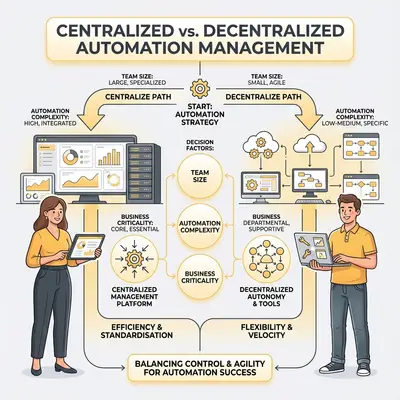
When to Centralize vs. Decentralize Automation Management
Centralization means one person or team manages all automations. Decentralization means multiple people or teams manage their own automations. Most growing businesses need a hybrid approach.
Centralized Approach
In a centralized model, one person or small team manages all automations for the entire organization.
When to centralize:
- Small team (2-10 people): One person can manage all automations
- Limited automation expertise: Only one or two people understand automation
- High standardization needs: All automations must follow the same patterns
- Security requirements: Sensitive data requires centralized control
- Complex integrations: Technical complexity requires specialized knowledge
Benefits:
- Consistent quality and patterns
- Better security and access control
- Easier to maintain standards
- Single point of expertise
Drawbacks:
- Bottleneck: All changes go through one person
- Slower response times
- Knowledge silo risk
- Doesn't scale well beyond 15-20 automations
Illustrative example (hypothetical): A 12-person agency centralized automation management with their operations manager. She managed all 15 automations, ensuring consistency and quality. As they grew to 25 people and 40 automations, she became a bottleneck. They moved to a hybrid model.
Decentralized Approach
In a decentralized model, different teams or individuals manage their own automations.
When to decentralize:
- Larger team (20+ people): Multiple people have automation skills
- Department-specific needs: Different teams need different automation patterns
- Speed requirements: Teams need to move fast without approval bottlenecks
- Distributed expertise: Automation knowledge is spread across the organization
- Many automations (30+): Too many for one person to manage effectively
Benefits:
- Faster response times
- Teams own their automations
- Better scalability
- Reduces knowledge silo risk
Drawbacks:
- Inconsistent quality and patterns
- Harder to maintain standards
- Security risks if not managed properly
- Potential for duplication and waste
Illustrative example (hypothetical): A 40-person company decentralized automation management. Each department (Sales, Marketing, Operations) managed their own automations. They had 60+ automations but inconsistent quality and some security issues. They implemented a hybrid model with central governance.
Hybrid Approach
Most growing businesses benefit from a hybrid model: decentralized execution with central governance.
How it works:
- Teams manage their own automations: Each team builds and maintains automations for their domain
- Central governance: One person or team sets standards, reviews critical changes, and provides training
- Shared resources: Common templates, documentation, and best practices
- Approval for critical automations: Central review for high-risk changes
When to use hybrid:
- Growing businesses (15-50 people): Too big for centralization, need some governance
- Multiple teams with automation needs: Each team has different requirements
- Balance of speed and control: Need agility but also consistency
- Mixed expertise levels: Some teams are advanced, others are beginners
Implementation:
- Designate automation champions: One person per team who manages their team's automations
- Create central governance: One person sets standards and reviews critical changes
- Establish standards: Naming conventions, documentation requirements, security guidelines
- Provide training: Central team trains automation champions
- Regular reviews: Monthly or quarterly reviews of automation health
Illustrative example (hypothetical): A 30-person agency implemented a hybrid model. Each team (Sales, Marketing, Operations) had an automation champion who managed their team's automations. The operations manager provided central governance: setting standards, training champions, and reviewing critical automations. This balanced speed with consistency.
Decision Framework
Use this framework to decide which approach fits your business:
Choose centralized if:
- Team size: 2-15 people
- Automation count: Less than 20 automations
- Expertise: Limited automation knowledge
- Needs: High standardization, security, consistency
Choose decentralized if:
- Team size: 30+ people
- Automation count: 40+ automations
- Expertise: Distributed automation knowledge
- Needs: Speed, agility, team ownership
Choose hybrid if:
- Team size: 15-50 people
- Automation count: 20-60 automations
- Expertise: Some automation knowledge across teams
- Needs: Balance of speed and control, consistency with agility
Reality Check: Most businesses start centralized and move to hybrid as they grow. Don't over-engineer your approach. Start simple, and evolve as your needs change. The best approach is the one that works for your current size and needs.
Conclusion
Team collaboration on automations doesn't require complex tools or technical expertise. It requires clear processes, proper documentation, and smart access management. Start with simple documentation practices: use descriptive naming conventions, add notes within automations, and create basic runbooks. These three practices prevent 70% of automation chaos.
Safely share access by starting with restrictive permissions and granting more access as needed. Use platform features to organize automations by team or function. Implement simple version control through change logs and duplicate-before-edit practices. Set up approval workflows for critical automations that handle money, customer data, or core business processes.
Train team members with hands-on, practical sessions focused on what they need to know, not everything there is to know. Provide ongoing support through Slack channels, office hours, and updated documentation. Choose your management approach based on your team size, automation count, and expertise level—most growing businesses benefit from a hybrid model.
The difference between businesses that scale automations successfully and those that create chaos isn't technical skill. It's having clear processes, good documentation, and the right balance of centralization and decentralization. Implement these practices, and your team can collaborate on automations without breaking things or creating knowledge silos.
Ready to set up team collaboration on your automations? Book a demo with Evalics to learn how we help growing businesses implement automation collaboration processes that scale.
Frequently Asked Questions
How do I know if my team needs better automation collaboration?
Look for these signs: only one person understands your automations, automations break when that person is unavailable, team members are afraid to modify automations, or you're losing time troubleshooting issues that documentation could prevent. If you see these patterns, you need better collaboration processes.
What's the minimum documentation I should create?
Start with three things: descriptive naming conventions for all automations, notes within automation platforms explaining the "why" behind decisions, and basic runbooks for your 3-5 most critical automations. This covers the most important collaboration needs without overwhelming your team.
How do I share automation access without creating security risks?
Start with restrictive permissions—most team members only need View access to most automations. Grant Edit access only to those who need to modify workflows. Use platform features to organize automations by team or function. Regularly audit who has access to what. Review credentials and API key access regularly.
Do I need version control for my automations?
Most small businesses don't need complex version control systems. Simple practices work: duplicate automations before making changes, keep change logs in a spreadsheet, take screenshots before modifications, and use platform features where available. Only invest in advanced version control if you have technical team members and complex automation needs.
When should automations require approval before changes?
Require approval for automations that handle financial transactions, send customer-facing communications, modify or delete customer data, integrate with critical systems, affect revenue-generating processes, or have high failure costs. Don't require approval for internal-only, low-risk, or test automations.
How do I train non-technical team members on automations?
Focus on practical, hands-on training. Start with the "why"—explain what the automation does and why it matters. Show, don't tell—walk through the automation visually. Let them practice with test data in duplicate automations. Cover common scenarios and basic troubleshooting. Provide ongoing support through Slack channels or office hours.
Should I centralize or decentralize automation management?
Most growing businesses (15-50 people) benefit from a hybrid approach: teams manage their own automations with central governance setting standards and reviewing critical changes. Choose centralized for small teams (2-15 people) with limited automation expertise. Choose decentralized for larger teams (30+ people) with distributed expertise and many automations (40+).
By Kevin Michael Schindler, AI Automation Expert at Evalics