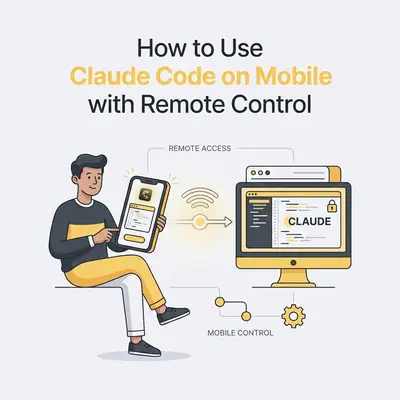
If you have searched for claude --remote-control, claude code from phone, or enable claude code remote, you were guessing at a real feature with a real name, and you were close.
It is called Remote Control.
The flag is --remote-control.
The subcommand is claude remote-control.
The in-session command is /remote-control.
There is no --port flag, no local web server, and no claude /remote control.
This page covers what the mechanism actually is, the three ways to start it, the security model in detail, and the failure modes you will hit.
The mechanism, plainly
Remote Control connects claude.ai/code or the Claude mobile app to a Claude Code session running on your own machine.
The direction of the connection is the part most people get wrong. Your machine does not host anything you connect to. Per Anthropic's documentation, your local session "makes outbound HTTPS requests only and never opens inbound ports on your machine." It registers with the Anthropic API and polls for work. When you open the session on your phone, Anthropic's servers route messages between the mobile client and your local process.
Three consequences follow directly from that design:
- You do not need a tunnel. No port forwarding, no router configuration, no ngrok, no Tailscale. Adding one does nothing, because there is no listening port to reach.
- Your code never leaves your machine. Execution and filesystem access stay local. Your local MCP servers, tools, and project configuration all stay available, and typing
@on your phone autocompletes file paths from your local project. - Your conversation does leave your machine. This is the real security question, and it has its own section below.
Key Insight: Remote Control is not a way to run Claude Code on your phone. Your phone is a client for a process that is still running on your desk.
The three ways to start it
Which one you want depends on whether you are already in a session.
1. claude remote-control — server mode
Run this in your project directory when you want a process whose only job is to serve remote sessions:
cd /your/project
claude remote-control
The process stays in your terminal waiting for connections. It prints a session URL, and pressing the spacebar toggles a QR code you can scan with your phone.
Server-mode flags go after remote-control, not before it:
claude remote-control --name "Payments refactor" --spawn worktree
The flags worth knowing:
| Flag | What it does |
|---|---|
--name "My Project" | Sets the session title shown in the list at claude.ai/code |
--spawn same-dir | Default. All sessions share the current directory, so they can conflict on the same files |
--spawn worktree | Each on-demand session gets its own git worktree. Requires a git repo. Press w at runtime to toggle |
--spawn session | Serves exactly one session and rejects further connections |
--capacity <N> | Maximum concurrent sessions. Default 32 |
--permission-mode <mode> | Starting permission mode for the server's sessions, such as acceptEdits |
--sandbox / --no-sandbox | Filesystem and network isolation. Off by default |
--continue | Brings back the session the last server in this directory started with |
--session-id <id> | Brings back one specific session by ID |
One gotcha the error message will tell you about: a global claude flag placed before remote-control is not carried over to the sessions the server creates. Claude Code refuses to start and names the flag to remove, unless dropping it provably changes nothing (--verbose and --model are allowed through).
2. claude --remote-control — an ordinary session that is also remote
This is the one most people actually want:
claude --remote-control
Short form: claude --rc.
Optionally name it: claude --remote-control "Payments refactor".
You get a full interactive terminal session that you can also drive from your phone. Unlike server mode, you can keep typing locally.
3. /remote-control — hand off a session you already started
If you are mid-task and about to walk away, type this in the session:
/remote-control
Short form: /rc. It carries your current conversation history over.
Pass a name as an argument to set the title: /remote-control Payments refactor.
The same command works in the VS Code extension, where it shows a Remote Control indicator in the prompt box footer. Running it a second time disconnects.
Quick Win: In an interactive session, a
/rc activeindicator sits in the footer while the connection is up. Select it with the down arrow and press Enter to open a panel with the session URL, a QR code, and a disconnect option.
Turning it on for every session
If you want it always on, run /config and set Enable Remote Control for all sessions, or set remoteControlAtStartup to true in ~/.claude/settings.json.
One deliberate asymmetry is worth knowing if you maintain a shared repo: in project or local settings (.claude/settings.json, .claude/settings.local.json), Claude Code honors a false and turns auto-connect off for that repository, but ignores a true. A checked-in file cannot switch on Remote Control for everyone who clones the repo.
Connecting from your phone
Once a session is active you have three routes in:
- Open the session URL in any browser to land on the session at claude.ai/code.
- Scan the QR code shown next to the URL to open it in the Claude app.
- Open the Claude app and find it in the list. Tap Code in the navigation. Remote Control sessions show a computer icon with a green status dot when they are online.
Do not have the app yet? Run /mobile inside Claude Code to display a download QR code.
What works from mobile and what does not
Some commands are terminal-only, notably /plugin and /resume.
These work from mobile and web:
- Plain text output:
/compact,/clear,/context,/usage,/exit,/recap,/reload-plugins - With an argument instead of a picker:
/model sonnet,/effort high,/fast,/color,/rename /configfrom the mobile app takeskey=value; run it bare to list the keys you can set/autocompact 500ktakes the window size as an argument
Beyond commands, a connected device can attach photos and files, show the diff of your uncommitted changes (computed on your machine and requested over the connection), and stop a running subagent or workflow.
The security question, answered properly
This is the part the setup guides skip, and it is the reason claude code remote control security is a query people type.
What stays on your machine
Execution and filesystem access. Claude runs locally the entire time. No inbound port is opened at any point.
What leaves your machine
The conversation. Anthropic's documentation is explicit: "While Remote Control is connected, the session transcript, including your messages, Claude's responses, and tool activity, is stored on Anthropic servers." That storage is what keeps the conversation in sync across your devices and lets a session reconnect after a network drop, and it is retained under the Data usage policy.
If your objection to a cloud coding agent was "my source must not be uploaded," Remote Control does not upload your source tree. If your objection was "no record of what my agent did may sit on a third-party server," Remote Control does not clear that bar, and you should not use it.
Transport
All traffic travels through the Anthropic API over TLS, the same transport as any Claude Code session. The connection uses multiple short-lived credentials, each scoped to a single purpose and expiring independently.
Turning it off
- For a machine or an organization: the
disableRemoteControlsetting turns it off entirely. In managed settings it cannot be overridden locally. - On Team and Enterprise: it is off by default. An Owner has to enable the Remote Control toggle in Claude Code admin settings before anyone can use it.
- Under Zero Data Retention: organizations with a compliance configuration such as ZDR cannot enable Remote Control at all. The admin toggle is greyed out.
Trusted Devices
On Team and Enterprise plans there is a beta setting called Trusted Devices, off by default, that an Owner enables organization-wide.
With it on, viewing or steering a Remote Control session requires both an enrolled device and a sign-in no more than 18 hours old. Instead of signing in again daily, members confirm presence with Face ID, Touch ID, Windows Hello, or a passkey.
The biometric check runs on the device through the operating system or browser, the same mechanism as passkey sign-in. Anthropic never receives fingerprints or face data; only the device's public key and metadata such as display name, platform, and enrollment time are stored. Members manage their own enrolled devices at claude.ai/settings/account, and an admin can revoke everything for a member with Sign out everywhere.
Note the boundary: sessions already running when the toggle is switched on are not retroactively protected.
Permissions still apply
Remote Control does not widen what Claude may do. Permission prompts are forwarded to your phone and stay open until you answer them.
The practical problem is the opposite one: on a long task, tapping Allow twenty times on a phone is miserable. That is a permission-rules problem, not a Remote Control problem, and it is worth solving before you rely on mobile supervision. See how to stop Claude Code asking permission for everything.
Who cannot use this
Remote Control has a narrower set of requirements than the rest of Claude Code, and most "it does not work" reports are one of these.
- Subscription only. Pro, Max, Team, or Enterprise. API keys are not supported. If
ANTHROPIC_API_KEYis set, unset it and sign in with/login. - Not long-lived tokens either. A token from
claude setup-tokenorCLAUDE_CODE_OAUTH_TOKENcan only make model requests, so it cannot establish a Remote Control session. The error isRemote Control requires a full-scope login token. - Direct Anthropic API only. Not available on Amazon Bedrock, Google Cloud's Agent Platform, or Microsoft Foundry, nor when
ANTHROPIC_BASE_URLpoints at an LLM gateway or proxy, nor through an enterprise Claude apps gateway. - Feature-flag evaluation must be on.
DISABLE_TELEMETRY,DO_NOT_TRACK,CLAUDE_CODE_DISABLE_NONESSENTIAL_TRAFFIC, andDISABLE_GROWTHBOOKeach disable the evaluation that Remote Control availability depends on. Any one of them set, in your shell or in a settings file'senvblock, breaks it. - Workspace trust. Run
claudein the project directory once to accept the trust dialog. The startup dialog never saves trust for your home directory, so start Remote Control from a project directory.
When something is off, claude doctor reports which individual eligibility check failed.
Getting told when you are needed
Watching a phone screen waiting for a prompt defeats the purpose. Push notifications are what make this workflow actually hands-off.
- Install the Claude app and sign in with the same account and organization you use in the terminal.
- Accept the OS notification permission.
- In your terminal, run
/configand enable Push when Claude decides, Push when actions required, or both.
Claude decides when to push, typically when a long task finishes or when it needs a decision to continue. You can also ask for one in your prompt: notify me when the tests finish. There is no per-event configuration beyond those two toggles.
Claude Code skips push notifications while you are typing in or focused on the connected terminal, so you will not get buzzed while sitting at the machine.
If notifications never arrive: /config showing No mobile registered means you need to open the app once so it refreshes its push token. On iOS, Focus modes and notification summaries suppress or delay pushes. On Android, aggressive battery optimization does the same.
Failure modes you will actually hit
The session goes offline the moment you close the terminal
Remote Control runs as a local process. Close the terminal, quit VS Code, or kill claude, and claude.ai shows the session offline within seconds.
This is the single biggest surprise for people who assumed it was a cloud session. If the machine is one you SSH into, start Claude Code inside tmux or screen first. That case has enough moving parts of its own that it gets its own walkthrough.
Sleep and network drops are fine
Different failure, different behaviour. If your laptop sleeps or the network drops, Claude Code reconnects automatically when the machine comes back. While the connection rebuilds, it queues messages, permission prompts, and status updates and delivers them once it recovers.
An extended outage while the machine is awake diverges by mode: server mode gives up after roughly 10 minutes and the process exits, while an interactive session retries for as long as the outage lasts.
could not reach the Remote Control server for about 30 minutes
The session's presence heartbeats have been failing while the rest of the connection stayed up. Run /remote-control to reconnect.
The reason matters before you reconnect
If the connection fails, read the failure reason before typing /remote-control again. When the session was taken over from another device, ended or archived elsewhere, or the server cannot find it, Claude Code deliberately omits its usual "run /remote-control" advice, because reconnecting would take the session back from wherever it now lives.
One remote session per process
Outside server mode, each Claude Code instance supports one remote session at a time. Running several instances gives you several sessions. To serve many from one process, use server mode.
Bringing a stopped server's sessions back
Stop claude remote-control with Ctrl+C and the sessions stop responding, but they are not archived. In the same directory:
claude remote-control                     # brings back every session it was serving
claude remote-control --continue          # only the session the server started with
claude remote-control --session-id <id>   # one specific session
These work for about four hours. After that, start fresh. The ID is the part of the session's claude.ai/code URL between /code/ and any ?.
Forwarded dialogs expire
Permission prompts and questions stay open indefinitely. Other forwarded dialogs, such as the model-choice prompt after a safety refusal, wait five minutes and then continue with the no-action default. The dialogExpiry setting adjusts or disables that deadline.
Choosing the right remote mode
Remote Control is one of several ways to work away from your terminal, and picking the wrong one is a common waste of an afternoon.
| Approach | What triggers it | Where Claude runs | Best for |
|---|---|---|---|
| Remote Control | You drive a running session from claude.ai/code or the app | Your machine | Steering work you already started |
| Claude Code on the web | You start a session in the browser | Anthropic cloud | Starting fresh with no local setup, or parallel tasks |
| Dispatch | You message a task from the mobile app | Your machine, via Claude Desktop | Delegating while away, minimal setup |
| Channels | A push event from Telegram, Discord, or your own server | Your machine | Reacting to CI failures or chat messages |
| Scheduled tasks | A schedule you set | CLI, Desktop, or cloud | Recurring automation |
The decision reduces to one question: is there already a session on your machine that you want to keep? If yes, Remote Control. If no, Claude Code on the web is less setup and does not tie you to a machine that has to stay awake.
A workflow that survives contact with reality
What this looks like when it works:
Before you leave the desk. Start the session with claude --remote-control, give it a scoped task, and watch the first two or three tool calls to confirm it is on the right track. Confirm the /rc active indicator is in the footer. If your permission rules are not tuned yet, this is the moment you will regret it.
While you are away. Answer prompts as the pushes arrive. Send short corrections; the input field is fine for "stop and summarise what you changed" and bad for a detailed spec. Check the diff pane rather than reading the transcript.
When you get back. Review the full session in the terminal, read the git diff yourself, and run the tests. The agent's report of what it did is not the same artifact as what it did.
The honest limits
It is supervision, not initiation. Writing a context-rich prompt on a touchscreen is slow. Compose at the desk; steer from the phone.
Your machine has to stay awake and online. This is the tradeoff you accept in exchange for the code never leaving it.
Approval fatigue is the real ceiling. A task that triggers thirty permission prompts is not a mobile task, whatever the interface looks like.
Conclusion
The feature you were searching for exists, and it is simpler than the setup guides suggest: one flag, no ports, no tunnels.
claude --remote-control
What deserves your attention is not the setup, it is the two things underneath it: the transcript is stored on Anthropic servers while you are connected, and the local process has to stay alive. Decide on the first before you enable it across a team. Solve the second before you rely on it from a train.
Working out which agentic workflows are worth handing off? Book a free consultation with Evalics and we will look at where an agent earns its place in your stack.
Related Resources
- How to Run Claude Code on a Remote Server and Keep It Alive - the tmux and login problems this page assumes you have already solved
- How to Stop Claude Code Asking Permission for Everything - the approval-fatigue fix that makes mobile supervision bearable
- Introduction to Claude Code: Anthropic's Agentic CLI Tool Explained
- How to Automate Web App QA with Claude Desktop
- n8n MCP vs Claude Code: Which Automation Approach Wins
Official Sources
- Claude Code: Remote Control
- Claude Code on the web
- Claude Code CLI reference
- Claude Code settings reference
- Claude Code data usage
By Kevin Michael Schindler, AI Automation Expert at Evalics