Prefer a full transcript? Open the video watch page.
You just pushed a critical hotfix to staging. Now comes the part you dread: logging in, navigating to the settings page, updating a profile, and checking if the success toast appears.
It takes ten minutes. You do it five times a day. That’s nearly an hour of your life lost to clicking the same buttons.
Traditional automation tools like Selenium or Cypress are powerful, but they are brittle. If you change a CSS class or move a button, the script breaks. You spend more time maintaining the test than fixing the bug.
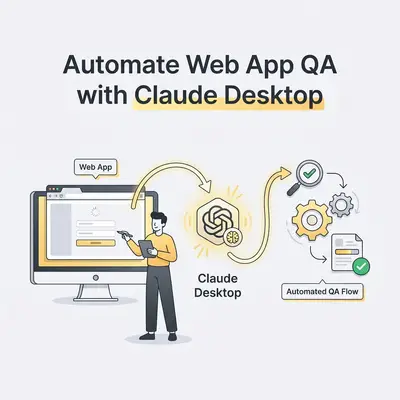
This is where Claude Desktop and its Computer Use capability changes the game.
Unlike a script that blindly follows code selectors, Claude "sees" your screen. It reads the interface like a human does. If you move the "Save" button to the left, Claude sees it and clicks it anyway.
Here is how to turn Claude into your automated QA engineer.
The Difference Between Scripted QA and AI Agents
Before we set this up, you need to understand the shift in mindset.
Scripted Automation (Traditional):
- Instruction: "Find element
#submit-btn-01and click." - Failure Mode: Developer renames ID to
#submit-btn-02. Script fails. - Maintenance: High.
AI Agent Automation (Claude):
- Instruction: "Click the blue button that says 'Save Changes'."
- Failure Mode: The button is removed entirely.
- Maintenance: Low.
Claude uses a capability called Computer Use. It takes a screenshot of your screen, analyzes the coordinates of elements, and sends a command to move the mouse and click. It is slower than a script, but infinitely more adaptable.
Key Insight: Don't replace your entire regression suite with AI. Use Claude for Visual QA and Smoke Testing—checks that require human-like judgment ("Does this layout look broken?") rather than just code verification.
Prerequisites
To follow this guide, you aren't just using the standard chat window. You need an environment where Claude has permission to control your peripherals.
Currently, the most robust way to run this for QA is using the Anthropic Computer Use Reference Implementation (running in Docker) or connecting Claude Desktop to a browser via the Model Context Protocol (MCP).
For this guide, we will focus on the Docker method as it provides a safe, sandboxed environment for the agent to work without accidentally deleting your personal files.
What you need:
- An Anthropic API Key (with access to
claude-3-5-sonnetor later). - Docker Desktop installed on your machine.
- A web app (staging or localhost) to test.
Step 1: Launching the Agent Environment
We need to spin up a container where Claude can "live" and access a browser. Open your terminal.
If you are using the official Anthropic quickstart image, the command looks like this:
export ANTHROPIC_API_KEY=%your_api_key%
docker run \
    -e ANTHROPIC_API_KEY=$ANTHROPIC_API_KEY \
    -v $HOME/.anthropic:/home/computeruse/.anthropic \
    -p 8080:8080 \
    -p 8501:8501 \
    -it ghcr.io/anthropics/anthropic-quickstarts:computer-use-demo-latest
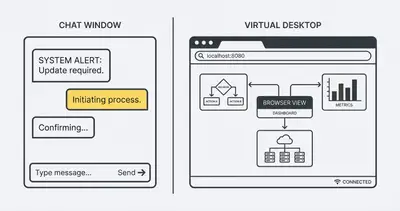
Once running, navigate to http://localhost:8080. You will see a split screen: on the left, a chat interface; on the right, a virtual desktop view of the agent's machine.
Step 2: Drafting the QA Test Plan (The Prompt)
The success of your AI QA depends entirely on your prompt. If you are vague, Claude will get confused. You need to write a Test Script in natural language.
Here is a template that works well for Web App QA:
ROLE:
You are a meticulous QA Engineer. Your job is to verify user flows on a web application.

GOAL:
Test the "User Profile Update" flow on [URL].

STEPS:
1. Open Firefox and navigate to [URL].
2. Log in using username "testuser" and password "TestPass123!".
3. Navigate to the "Settings" tab in the dashboard.
4. Change the "Display Name" to "Claude Test [Timestamp]".
5. Click "Save Changes".
6. VERIFICATION: Wait for the green toast notification. Take a screenshot. Confirm the text says "Profile updated successfully".

CONSTRAINTS:
- If a page takes longer than 10 seconds to load, stop and report a timeout error.
- If you encounter a popup modal, close it before proceeding.
- Report the final status as PASS or FAIL clearly at the end.
Pro Tip: Always include a specific Verification Step. An AI agent might click "Save" and assume the job is done even if the server returns a 500 error. Force it to look for a success message.
Step 3: Execution and Monitoring
Paste your prompt into the chat window.
Now, watch the magic. On the right side of your screen, you will see the virtual mouse move. It opens the browser. It types the URL.
What to look for:
- Latency: Note that Claude takes a few seconds between actions to "think" (process the screenshot).
- Error Handling: If a popup appears that wasn't in your script, does Claude close it? (Usually, yes—that's the benefit of AI over scripts).
If Claude gets stuck (e.g., clicking the wrong field), you can intervene in the chat: "You clicked the search bar instead of the username field. Look for the field labeled 'Email'."
That intervention is the reason a full regression run still keeps you at the desk. If you would rather watch a long run from elsewhere, the terminal side of Claude has a purpose-built answer: Remote Control mirrors a running Claude Code session to your phone, including the prompts it is waiting on.
Step 4: Analyzing the Results
Once the agent reports "PASS", verify the screenshot it took.
This visual confirmation is crucial. Sometimes, a page technically works (the request sent 200 OK), but the UI looks terrible—buttons overlapping, text misaligned.
Because Claude is looking at screenshots, you can ask it qualitative questions:
- "Did the layout look cluttered?"
- "Was the save button visible without scrolling?"
This is Visual QA, something Selenium cannot do easily.
The Cost Reality Check
Automating QA with AI is not free. Unlike running a Python script locally, every step Claude takes involves sending a screenshot to the API (consuming input tokens) and generating a mouse movement (output tokens).
Let's look at the cost comparison for a standard "Login and Update Profile" test.
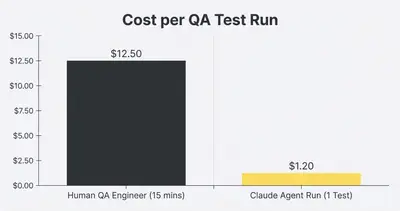
Reality Check: While $1.20 per test sounds cheap compared to a human, it is expensive compared to a traditional code script ($0.00). Use Claude for complex, flaky UI tests, not for checking if
1+1=2.
When to Use Claude vs. Traditional Automation
Don't throw away your Cypress scripts yet. Here is the decision framework:
| Scenario | Tool Choice | Why? |
|---|---|---|
| Form Inputs & API logic | Selenium/Cypress | Speed and cost. You just need to know data is saving. |
| New Features (UI Unstable) | Claude / AI Agent | The UI changes daily. Scripts would break constantly. Claude adapts. |
| Visual Regression | Claude / AI Agent | "Does this look right on mobile?" requires visual interpretation. |
| End-to-End User Journeys | Hybrid | Use scripts for setup, Claude for the complex interaction. |
Common Pitfalls to Avoid
1. The "Loop of Death"
Sometimes Claude misses a button click, doesn't see the page change, and tries to click it again. And again. Fix: Add a constraint in your prompt: "Max 3 attempts per step. If failed, stop and report error."
2. Context Window Limits
Visual data (screenshots) is token-heavy. If your test session drags on for 50 steps, you might hit the context limit of the model, causing it to "forget" the initial instructions. Fix: Keep test scenarios short and modular. Test "Login" separately from "Checkout".
3. Credential Leaks
Never put production admin credentials in your prompt. Fix: Use test accounts specifically created for the staging environment with limited permissions.
Conclusion
Using Claude Desktop for QA isn't just a cool party trick—it's a practical solution for the "brittle test" problem. It bridges the gap between manual human testing and rigid code automation.
You don't need to be a Python expert to build these tests. You just need to be good at explaining the task—which is what you're already doing for your human team.
Key Takeaways:
- Use Claude for Visual QA where traditional scripts break easily.
- Run tests in a Docker sandbox to protect your local machine.
- Keep tests short and modular to avoid token limits.
- Always verify the "PASS" result with a screenshot.
Start with your most annoying, repetitive test case—the one that breaks every time you change a CSS class. Hand it over to Claude, and take that hour of your life back.
Book a demo with Evalics to learn how we build custom QA agents that scale with your product.
Related Resources
- what-is-an-api-key-a-simple-guide-for-ai-automation
- ai-agents-vs-automations
- building-vs-buying-ai-automation
- introduction-to-claude-code-agentic-cli-tool