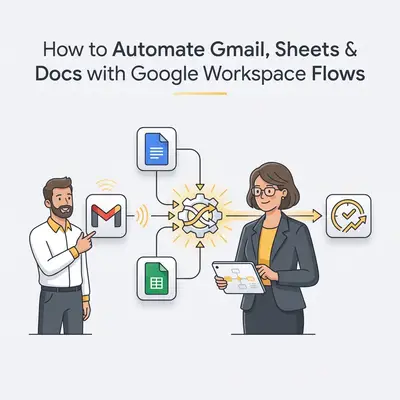
A marketing team spends 3 hours daily copying email data into spreadsheets, generating reports in Docs, and sending follow-up messages. They switch between Gmail, Sheets, and Docs constantly. Manual work creates errors. Important emails get missed.
Google Workspace Studio automates these cross-app workflows. You can connect Gmail, Sheets, and Docs with intelligent automation. Studio uses Gemini AI to understand context, analyze content, and make decisions. No coding required.
This guide shows you how to build cross-app automations step by step. You'll learn triggers, actions, conditional logic, and AI integration. By the end, you'll create workflows that save hours each week.
Quick Win: Start with a simple Gmail to Sheets workflow. When you receive an email with an attachment, automatically log the sender and subject to a spreadsheet. This single flow saves 15-20 minutes daily.
Mastering Triggers & Actions for Google Workspace Automation
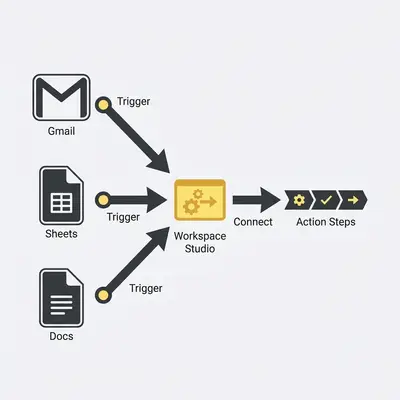
Every Workspace Studio workflow starts with a trigger and performs actions. Understanding these building blocks is essential for building effective automations. If you're new to Workspace Studio, check out our comprehensive guide to Google Workspace Flows for foundational concepts.
Starters: What Triggers Your Workflow
Starters are events that launch your automation. They watch for specific conditions and start your flow when those conditions are met.
Gmail Starters:
- New email arrives from a specific sender
- New email with specific subject line
- New email containing certain keywords
- New email with attachments
Sheets Starters:
- New row added to a Google Sheet
- Cell value changes in a specific column
- Form response submitted (connected to Sheets)
Docs Starters:
- New file created in a Google Drive folder
- File updated in a specific folder
- New comment added to a document
Other Common Starters:
- Scheduled time (daily, weekly, specific time)
- New Google Form submission
- @mentioned in Google Chat
- New message in a Chat space
When a starter triggers, it automatically creates variables. These variables contain data from the triggering event. For example, a Gmail starter creates variables like sender_email, email_subject, email_body, and attachments.
Actions: What Your Workflow Does
Actions are the steps your workflow performs after being triggered. Each action can use data from previous steps through variables.
Gmail Actions:
- Send an email message
- Draft an email (saves to drafts folder)
- Add or remove email labels
- Categorize emails
- List emails matching criteria
Sheets Actions:
- Add a new row to a Google Sheet
- Update an existing row
- Get rows from a sheet
- Create a new Google Sheet
- Update cell values
Docs Actions:
- Create a new Google Doc
- Update a document with content
- Create a new Drive folder
- Save file to Drive
Gemini AI Actions:
- Ask Gemini (analyze, summarize, generate content)
- Categorize with Gemini
- Extract information
- Sentiment analysis
- Detect action items
Pro Tip: Always test your starter configuration first. Send yourself a test email or add a test row to your sheet. Verify the trigger works before building the rest of your workflow.
Building Smarter Flows with Conditional Logic
Conditional logic lets your workflow make decisions. Instead of always doing the same thing, your flow can take different paths based on conditions.
How Conditional Steps Work
Workspace Studio offers two types of conditional logic:
IF Steps: Create a decision branch. If a condition is true, the flow follows one path. If false, it follows another path.
Check If Steps: Similar to IF steps but used for multiple conditions or more complex logic.
Building Your First Conditional Flow
Here's a practical example: Automatically route emails based on content.
Scenario: You want to categorize support emails and route them to different team members.
Step 1: Set Up the Starter
- Choose "New email arrives" as your starter
- Configure to trigger on emails from your support form or specific senders
Step 2: Analyze Email Content
- Add an "Ask Gemini" step
- Prompt: "Analyze this email and determine if it's about billing, technical support, or general inquiry. Email: {{email_body}}. Return only one word: billing, technical, or general."
- This creates a variable:
email_category
Step 3: Add Conditional Logic
- Add an IF step
- Condition:
email_categoryequals "billing" - If true: Send message to "Billing Team" Chat space
- If false: Continue to next condition
Step 4: Add More Conditions
- Add another IF step for "technical"
- If
email_categoryequals "technical": Send to "Technical Support" Chat space - Else: Send to "General Support" Chat space
Step 5: Log to Tracking Sheet
- After routing, add a "Add row to Google Sheet" step
- Log: timestamp, sender, category, status
Common Conditional Patterns
Pattern 1: Amount-Based Routing
Route invoices or expenses based on dollar amounts:
IF amount < $500:
  → Send to Finance Team
ELSE IF amount < $5000:
  → Send to Finance Manager
ELSE:
  → Send to CFO
Pattern 2: Urgency-Based Actions
Use Gemini to detect urgency, then route accordingly:
IF urgency >= 4:
  → Immediate Chat notification
  → Create high-priority task
ELSE:
  → Standard processing
  → Log to tracking sheet
Pattern 3: Content-Based Branching
Analyze email or form content, then take different actions:
IF content contains "refund":
  → Route to Billing
ELSE IF content contains "bug":
  → Route to Technical
ELSE:
  → Route to General Support
Troubleshooting Conditional Logic
Issue: Flow always takes the same path
- Check variable values. Use Gemini to output the actual value
- Verify condition syntax. Use exact matches for text
- Test with different input data to ensure conditions work
Issue: Variables not available in conditional step
- Ensure the variable is created in a step before the conditional
- Check variable names match exactly (case-sensitive)
- Review step execution order
Key Insight: Start with simple IF/ELSE logic. Add complexity gradually. Test each condition separately before combining multiple branches.
Integrating Gemini AI for Intelligent Workspace Automation
Gemini AI integration is what makes Workspace Studio powerful. Instead of simple rule-based automation, you can build intelligent workflows that understand context and make decisions.
Types of Gemini Steps
Ask Gemini: The most flexible option. Use it for analysis, summarization, content generation, or any task that requires understanding.
Categorize with Gemini: Automatically classify content into predefined categories.
Extract: Pull specific information from text, emails, or documents.
Sentiment Analyzer: Determine if content is positive, neutral, or negative.
Detect Action Items: Identify tasks or action items in emails or documents.
Practical Gemini Examples
Example 1: Email Summarization
When you receive a long email thread, automatically summarize it:
- Starter: New email arrives
- Step 1: Ask Gemini
- Prompt: "Summarize this email thread in 3 bullet points. Focus on key decisions and action items. Email: {{email_body}}"
- Variable created:
email_summary
- Step 2: Send summary to Chat
- Post
email_summaryto your personal Chat space
- Post
Example 2: Content Generation
Generate personalized responses based on context:
- Starter: New form submission
- Step 1: Ask Gemini
- Prompt: "Draft a professional welcome email for {{customer_name}} who signed up for {{service_type}}. Include next steps and contact information. Keep it under 150 words."
- Variable:
welcome_email
- Step 2: Draft email in Gmail
- Use
welcome_emailas the body - Send to
customer_email
- Use
Example 3: Data Extraction
Extract structured data from unstructured text:
- Starter: New email with invoice
- Step 1: Ask Gemini
- Prompt: "Extract invoice details from this email. Return as JSON: vendor name, invoice number, amount, due date. Email: {{email_body}}"
- Variables:
vendor,invoice_number,amount,due_date
- Step 2: Add row to Sheets
- Log extracted invoice data
Best Practices for Gemini Prompts
Be Specific: Instead of "analyze this email," use "Analyze this email and determine if it requires immediate attention. Consider: sender importance, subject urgency keywords, and email content tone."
Use Variables: Reference variables from previous steps in your prompts. Example: "Summarize this email from {{sender_name}} about {{email_subject}}. Focus on action items."
Set Output Format: When you need structured data, specify the format. Example: "Return as JSON with fields: category, priority, summary."
Keep Prompts Focused: Break complex tasks into multiple Gemini steps. One step for analysis, another for generation.
Test Prompt Variations: Different phrasings produce different results. Test 2-3 prompt variations to find what works best.
Reality Check: Gemini steps consume tokens and may have rate limits. For high-volume workflows, optimize prompts to be concise. Monitor usage in your Workspace Studio dashboard.
Building Seamless Workflows Across Gmail, Sheets, & Docs
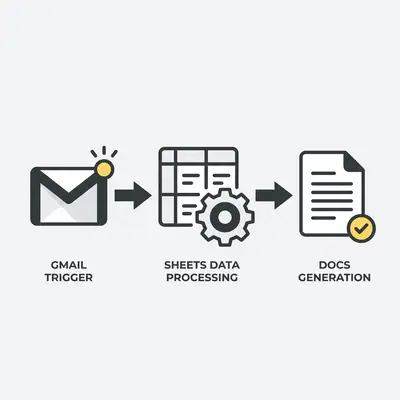
The real power of Workspace Studio comes from connecting multiple apps. Here are practical examples that combine Gmail, Sheets, and Docs. For more detailed use cases with step-by-step implementation, see our complete use cases and implementation guide.
Example 1: Gmail → Sheets (Email Data Logging)
Automatically log important emails to a tracking spreadsheet.
Use Case: Track customer inquiries in a central database.
Workflow Steps:
- Starter: New email arrives from specific senders (or with keywords)
- Step 1 - Extract Data: Ask Gemini to extract key information
- Prompt: "Extract customer name, inquiry type, and key message from this email. Email: {{email_body}}"
- Variables:
customer_name,inquiry_type,key_message
- Step 2 - Log to Sheets: Add row to Google Sheet
- Columns: Date, Sender, Customer Name, Inquiry Type, Key Message, Status
- Use variables to populate row
- Step 3 - Notification: Send Chat message
- Notify team of new inquiry logged
Time Saved: 10-15 minutes per inquiry. For 20 inquiries daily, that's 3-5 hours weekly.
Example 2: Sheets → Docs (Report Generation)
Automatically generate documents from spreadsheet data.
Use Case: Create weekly status reports from project tracking data.
Workflow Steps:
- Starter: Scheduled time (every Friday at 5 PM)
- Step 1 - Get Data: Get rows from Google Sheet
- Filter: Status = "In Progress" or "Completed This Week"
- Variables:
project_rows
- Step 2 - Generate Report: Ask Gemini to create report
- Prompt: "Create a weekly project status report from this data: {{project_rows}}. Include: completed tasks, in-progress items, blockers, and next week priorities. Format as a professional report."
- Variable:
report_content
- Step 3 - Create Doc: Create new Google Doc
- Name: "Weekly Status Report - {{current_date}}"
- Content:
report_content
- Step 4 - Share: Update document permissions
- Share with team members
- Step 5 - Notify: Send email with report link
- Email team with link to new report
Time Saved: 1-2 hours weekly on manual report creation.
Example 3: Docs → Gmail (Document-Based Communication)
Send personalized emails based on document content.
Use Case: Send project updates to clients based on project documents.
Workflow Steps:
- Starter: New file created in "Client Updates" Drive folder
- Step 1 - Extract Info: Ask Gemini to analyze document
- Prompt: "Extract project name, client name, update summary, and next steps from this document. Document: {{document_content}}"
- Variables:
project_name,client_name,update_summary,next_steps
- Step 2 - Generate Email: Ask Gemini to draft email
- Prompt: "Draft a professional client update email. Project: {{project_name}}, Client: {{client_name}}, Summary: {{update_summary}}, Next Steps: {{next_steps}}. Keep it concise and friendly."
- Variable:
client_email
- Step 3 - Draft Email: Draft email in Gmail
- To:
client_email_address(from Sheets lookup) - Subject: "{{project_name}} - Project Update"
- Body:
client_email - Save to drafts for review
- To:
Time Saved: 20-30 minutes per client update.
Example 4: Multi-Step Workflow (Complete Process)
Combine all three apps in a comprehensive workflow.
Use Case: Complete lead-to-proposal process automation.
Workflow Steps:
- Starter: New email with "Quote Request" in subject
- Step 1 - Extract Lead Info: Ask Gemini
- Extract: company name, contact person, requirements, budget
- Step 2 - Log to CRM Sheet: Add row to "Leads" sheet
- Log all extracted information
- Step 3 - Generate Proposal: Ask Gemini
- Create proposal document content based on requirements
- Step 4 - Create Proposal Doc: Create new Google Doc
- Format as professional proposal
- Step 5 - Save to Drive: Organize in client folder
- Step 6 - Draft Email: Draft proposal email to lead
- Include proposal document link
- Step 7 - Update Sheet: Update lead status to "Proposal Sent"
- Step 8 - Notify Team: Send Chat message
- Notify sales team of new proposal sent
Time Saved: 45-60 minutes per lead. For 10 leads weekly, that's 7-10 hours saved.
Testing & Debugging Your Google Workspace Automation Flows
Even well-designed flows can have issues. Here's how to test and fix problems systematically.
Step-by-Step Testing Approach
Phase 1: Test the Starter
Before building the entire workflow, verify the trigger works:
- Configure your starter (email, form, schedule)
- Manually trigger it (send test email, submit test form)
- Verify the flow activates
- Check that variables are created correctly
Phase 2: Test Each Step Individually
Build your flow incrementally:
- Add the first action step
- Test the flow end-to-end
- Verify the step executes correctly
- Check variable values
- Add the next step
- Repeat
Phase 3: Test with Real Data
Once all steps work individually:
- Test with a single real record
- Monitor execution in Studio dashboard
- Verify all steps complete successfully
- Check output quality (emails sent, data logged correctly)
- Test with multiple records if applicable
Common Errors and Solutions
Error: Flow Not Triggering
Symptoms: Flow doesn't run when expected.
Solutions:
- Verify starter configuration matches actual events
- Check email addresses are exact (case-sensitive)
- Ensure flow is activated (not paused)
- Verify you have necessary permissions
- Check Google Workspace admin has enabled Studio
Error: Variables Not Populating
Symptoms: Variables show as empty or display variable name literally.
Solutions:
- Verify variable names match exactly (case-sensitive)
- Check previous step completed successfully
- Ensure variable was created before it's used
- Review step execution logs for actual values
- Test variable creation in isolation
Error: Gemini Steps Failing
Symptoms: "Ask Gemini" steps return errors or timeouts.
Solutions:
- Simplify prompts (break into multiple steps)
- Reduce input data size (Gemini has token limits)
- Check Gemini for Google Workspace subscription status
- Verify API quotas haven't been exceeded
- Test prompts in Gemini directly first
Error: Permission Denied
Symptoms: Steps fail with permission errors.
Solutions:
- Verify Google Workspace admin has enabled Studio
- Check account has necessary permissions for actions
- Ensure shared resources have correct sharing settings
- Contact admin if organization-level permissions block flows
Error: Actions Not Executing
Symptoms: Flow runs but actions don't complete.
Solutions:
- Check step configuration (recipients, file paths, etc.)
- Verify resources exist (sheets, folders, email addresses)
- Review activity logs for specific error messages
- Test actions manually outside the flow
Debugging Tips
Use Test Mode: Create a test version of your flow that:
- Logs to a test Google Sheet
- Sends notifications only to you
- Uses test data and resources
Once verified, duplicate the flow for production use.
Check Activity Logs: Studio dashboard shows execution history. Review logs to see:
- Which steps executed
- Variable values at each step
- Error messages
- Execution time
Simplify First: If a flow isn't working, simplify it:
- Remove conditional logic temporarily
- Test with hardcoded values instead of variables
- Reduce number of steps
- Add complexity back gradually
Verify Data Flow: Trace data through your workflow:
- What data does the starter provide?
- How is it transformed in each step?
- What variables are created?
- How are variables used in later steps?
Reality Check: Most flow issues come from configuration errors or permissions. Always test with a single record first. Verify each step works before adding the next. When stuck, simplify the flow and rebuild incrementally.
Practical Automation Examples for Gmail, Sheets & Docs
Here are three complete workflows you can implement today.
Example 1: Email Attachment Logging to Sheets
Business Scenario: A team receives invoices and receipts via email. They manually download attachments and log details in a spreadsheet. This takes 20-30 minutes daily.
The Solution:
- Starter: New email arrives with attachment
- Step 1: Ask Gemini to extract invoice details
- Prompt: "Extract vendor name, invoice number, amount, and due date from this email. Email: {{email_body}}"
- Step 2: Save attachment to Drive
- Folder: "Invoices/{{current_year}}/{{vendor_name}}"
- Step 3: Add row to "Invoice Tracker" Sheet
- Log: Date, Vendor, Invoice Number, Amount, Due Date, File Location
- Step 4: Send Chat notification
- Notify finance team of new invoice logged
Results: 20-30 minutes daily saved. All invoices automatically organized and tracked.
Example 2: Form Response → Doc Generation → Email Notification
Business Scenario: A consulting firm receives project requests via Google Form. They manually create project briefs in Docs and email clients. This takes 45 minutes per request.
The Solution:
- Starter: New Google Form submission
- Step 1: Ask Gemini to create project brief
- Prompt: "Create a professional project brief from this form submission. Include: project overview, objectives, timeline, and next steps. Form data: {{form_response}}"
- Step 2: Create new Google Doc
- Name: "Project Brief - {{client_name}} - {{project_name}}"
- Content: Generated brief from Step 1
- Step 3: Save to Drive folder
- Organize in "Active Projects" folder
- Step 4: Draft email to client
- Include project brief link
- Thank them for submission
- Step 5: Update project tracking Sheet
- Log new project with status "Brief Created"
Results: 45 minutes per request saved. Consistent, professional briefs generated automatically.
Example 3: Calendar Event → Doc Prep → Email Reminder
Business Scenario: Before important meetings, a team manually creates agenda documents and sends reminders. This takes 15-20 minutes per meeting.
The Solution:
- Starter: Calendar event created (or 24 hours before event)
- Step 1: Ask Gemini to generate meeting agenda
- Prompt: "Create a meeting agenda for: {{event_title}} with attendees {{attendee_list}}. Include: objectives, discussion topics, and action items section."
- Step 2: Create Google Doc
- Name: "Agenda - {{event_title}} - {{event_date}}"
- Content: Generated agenda
- Step 3: Share document with attendees
- Set appropriate permissions
- Step 4: Draft reminder email
- Include agenda link
- Meeting details and preparation notes
- Step 5: Send email to all attendees
- 24 hours before meeting
Results: 15-20 minutes per meeting saved. Better prepared meetings with consistent agendas.
Unlock Your Potential with Google Workspace Automation
Google Workspace Studio transforms manual cross-app tasks into intelligent, automated workflows. By connecting Gmail, Sheets, and Docs with triggers, actions, conditional logic, and Gemini AI, you can eliminate hours of repetitive work each week.
Key takeaways:
-
Start with triggers and actions: Understand how starters launch workflows and how actions perform tasks. Master these basics before adding complexity.
-
Use conditional logic strategically: Branch your workflows based on content, urgency, or data values. Conditional logic makes automations intelligent and context-aware.
-
Leverage Gemini AI: AI integration is Studio's differentiator. Use it for analysis, content generation, and intelligent decision-making. Well-crafted prompts produce powerful results.
-
Test incrementally: Build and test flows step by step. Verify each component works before adding the next. This approach catches issues early and saves debugging time.
-
Connect apps for maximum value: The real power comes from combining Gmail, Sheets, and Docs. Multi-step workflows that span multiple apps deliver the biggest time savings.
Next steps:
Choose one workflow from this guide that matches your needs. Start with the simplest version—a basic Gmail to Sheets log or a simple form to Doc generation. Test it thoroughly, then add complexity as you become comfortable.
Remember: automation is a journey. Each flow you build makes your team more efficient. Start small, learn the patterns, then scale to more complex workflows.
Ready to automate your Gmail, Sheets, and Docs workflows? Book a demo with Evalics to get personalized recommendations and help building your first cross-app automations.
Expand Your Automation Skills: Related Resources
- What Is Google Workspace Flows? — Comprehensive introduction to Workspace Studio basics
- Google Workspace Flows: Complete Use Cases and Implementation Guide — Seven detailed use cases with step-by-step instructions
About the Author
Kevin Michael Schindler is an AI Automation Expert at Evalics, helping small businesses and teams implement intelligent automation solutions.