You've read about Google Workspace Flows and understand the basics. You know it uses Gemini AI to connect your Google apps. But when you open the Flows interface, you're staring at a blank canvas wondering: "What can I actually build with this? How do I turn my manual processes into automated flows?"
This guide answers those questions with seven real-world use cases you can implement today. Each example includes step-by-step instructions, configuration details, and the business impact you can expect. Whether you're automating lead capture, streamlining approvals, or managing customer support, these flows will save hours each week.
Quick Win: Most businesses implementing their first Google Workspace Flow see 5-10 hours saved per week within the first month. The flows in this guide are designed to deliver immediate value while teaching you patterns you can adapt to your specific needs.
Google Workspace Flows is currently in Alpha, available to select Google Workspace customers with Gemini for Google Workspace subscriptions. While the platform is still evolving, the core capabilities are stable enough for production use in Google Workspace-heavy environments.
When Google Workspace Flows Is the Right Tool
Before diving into use cases, it's important to understand when Flows makes sense versus other automation tools.
Choose Google Workspace Flows when:
- Your workflows primarily use Google Workspace apps (Gmail, Sheets, Docs, Drive, Calendar, Chat)
- You need AI-powered features like sentiment analysis, content generation, or intelligent routing
- You want native integration without third-party connectors
- Your team is already comfortable with Google Workspace
- You're automating internal processes within the Google ecosystem
Consider alternatives (n8n, Make.com, Zapier) when:
- You need integrations with non-Google apps (Slack, Salesforce, Shopify, etc.)
- You require advanced workflow logic beyond what Flows currently supports
- You need webhooks or API integrations with custom systems
- Your workflows span multiple platforms outside Google Workspace
Reality Check: Google Workspace Flows excels at Google-to-Google automation with AI intelligence. For workflows that bridge Google and external systems, tools like n8n or Make.com remain better choices until Google expands Flows' integration capabilities.
Core Building Blocks: Quick Refresher
If you need a full explanation of Starters, Steps, and Variables, check out our comprehensive guide to Google Workspace Flows. Here's a quick refresher:
Starters trigger your flow:
- New email from specific sender
- New Google Form submission
- Scheduled time (e.g., every Monday at 9 AM)
- @mention in Google Chat
- New file in Google Drive folder
Steps perform actions:
- Ask Gemini to analyze or generate content
- Create files in Drive
- Send messages in Chat
- Draft emails in Gmail
- Create calendar events
- Update Google Sheets
Variables pass data between steps:
- Automatically created from starters (email content, form responses, file names)
- Generated by Gemini steps (summaries, classifications, generated text)
- Used in subsequent steps to personalize actions
Now let's build real flows you can use today.
Use Case 1: Automated Lead Capture and Qualification
Business Scenario: A 15-person marketing agency receives 20-30 leads daily through a contact form. Currently, leads are manually copied into a spreadsheet, researched, and scored before being assigned to sales reps. This process takes 2-3 hours daily.
The Flow Solution: Automatically capture form submissions, enrich with company data using Gemini, score leads, and notify the appropriate sales rep.
Step-by-Step Implementation:
1. Set Up the Starter
- Choose "New response in Google Form" as your starter
- Select your contact form
- Configure to trigger on every new submission
2. Create Lead Enrichment Step
- Add a "Ask Gemini" step
- Prompt: "Analyze this lead submission and extract: company name, industry, estimated company size, and budget range. Lead details: {{form_response}}"
- This creates variables:
company_name,industry,company_size,budget_range
3. Score the Lead
- Add another "Ask Gemini" step
- Prompt: "Score this lead from 1-10 based on fit for B2B marketing agency. Consider: industry (tech/software = higher), company size (50-500 employees = ideal), budget (above $10K = higher). Lead: {{company_name}}, {{industry}}, {{company_size}}, {{budget_range}}. Return only a number 1-10."
- Variable created:
lead_score
4. Route to Sales Team
- Add "Send message in Google Chat" step
- Use conditional logic: If
lead_score>= 7, send to "High-Priority Leads" Chat space - If
lead_score< 7, send to "Nurture Leads" Chat space - Include lead details and score in message
5. Log to Google Sheets
- Add "Add row to Google Sheet" step
- Create columns: Timestamp, Company Name, Industry, Company Size, Budget, Lead Score, Status
- Use variables from previous steps to populate row
Expected Results:
- Time saved: 2-3 hours daily → 10-15 hours weekly
- Response time: Immediate notification vs 2-4 hour delay
- Lead quality: Consistent scoring vs subjective manual assessment
- ROI: $500-750/week in time savings (at $50/hour)
Use Case 2: Customer Support Triage and Escalation
Business Scenario: A 25-person SaaS company receives 40-50 support requests daily via a Google Form. Support tickets are manually reviewed, categorized, and assigned. Urgent issues sometimes wait hours before escalation.
The Flow Solution: Automatically categorize support requests using Gemini's sentiment analysis, route urgent issues immediately, and draft responses for common questions.
Step-by-Step Implementation:
1. Set Up the Starter
- Choose "New response in Google Form" as starter
- Select your support request form
2. Analyze Sentiment and Category
- Add "Ask Gemini" step
- Prompt: "Analyze this support request and determine: 1) Sentiment (Positive, Neutral, Urgent/Negative), 2) Category (Billing, Technical, Feature Request, Account Issue, Other), 3) Urgency level (1-5, where 5 is critical). Request: {{form_response}}. Return as JSON: {sentiment: string, category: string, urgency: number, summary: string}"
- Variables created:
sentiment,category,urgency,summary
3. Route Based on Urgency
- Add conditional logic (IF step)
- If
urgency>= 4 ORsentiment== "Urgent/Negative":- Send immediate message to "Critical Support" Chat space
- Include summary and link to form response
- Create Google Task assigned to support manager
- Else:
- Continue to standard processing
4. Draft Response for Common Issues
- Add "Ask Gemini" step (only for non-urgent requests)
- Prompt: "Draft a helpful support response for this request. Category: {{category}}. Request: {{form_response}}. Use a friendly, professional tone. Keep response under 150 words."
- Variable created:
draft_response
5. Save Draft Email
- Add "Draft email in Gmail" step
- Use
draft_responseas email body - Subject: "Re: {{form_subject}}"
- Save to drafts folder for review
6. Log to Support Tracking Sheet
- Add "Add row to Google Sheet" step
- Columns: Timestamp, Category, Urgency, Sentiment, Summary, Status, Assigned To
- Update support dashboard automatically
Expected Results:
- Response time: Urgent issues escalated in < 5 minutes vs 2-4 hours
- Time saved: 1-2 hours daily on triage and categorization
- Customer satisfaction: Faster response to critical issues
- Consistency: Standardized categorization and routing
Use Case 3: Content Approval Workflow
Business Scenario: A marketing team of 8 people creates blog posts, social media content, and email campaigns. The approval process involves multiple steps: writer submits → editor reviews → designer creates graphics → final approval → publish. This creates bottlenecks and delays.
The Flow Solution: Automate notifications, track approval status, and streamline handoffs between team members.
Step-by-Step Implementation:
1. Set Up the Starter
- Choose "New file in Google Drive folder" as starter
- Select "Drafts" folder
- Configure to trigger when new Google Doc is added
2. Extract Document Details
- Add "Ask Gemini" step
- Prompt: "Analyze this Google Doc and extract: title, content type (blog post, social media, email), word count, and suggested SEO keywords (3-5). Document: {{document_content}}. Return as JSON."
- Variables:
doc_title,content_type,word_count,seo_keywords
3. Notify Editor
- Add "Send message in Google Chat" step
- Send to "Content Review" Chat space
- Message: "New {{content_type}} ready for review: {{doc_title}}. Word count: {{word_count}}. Suggested keywords: {{seo_keywords}}. [Link to document]"
4. Create Review Task
- Add "Create task in Google Tasks" step
- Title: "Review: {{doc_title}}"
- Assign to editor
- Due date: +2 business days
- Include document link
5. Track in Content Calendar
- Add "Add row to Google Sheet" step
- Update content calendar with: Title, Type, Status (Draft → In Review), Assigned Editor, Due Date
6. Handle Approval Status (Follow-up Flow)
- Create a second flow triggered by "New comment in Google Doc"
- Use Gemini to detect if comment contains "Approved" or "Ready for design"
- If approved, notify designer and update status in Sheet
Expected Results:
- Visibility: Team always knows content status
- Time saved: 30-45 minutes daily on manual notifications and tracking
- Faster handoffs: Immediate notifications vs email delays
- Better tracking: Centralized content calendar always up-to-date
Use Case 4: Employee Onboarding Automation
Business Scenario: A growing company hires 2-3 new employees monthly. Onboarding involves: creating email accounts, adding to Google Groups, setting up shared Drive folders, scheduling orientation meetings, and sending welcome materials. This takes HR 3-4 hours per new hire.
The Flow Solution: Automate the entire onboarding process triggered by a simple form submission.
Step-by-Step Implementation:
1. Set Up the Starter
- Choose "New response in Google Form" as starter
- Create an "New Employee Onboarding" form with fields: Name, Email, Department, Start Date, Manager Email, Role
2. Create Employee Folder Structure
- Add "Create folder in Google Drive" step
- Folder name: "{{employee_name}} - {{department}}"
- Location: "Employees" shared Drive
- Set sharing permissions (manager + employee)
3. Add to Department Group
- Add "Add member to Google Group" step
- Group: "{{department}}_team@company.com"
- Member: {{employee_email}}
4. Schedule Orientation Meeting
- Add "Create event in Google Calendar" step
- Title: "{{employee_name}} - Orientation"
- Date: {{start_date}}
- Duration: 2 hours
- Invite: {{employee_email}}, {{manager_email}}, HR team
- Location: Conference Room A (or virtual link)
5. Generate Welcome Email
- Add "Ask Gemini" step
- Prompt: "Draft a personalized welcome email for {{employee_name}} starting as {{role}} in {{department}}. Include: welcome message, first day details (date: {{start_date}}), orientation schedule, and link to employee folder. Keep it warm and professional."
- Variable:
welcome_email
6. Send Welcome Email
- Add "Draft email in Gmail" step
- To: {{employee_email}}
- CC: {{manager_email}}
- Subject: "Welcome to the Team, {{employee_name}}!"
- Body: {{welcome_email}}
- Save as draft for HR review (or send automatically if approved)
7. Update Onboarding Tracker
- Add "Add row to Google Sheet" step
- Log: Name, Email, Department, Start Date, Status (In Progress), Folder Created, Meeting Scheduled
Expected Results:
- Time saved: 3-4 hours per new hire → 6-12 hours monthly
- Consistency: Every new employee gets the same onboarding experience
- Reduced errors: No forgotten steps or missed invitations
- Scalability: Onboarding 10 employees takes the same time as 1
Use Case 5: Invoice Processing and Approval
Business Scenario: A service business receives 15-20 invoices monthly via email from vendors. Invoices are manually downloaded, reviewed, logged in a spreadsheet, and sent for approval. The approval process involves multiple email chains and delays.
The Flow Solution: Automatically capture invoices from email, extract key details, log to tracking sheet, and route for approval.
Step-by-Step Implementation:
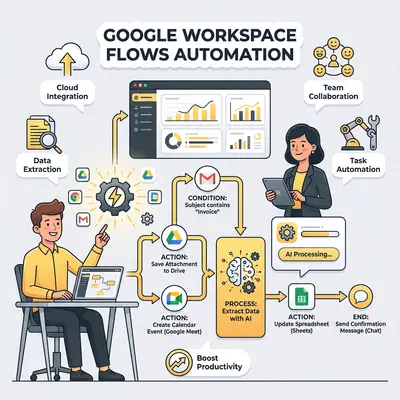
1. Set Up the Starter
- Choose "New email arrives" as starter
- Condition: Email from specific senders (vendor email addresses) OR email with subject containing "Invoice"
- This creates variables:
sender_email,email_subject,email_body,attachments
2. Extract Invoice Details
- Add "Ask Gemini" step
- Prompt: "Extract key details from this invoice email. Include: vendor name, invoice number, amount, due date, description of services. Email: {{email_body}}. Return as JSON: {vendor: string, invoice_number: string, amount: number, due_date: string, description: string}"
- Variables:
vendor,invoice_number,amount,due_date,description
3. Download and Organize Invoice
- Add "Save attachment to Google Drive" step
- Save to "Invoices/{{vendor}}/{{current_year}}" folder
- Rename file: "{{invoice_number}} - {{vendor}} - {{due_date}}"
4. Log to Invoice Tracker
- Add "Add row to Google Sheet" step
- Columns: Date Received, Vendor, Invoice Number, Amount, Due Date, Status (Pending Approval), Assigned To, Description
5. Route for Approval
- Add conditional logic
- If
amount< $500:- Send Chat message to "Finance Team" with invoice summary
- Create Google Task for finance manager
- If
amount>= $500:- Send Chat message to "Finance Team" and "Management" spaces
- Create Google Task for CFO/Manager
- Flag as "High Priority"
6. Draft Approval Request Email
- Add "Ask Gemini" step
- Prompt: "Draft a professional approval request email for this invoice. Vendor: {{vendor}}, Amount: ${{amount}}, Due Date: {{due_date}}, Description: {{description}}. Include invoice details and link to Drive folder."
- Variable:
approval_email
7. Send Approval Request
- Add "Draft email in Gmail" step
- To: Appropriate approver (based on amount)
- Subject: "Approval Request: {{vendor}} Invoice #{{invoice_number}} - ${{amount}}"
- Body: {{approval_email}}
- Save as draft for review
Expected Results:
- Time saved: 1-2 hours weekly on manual invoice processing
- Faster processing: Invoices logged and routed within minutes
- Better tracking: Centralized invoice tracker always current
- Reduced errors: Automated extraction reduces data entry mistakes
Use Case 6: Project Kickoff Automation
Business Scenario: A consulting agency starts 5-8 new projects monthly. Each project requires: creating a project folder, setting up a project tracking sheet, scheduling kickoff meetings, assigning team members, and sending client communications. This manual setup takes 45-60 minutes per project.
The Flow Solution: Automate project setup from a single form submission or email trigger.
Step-by-Step Implementation:
1. Set Up the Starter
- Option A: "New response in Google Form" (Project Intake Form)
- Option B: "New email arrives" (Email from client with "New Project" in subject)
- Form fields: Project Name, Client Name, Client Email, Start Date, Project Type, Budget, Team Members
2. Create Project Structure
- Add "Create folder in Google Drive" step
- Folder name: "{{project_name}} - {{client_name}}"
- Location: "Active Projects" Drive
- Create subfolders: "Documents", "Deliverables", "Internal"
3. Set Up Project Tracking Sheet
- Add "Create Google Sheet" step
- Name: "{{project_name}} - Tracker"
- Location: Project folder
- Pre-populate with columns: Task, Assignee, Status, Due Date, Notes
- Add initial tasks based on project type
4. Schedule Kickoff Meeting
- Add "Create event in Google Calendar" step
- Title: "{{project_name}} - Kickoff Meeting"
- Date: {{start_date}}
- Duration: 1.5 hours
- Invite: Client, team members, project manager
- Include meeting agenda template
5. Assign Team Members
- Add "Add member to Google Group" step
- Add team members to project-specific Google Group
- Group name: "{{project_name}}_team@company.com"
6. Generate Project Brief
- Add "Ask Gemini" step
- Prompt: "Create a project brief document for {{project_name}} with client {{client_name}}. Include: project overview, objectives, timeline (start: {{start_date}}), team members, budget, and next steps. Format as a professional project brief."
- Variable:
project_brief
7. Create Project Brief Document
- Add "Create Google Doc" step
- Name: "{{project_name}} - Project Brief"
- Location: Project folder
- Content: {{project_brief}}
8. Send Client Confirmation
- Add "Draft email in Gmail" step
- To: {{client_email}}
- Subject: "{{project_name}} - Project Setup Complete"
- Body: Welcome message, project folder link, kickoff meeting details, team introductions
- Save as draft for review
9. Update Project Dashboard
- Add "Add row to Google Sheet" step
- Update master project tracker with: Project Name, Client, Start Date, Status (Active), Team, Budget
Expected Results:
- Time saved: 45-60 minutes per project → 4-8 hours monthly
- Consistency: Every project starts with the same structure
- Faster setup: Projects ready in minutes vs hours
- Better organization: Standardized folder and tracking structure
Use Case 7: Marketing Campaign Follow-Up Automation
Business Scenario: A marketing team runs weekly email campaigns to 500+ leads. After each campaign, they manually track opens, clicks, and responses, then send follow-up emails to engaged leads. This process takes 2-3 hours per campaign.
The Flow Solution: Automate follow-up sequences based on campaign engagement, with personalized messages for different engagement levels.
Step-by-Step Implementation:
1. Set Up the Starter
- Choose "Scheduled time" as starter
- Schedule: Every Friday at 5 PM (after weekly campaign)
- Alternative: "New row added to Google Sheet" (campaign tracking sheet)
2. Fetch Campaign Data
- Add "Get rows from Google Sheet" step
- Read from "Campaign Tracking" sheet
- Filter: Campaign Date = This Week, Status = Sent
- This creates variables for each lead:
lead_email,campaign_name,open_status,click_status,response_status
3. Categorize Engagement Level
- Add "Ask Gemini" step
- Prompt: "Categorize this lead's engagement: Open Status: {{open_status}}, Click Status: {{click_status}}, Response Status: {{response_status}}. Return category: 'Highly Engaged' (opened + clicked), 'Engaged' (opened only), 'Not Engaged' (no open). Return as JSON: {category: string, next_action: string}"
- Variables:
engagement_category,next_action
4. Generate Personalized Follow-Up
- Add "Ask Gemini" step (conditional: only for Engaged/Highly Engaged)
- Prompt: "Draft a personalized follow-up email for {{lead_email}} who {{engagement_category}} with our {{campaign_name}} campaign. Suggested next action: {{next_action}}. Keep it conversational and value-focused. Max 150 words."
- Variable:
follow_up_email
5. Send Follow-Up Emails
- Add "Draft email in Gmail" step (conditional)
- For "Highly Engaged": Send immediately (or save as draft for review)
- For "Engaged": Schedule for Monday morning
- For "Not Engaged": Skip or add to re-engagement sequence
6. Update Lead Status
- Add "Update row in Google Sheet" step
- Update lead record with: Engagement Category, Follow-Up Sent, Follow-Up Date, Next Action
7. Generate Campaign Report
- Add "Ask Gemini" step
- Prompt: "Create a summary of this week's campaign performance. Total sent: {{total_sent}}, Opens: {{total_opens}}, Clicks: {{total_clicks}}, Responses: {{total_responses}}. Calculate open rate, click rate, and response rate. Format as a brief report."
- Variable:
campaign_report
8. Share Report with Team
- Add "Send message in Google Chat" step
- Post to "Marketing Team" Chat space
- Include campaign report and key metrics
Expected Results:
- Time saved: 2-3 hours per campaign → 8-12 hours monthly
- Faster follow-ups: Engaged leads contacted within 24 hours vs 3-5 days
- Better segmentation: Automated categorization improves targeting
- Data-driven: Regular campaign reports keep team informed
Implementation Patterns and Best Practices
As you build more flows, these patterns will help you create maintainable, reliable automations.
Pattern 1: Centralized Logging Sheet
Create a master "Flow Logs" Google Sheet to track all flow executions:
- Timestamp of execution
- Flow name
- Trigger details
- Success/failure status
- Key variables captured
- Error messages (if any)
Add a "Add row to Google Sheet" step at the end of every flow to log execution. This gives you visibility into flow performance and helps debug issues.
Pattern 2: Reusable Variable Naming
Establish consistent variable naming conventions:
- Use descriptive names:
lead_emailnotemail1 - Prefix related variables:
invoice_vendor,invoice_amount,invoice_date - Use snake_case consistently
- Document variable names in flow descriptions
Pattern 3: Error Handling with Fallbacks
Not all flows will execute perfectly every time. Add fallback steps:
- If Gemini step fails, use a default value
- If file creation fails, log error and notify admin
- If email send fails, save to drafts for manual send
Pattern 4: Testing Flows Safely
Before deploying flows to production:
- Test with a single record first
- Use a test Google Sheet/Doc for initial runs
- Send test notifications to yourself, not the team
- Verify each step works before adding the next
- Check variable values at each step
Pro Tip: Create a "Test Mode" version of your flow that logs to a test sheet and sends notifications only to you. Once verified, duplicate the flow and update it for production use.
Google Workspace Flows vs. n8n vs. Make.com: When to Use Each
This comparison helps you choose the right tool for your automation needs.
Google Workspace Flows:
- Best for: Google-to-Google automation with AI intelligence
- Strengths: Native integration, Gemini AI, no third-party connectors needed
- Limitations: Google Workspace apps only, limited advanced logic
- Cost: Included with Gemini for Google Workspace subscription
- Use when: Your workflows stay within Google Workspace and benefit from AI
n8n:
- Best for: Complex workflows, custom integrations, self-hosted solutions
- Strengths: 400+ integrations, advanced workflow logic, self-hosted option
- Limitations: Steeper learning curve, requires technical knowledge for advanced features
- Cost: Free (self-hosted) or paid cloud plans
- Use when: You need integrations beyond Google Workspace or want full control
Make.com:
- Best for: Visual workflow builder with extensive app ecosystem
- Strengths: 1,000+ app integrations, user-friendly interface, templates
- Limitations: Can be expensive at scale, less flexible than n8n
- Cost: Free tier available, paid plans based on operations
- Use when: You need many third-party integrations and prefer visual building
Decision Framework:
- Stay in Google Workspace? → Use Google Workspace Flows
- Need external apps (Slack, Salesforce, etc.)? → Use Make.com or n8n
- Complex logic and custom code? → Use n8n
- Want AI-powered automation? → Use Google Workspace Flows (for Google apps) or n8n with AI nodes
Reality Check: Many businesses use multiple tools: Google Workspace Flows for internal Google automation, and n8n or Make.com for cross-platform workflows. This hybrid approach maximizes the strengths of each platform.
Migration Guide: Moving from Zapier/Make to Workspace Flows
If you're currently using Zapier or Make.com for Google Workspace automation, here's how to migrate to Flows.
Step 1: Audit Your Current Automations
List all your Zapier/Make workflows that involve Google Workspace:
- Identify which workflows are Google-to-Google only
- Note any workflows that require external apps (these can't migrate yet)
- Document trigger conditions and actions
Step 2: Recreate Flows in Workspace Flows
For each Google-to-Google workflow:
- Identify the equivalent Starter in Flows
- Map each Zapier/Make action to Flows Steps
- Recreate conditional logic using Flows' IF steps
- Test with a single record first
Step 3: Handle Differences
Triggers:
- Zapier webhooks → Use "New email" or "New form response" starters
- Scheduled triggers → Use "Scheduled time" starter
- Button clicks → Not available in Flows (use form submissions instead)
Actions:
- Most Google Workspace actions have direct equivalents
- Some advanced Zapier actions may not be available yet
- Use Gemini steps to replicate complex data transformations
Data Formatting:
- Zapier formatters → Use Gemini "Ask" steps for transformations
- Code steps → Use Gemini for logic that would require code
Step 4: Parallel Run Period
Run both systems in parallel for 1-2 weeks:
- Compare results between Zapier/Make and Flows
- Verify data accuracy
- Check for any missed edge cases
- Monitor performance
Step 5: Switch Over
Once verified:
- Disable Zapier/Make workflows
- Activate Flows workflows
- Monitor closely for first few days
- Keep Zapier/Make workflows as backup for 30 days
Common Migration Challenges:
Challenge 1: Missing Integrations
- Solution: Keep those workflows in Zapier/Make, use Flows for Google-only automations
Challenge 2: Complex Logic
- Solution: Break complex workflows into multiple simpler Flows, or use Gemini to handle complex decisions
Challenge 3: Webhook Triggers
- Solution: Use Google Forms or email triggers as alternatives, or keep webhook workflows in external tools
Troubleshooting Common Issues
Even well-built flows can encounter issues. Here's how to resolve the most common problems.
Issue 1: Flow Not Triggering
Symptoms: Flow doesn't run when expected trigger occurs.
Solutions:
- Verify Starter configuration (check email addresses, form selection, folder paths)
- Ensure you have necessary permissions (check Google Workspace admin settings)
- Check if flow is active (not paused)
- Verify trigger conditions match actual events (e.g., exact email sender address)
Issue 2: Variables Not Populating
Symptoms: Variables show as empty or "{{variable_name}}" in steps.
Solutions:
- Verify variable names match exactly (case-sensitive)
- Check that previous step completed successfully
- Ensure variable was created in a step before it's used
- Review step execution logs to see actual variable values
Issue 3: Gemini Steps Failing
Symptoms: "Ask Gemini" steps return errors or timeouts.
Solutions:
- Simplify prompts (break complex requests into multiple steps)
- Reduce input data size (Gemini has token limits)
- Check Gemini for Google Workspace subscription status
- Verify API quotas haven't been exceeded
Issue 4: Permissions Errors
Symptoms: Steps fail with "Permission denied" errors.
Solutions:
- Verify Google Workspace admin has enabled Flows for your organization
- Check that your account has necessary permissions for actions (e.g., creating files, sending emails)
- Ensure shared resources (Sheets, Drive folders) have correct sharing settings
- Contact Google Workspace admin if organization-level permissions are blocking flows
Issue 5: Quota Limits
Symptoms: Flows stop working after a certain number of executions.
Solutions:
- Check Google Workspace Flows execution limits (varies by plan)
- Monitor usage in Flows dashboard
- Optimize flows to reduce unnecessary steps
- Consider upgrading Google Workspace plan if consistently hitting limits
Key Insight: Most flow issues stem from configuration errors or permissions. Always test flows with a single record first, and verify each step works before adding complexity. When in doubt, simplify the flow and add steps incrementally.
Conclusion
Google Workspace Flows transforms manual Google Workspace tasks into intelligent, automated processes. The seven use cases in this guide—lead capture, support triage, content approval, employee onboarding, invoice processing, project kickoff, and campaign follow-up—demonstrate the platform's versatility and immediate business value.
Key takeaways:
-
Start simple: Begin with one use case that addresses your biggest time drain. Most businesses see 5-10 hours saved per week from their first flow.
-
Leverage AI: Gemini integration is Flows' differentiator. Use it for analysis, content generation, and intelligent routing to add value beyond simple automation.
-
Build incrementally: Start with basic flows and add complexity as you become comfortable. Each flow teaches patterns you can reuse.
-
Know the limits: Flows excels at Google-to-Google automation. For workflows spanning multiple platforms, tools like n8n or Make.com remain better choices.
-
Monitor and optimize: Track flow performance, gather feedback from users, and continuously improve your automations.
Next steps:
Choose one use case from this guide that matches your business needs. Set aside 30-60 minutes to build your first flow. Start with the simplest version, test it thoroughly, then add complexity as needed.
Remember: automation is a journey, not a destination. Each flow you build makes your team more efficient and frees time for high-value work.
Ready to automate your Google Workspace processes? Book a free consultation with Evalics to get personalized recommendations for your automation needs and help building your first flows.
Related Reads
- What Is Google Workspace Flows? The AI-Powered Zapier Killer — Comprehensive introduction to Google Workspace Flows
- Your First AI Automation: Complete Step-by-Step Guide — Learn automation fundamentals
- Make.com for Beginners: 3 Easy Automation Workflows — Compare with Make.com workflows