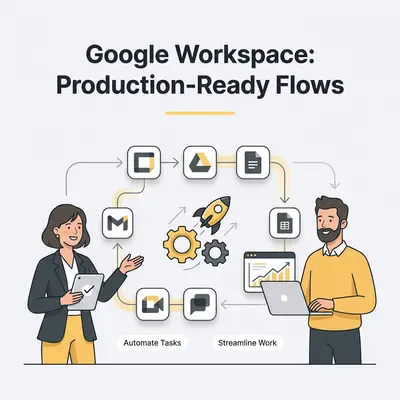
Sorting weekend email, filing attachments, and chasing form submissions is repetitive work that follows fixed rules. Google Workspace Studio is built to take that kind of work off your plate.
A note on the name. If you are looking for "Google Workspace Flows," you are in the right place: Google's own product FAQ states that "Google Workspace Studio is an evolution of the capabilities we released in alpha as Google Workspace Flows" (Google Workspace Studio). The product is now called Workspace Studio. The automations you build inside it are still called flows - Google describes Studio as "the place to design, manage, and share AI-powered workflows-or flows-in Google Workspace." This guide uses both terms the way Google does.
Workspace Studio connects Gemini with Gmail, Google Calendar, Google Chat, Google Drive, Google Docs, Google Forms, Google Sheets, and Google Tasks (Get started with Google Workspace Studio). You describe what you want in plain language and it builds the flow for you (Create a flow with Gemini AI). No coding required.
Every flow below is written using only Starters and Steps that exist in Workspace Studio today, named exactly as Google names them in the Guide to Starters & Steps (last checked October 2026). That constraint matters more than it sounds: the step list changes often, and several automations that were impossible when this guide first published, such as sending email, posting to a Chat space, or moving files, are now real steps. Where a flow still has a gap, it is called out below along with the closest thing that does work.
Three rules to read before you build anything
These three rules shape almost every flow on this page. Reading them first will save you a rebuild.
1. "Notify me" reaches only you; other steps reach the team. Google describes Notify me in Chat as sending "a direct notification message only to yourself in Google Chat," and Notify me by email as sending "a direct email to yourself in Gmail." To reach other people, use Post in a space, Send a message, Send an email, or Send a reply (Guide to Starters & Steps). Some steps need your approval when a run involves people outside your organization.
2. Draft first, send later. Draft an email "automatically draft[s] an email reply so you can review and send it later" (Guide to Starters & Steps). Send an email and Send a reply can send without a human click. Some steps may still need your approval before they run, depending on your Workspace admin's security policies, and Send a reply needs your approval whenever a run includes people outside your organization (Manage approval requests). Either way, start customer-facing flows on drafts and switch to sending only after you have checked enough output. A sent email cannot be pulled back.
3. Test against copies. Google warns that "a test run does real actions" (Test run a flow before you turn it on). Point new flows at copies of your Sheets and folders until they behave, especially now that flows can send and move things.
1. Email triage and priority labeling
What it does: Labels incoming email by urgency and pings you in Chat when something genuinely needs you now.
Why it matters: The value is not the label. It is that you can stop opening your inbox to check whether anything is on fire.
How it works:
- Starter: When I get an email
- Step 1: Decide - describe the condition in plain language, for example "this email is from a client and asks for something with a deadline inside 48 hours"
- Step 2: Check if the Decide result is true
- Step 3: Add or remove labels - apply
Needs Response - Step 4: Notify me in Chat with the sender and subject
Build notes: Steps 1 and 2 are a pair by design. Google's guidance is that a Decide step is automatically paired with a Check if step that filters its result, and that a flow can have more than one conditional step - "they just run in order" - but cannot have nested conditional steps, so one conditional step cannot sit inside another's substeps (Tips to create flows with conditional steps). Prefer Decide over Check if for anything requiring judgment; Check if compares values with an operator and cannot read intent. Keyword matching on "urgent" and "asap" is exactly the job Decide does better.
2. Auto-save attachments to Drive and log them in Sheets
What it does: Pulls attachments out of email into a Drive folder and writes a row recording what arrived.
Why it matters: Attachments are only findable while the email is recent. This gives them a location and an index that outlive your memory of the thread.
How it works:
- Starter: When I get an email
- Step 1: Decide whether this email is one you want filed, for example "this is an invoice or a signed document from a client"
- Step 2: Check if the Decide result is true
- Step 3: Add email attachments to Drive - point it at the folder where attachments should land
- Step 4: Add a row to a tracking Sheet: sender, subject, date received
Build notes: This is the one flow on the page that runs end to end with no compromises, which is why it is a good first build. Test it against a copy of the folder and Sheet first - see rule 3 above.
3. Block time on your calendar from an email request
What it does: Reads a date and time out of an email and puts a block on your calendar.
Why it matters: Appointment confirmations, training invitations, and delivery windows arrive as prose and stay as prose until you retype them into your calendar.
How it works:
- Starter: When I get an email
- Step 1: Extract the date, start time, and duration from the email body
- Step 2: Block time on your calendar using the extracted values
Corrected since this article first published. The Block time step did not exist when this guide was written; Google shipped it on May 6, 2026 and describes pairing it with Ask Gemini or Extract for exactly this case (Improvements to the Meet starter step and Calendar time-blocking capabilities in Google Workspace Studio).
Read its limitation carefully. Block time reserves a slot on your own calendar only. To invite other people, use Set up a meeting, which creates a new event, or Add guests to a meeting, which adds attendees to an existing one (Guide to Starters & Steps).
4. Form response triage and follow-up drafting
What it does: Summarizes each form submission, sorts it by priority, logs it, and writes you a reply to review.
Why it matters: Form responses land in a Sheet nobody opens. This inverts that: the response comes to you, already read.
How it works:
- Starter: When a form response comes in
- Step 1: Summarize the submission
- Step 2: Decide whether it is high priority, described in your own words
- Step 3: Check if high priority
- Step 4: Notify me in Chat with the summary
- Step 5: Draft an email replying to the submitter, using the summary as context
- Step 6: Add a row to a master tracking Sheet
Build notes: Step 5 produces a draft in your Drafts folder. Nothing is sent until you send it. Treat that as the review gate - read the draft, then send. Step 4 notifies only you; to route a submission to a colleague, add Send a message or Post in a space.
5. Meeting recaps with action items as Tasks
What it does: Turns a finished meeting into a summary you receive and a set of tasks in Google Tasks.
Why it matters: The action items are the part that decays. Getting them into Tasks the same hour is the whole point.
How it works:
- Starter: When meeting outputs are ready
- Step 1: Summarize the meeting outputs
- Step 2: Extract the action items as a list
- Step 3: Repeat for each action item: Create a task in Google Tasks with a title and deadline
- Step 4: Notify me in Chat with the summary
Corrected since this article first published. Two things changed. First, the starter was renamed: what was "When a meeting transcript is ready" is now When meeting outputs are ready, and it fires on either meeting transcripts or Notes by Gemini rather than transcripts alone. Second, it now accepts up to 100 different meetings as triggers where it previously accepted one (Improvements to the Meet starter step and Calendar time-blocking capabilities in Google Workspace Studio).
There is also no "calendar event ends" starter, which is what an older version of this flow assumed. The meeting must produce outputs for the flow to have anything to read.
6. Conditional inbox routing with labels
What it does: Categorizes incoming email and applies the matching label, so your inbox sorts itself into queues.
Why it matters: Small teams share one inbox mentally even when they do not share one technically. Consistent labels are what make a saved search into a work queue.
How it works:
- Starter: When I get an email
- Step 1: Decide whether the email is a sales enquiry
- Step 2: Check if true, then Add or remove labels to apply
Sales - Step 3: Decide whether the email is a support request
- Step 4: Check if true, then Add or remove labels to apply
Support - Step 5: Notify me in Chat if either matched
Updated October 2026. The original version of this flow forwarded sales email to a sales@ address, posted support email into a Support Chat space, and sent an acknowledgment back to the sender. When this guide was last revised, none of that was buildable. Two of the three now are: Post in a space can post support email into the team's space, and Send a reply can acknowledge the sender. There is still no forward step; Send an email composes a new message instead (Guide to Starters & Steps).
Labeling remains a good default for routing. Each teammate saves a search on the label they own and works from it. Add Post in a space when the team needs to see new items without checking a label.
Note also the structure: because one conditional step cannot be nested inside another, this is a flat sequence of Decide/Check if pairs running in order, not a branching tree (Tips to create flows with conditional steps).
7. Scheduled weekly report from Sheets
What it does: Reads a Sheet on a schedule, has Gemini write the summary, and emails it to you.
Why it matters: Recurring reporting is the purest automation candidate on this list: same inputs, same shape, same day, every week.
How it works:
- Starter: On a schedule - set it to Monday morning
- Step 1: Get sheet contents from the tab holding the week's data
- Step 2: Ask Gemini to summarize the figures and flag anything unusual, with the sheet contents passed in as a variable
- Step 3: Notify me by email with the summary
Build notes: Pass data between steps with variables rather than hardcoding anything (Use variables to pass data in your flow). Step 3 emails you; to reach the team, use Send an email or Post in a space instead.
8. Batch drafting from a Sheet with Repeat for each
What it does: Walks a Sheet row by row and produces one tailored email draft per row.
Why it matters: This is the shape of most real small-team backlog work - a list of people, each needing roughly the same message with different specifics.
How it works:
- Starter: On a schedule, or Start manually
- Step 1: Get sheet contents from your leads or follow-ups tab
- Step 2: Repeat for each row: Draft an email using that row's name, context, and last touchpoint
- Step 3: Notify me by email when the run finishes
Replaced since this article first published. This slot previously held a Drive file organization flow that renamed uploaded files and moved them into client subfolders. At the time Workspace Studio had no step for either. Move files or folders now exists, and Copy a file or folder can save a renamed copy, but there is still no step that renames a file in place (Guide to Starters & Steps). The batch-drafting flow below stays because it is the more useful pattern.
The replacement uses Repeat for each, which Google shipped on June 2, 2026 for looping over lists and over "Google Sheet data row by row." Google's own stated example is "Draft an email for each sales lead based on your sales tracker Google Sheet" (Introducing the ability to loop over a list of items in Workspace Studio). One caveat from the conditional-steps documentation: you cannot use variables produced inside substeps in the main flow that follows the loop (Tips to create flows with conditional steps).
9. Client onboarding groundwork
What it does: When a new client lands in your intake Sheet, creates their Drive folder, drafts the welcome email, and blocks kickoff time.
Why it matters: Onboarding is a checklist people skip steps in under pressure. Flows do not skip steps.
How it works:
- Starter: When a sheet changes, watching your intake Sheet
- Step 1: Create a folder in Drive named for the client
- Step 2: Draft an email welcoming them, using the row's name and project details
- Step 3: Block time on your calendar for the kickoff
- Step 4: Notify me in Chat that a new client is queued
Updated October 2026. The original flow claimed to send the welcome email and schedule a kickoff meeting with the client and team. When this guide was last revised, neither was possible. Both now are: Send an email can send the welcome, and Set up a meeting or Add guests to a meeting can invite the client (Guide to Starters & Steps). Keep the welcome as a draft until you trust the output.
What the flow does as written: folder, drafted message, reserved slot. Swap Block time for Set up a meeting in step 3 if you want the invitation sent automatically.
10. Action items out of email and into Tasks
What it does: Spots requests buried in email and turns them into Google Tasks with due dates.
Why it matters: An email asking you to do something is not a task until it is written down somewhere that survives your inbox scrolling past it.
How it works:
- Starter: When I get an email
- Step 1: Decide whether this email asks you to do something with a deadline
- Step 2: Check if true
- Step 3: Extract the task description and the due date
- Step 4: Create a task in Google Tasks with a title, details, and the extracted deadline
- Step 5: Add or remove labels to apply
Tracked
Corrected since this article first published. The original included a step that set a reminder notification 24 hours before the deadline. No such step exists. The Create a task step accepts a title, details, and an optional deadline - Google Tasks then handles reminders through its own notification settings, outside the flow. Configure that once in Tasks rather than expecting the flow to do it.
Implementation notes
Test runs are not dry runs. Google's documentation warns that "a test run does real actions" - it sends messages, sets up calendar events, and changes docs - and recommends sending test emails only to yourself and using copies of the documents your flow will touch (Test run a flow before you turn it on). Copy the Sheet before you point a flow at it.
Start from a template. Workspace Studio ships zero-configuration templates including "Get a daily summary of unread emails," "Label emails with action items," and "Get pre-meeting briefs in chat" (Now available: Create AI agents to automate work with Google Workspace Studio). Template availability depends on which Google apps are enabled on your account.
Prefer Decide over keyword matching. The steps that use Gemini - Decide, Extract, Summarize, Ask Gemini - are what separate Workspace Studio from a rules engine. Check if is for comparing values you already have.
Re-check the step list before you plan a flow. The step catalogue has changed materially several times in 2026: Ask a Gem in April (since retired for new flows; Use your Gems in your Google Workspace Studio flows), Block time and the renamed meeting starter in May, Repeat for each in June, and Add a source to Gemini Notebook in August (Automatically add sources to your Gemini Notebooks in Workspace Studio). A flow that was impossible when you last looked may be possible now, and a step you remember may have been renamed.
When Workspace Studio is the wrong tool
Workspace Studio is not Google-only. Google's launch announcement states that agents "can be connected to third-party apps and platforms including Asana, Jira, Mailchimp, and Salesforce," and that you can call external APIs with webhooks or build custom steps with Apps Script (Now available: Create AI agents to automate work with Google Workspace Studio). The help documentation covers Asana, Mailchimp, and Salesforce steps, with HubSpot and monday appearing in its troubleshooting guidance (Take actions in third-party services with flows).
Read that page carefully before planning around it. Google labels these integrations as Beta and notes that "some integrations, such as Salesforce and monday, need you or your admin to install a helper app."
The clearer signal is what Studio still cannot do: forward an email, rename a file in place, nest one conditional step inside another, or run complex error handling and retries across many outside systems. If your automation needs those, Make, Zapier, or n8n earn their cost. For a fuller comparison, see Google Workspace Studio vs n8n and Workspace Studio vs Apps Script vs AppSheet.
For everything that stays inside your own Workspace account, Studio is the shortest path: no extra logins, no data leaving Google, and Gemini available at every step.
Conclusion
Build one. Pick the flow above that matches work you did by hand last week - flow 2 and flow 7 are the simplest to get right - and get it running before you plan the rest.
The pattern that makes these work is narrow scope: one starter, a handful of steps, a clear owner. The flows that fail are the ones that assume a step exists because it ought to.
Ready to automate your team's repetitive tasks? Book a demo with Evalics and we'll help you identify and implement the highest-impact workflows for your business.
Related Resources
- What is Google Workspace Studio: Complete Guide
- Workspace Studio for Beginners: 5 Ready-to-Use Templates
- Google Workspace Automation: Best Workflow Ideas
By Kevin Michael Schindler, AI Automation Expert at Evalics