
Your n8n workflow runs fine with 200 items. Then one day it hits 5,000. The editor gets sluggish, executions take forever, and the container restarts with an out-of-memory crash.
That pattern is common. It’s not that n8n “can’t scale”. It’s that many workflows accidentally become data pipelines that carry huge payloads end-to-end, and then they also store that payload in execution history, turning your database into a second bottleneck.
This guide shows how to fix both issues in a practical order: shrink payloads first (memory), then control retention and DB growth (Postgres) so your workflows stay fast and stable.
A fast triage checklist (10 minutes)
Before you refactor anything, confirm what’s actually failing.
- If the process crashes / restarts: you’re likely hitting RAM limits (large items, large binaries, or too much concurrency).
- If the editor and executions page are slow: your database may be bloated (huge execution history, long retention, vacuum issues).
- If only certain nodes are slow: look for external bottlenecks (API rate limits, slow DB queries, slow file I/O).
Quick metrics to capture:
- Peak memory usage during the slowest execution window.
- Average and P95/P99 execution duration for your heavy workflows.
- Execution history growth rate (how many executions/day and whether you store full data on success).
- Database size trend (is it growing even when business volume is flat?).
Quick Win: If you do only one thing today, stop carrying “nice-to-have” fields. Treat payload size like a budget. Cut it early, and everything downstream gets cheaper.
Find the payload hotspot (where the data explodes)
When a workflow “mysteriously” slows down, it’s usually one of two things:
- A single node returns a huge response (HTML, email bodies, transcripts, full CRM objects).
- A small response multiplies into a massive number of items (fan-out, nested loops, branching).
To pinpoint it quickly:
- Run the workflow on a representative sample (not 10 items, use 200–500 if that’s your real world).
- Look at the execution and identify the first node where output size jumps.
- Ask one question: “Do I truly need all of this downstream?”
If the answer is “no”, don’t optimize downstream nodes. Fix the payload at the source.
Example: A 10-person agency enriches 2,000 leads nightly. The HTTP node returns the full vendor response (30–200 KB each), then every downstream node carries it. Keeping only
leadId,status, and 6 enrichment fields drops each item to ~1–2 KB. The workflow goes from “sometimes crashes” to stable.
What “memory bloat” means in n8n (in plain terms)
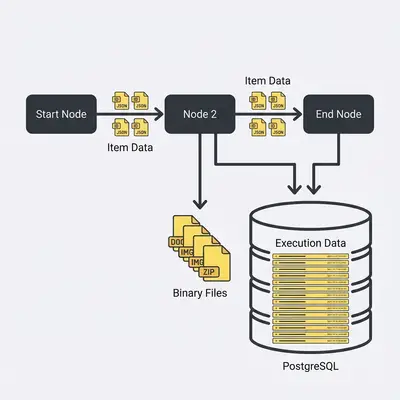
In n8n, each node passes items forward. When your items include giant JSON blobs (API responses, HTML pages, full CRM records, raw transcripts), every downstream node has to carry that weight.
Memory bloat usually comes from one of these patterns:
- Wide items: too many fields per item (big nested objects).
- Deep items: a few fields that are massive (HTML, base64, long arrays).
- Exploding fan-out: one item becomes hundreds or thousands, and you keep the full object on every branch.
- Binary payloads: files moved through the workflow rather than stored externally.
- High concurrency: multiple heavy executions running at once and competing for the same RAM.
The fix is not “optimize one node”. The fix is to control what you carry and how many items you process at once.
Fix 1: Filter early and “budget” your payload
If your workflow fetches a big record and only needs 5 fields, don’t carry 200.
Practical ways to shrink payloads:
- Drop fields immediately after retrieval (use “keep only” behavior).
- Flatten and rename fields so you don’t keep the original nested object “just in case”.
- Avoid passing raw API responses when you only need IDs or a few attributes.
A helpful rule: if a field isn’t used in the next 2–3 nodes, remove it now and re-fetch later if needed.
Reality Check: Many “n8n memory issues” are really “we turned n8n into a data lake”. If you keep every field forever, it will eventually break.
Fix 2: Batch everything that can be batched
Batching does two things:
- Caps peak memory use (you never hold the entire dataset at once).
- Makes retries safer (a batch can retry without replaying the entire job).
Batching patterns that work well in n8n:
- Pagination from the source: pull 100–500 records per page, process, then fetch the next page.
- Split In Batches: process chunks of items, commit results, then continue.
- Bulk API calls: if the external system supports batch endpoints, use them.
If you’re currently doing “Fetch 10,000 rows → map → enrich → write”, the simplest refactor is:
- Fetch 500 rows
- Clean payload to minimal fields
- Enrich in controlled concurrency
- Write results
- Move on
Pro Tip: Batch sizes are a knob. Start smaller than you think (100–500). Once it’s stable, increase slowly while watching peak memory and error rates.
Fix 3: Externalize big blobs (files, HTML, transcripts)
Large blobs are the fastest way to trigger out-of-memory crashes.
If you process:
- PDFs
- images
- CSV exports
- HTML pages
- long AI transcripts
…don’t carry the full content across dozens of nodes.
Instead:
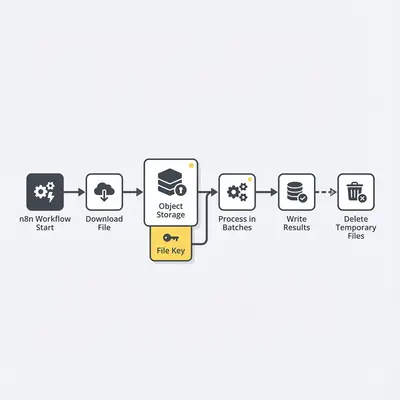
- Store the file in object storage or filesystem.
- Pass a pointer (URL, key, path, document ID).
- Re-load only where needed.
This also reduces your database footprint if you store execution data.
Fix 4: Don’t duplicate large arrays in Code nodes
Code nodes are powerful, but they make it easy to accidentally copy huge objects.
Common “silent bloat” mistakes:
- Building a single giant array of all results before writing anything.
- Mapping items into new objects while keeping the original object attached.
- Stringifying large JSON repeatedly.
Safer patterns:
- Transform one batch at a time.
- Keep outputs minimal (IDs + a few fields).
- Write downstream early (database, spreadsheet, CRM) instead of building in-memory “final output”.
Fix 5: Control concurrency so you don’t amplify payload problems
One heavy execution can be fine. Ten heavy executions can crash the same host.
Practical controls:
- Avoid scheduling many heavy workflows at the same minute (stagger cron schedules).
- Use queue-based execution for heavier loads (so you can scale workers intentionally).
- Put “expensive steps” behind a batch gate so concurrency doesn’t spike unexpectedly.
If you’re self-hosting, treat concurrency as a capacity planning variable. It’s better to process 500 items reliably than to attempt 10,000 and crash halfway through.
Concrete n8n settings that prevent bloat (with official docs)
Workflow refactors get you most of the way there. But if your instance keeps “everything forever”, the bloat returns.
Here are the official docs you’ll want open while you tune settings:
- Execution data saving and pruning: Executions environment variables
- Running heavy workloads safely: Configuring queue mode
- Keeping files from living in RAM and your DB: Binary data
A safe baseline (examples, not one-size-fits-all)
If you’re a small business running high-volume workflows (enrichment, lead scraping, sync jobs), a safe “stop the bleeding” baseline is:
- Don’t store full execution data on success.
- Keep full execution data on error.
- Prune execution history automatically.
- Avoid keeping binary data in memory for large files.
For example, the n8n docs include execution retention settings like EXECUTIONS_DATA_SAVE_ON_SUCCESS, EXECUTIONS_DATA_SAVE_ON_ERROR, and EXECUTIONS_DATA_MAX_AGE (see the executions environment variable reference above).
# Execution history retention (example baseline)
EXECUTIONS_DATA_SAVE_ON_SUCCESS=none
EXECUTIONS_DATA_SAVE_ON_ERROR=all
EXECUTIONS_DATA_PRUNE=true
EXECUTIONS_DATA_MAX_AGE=168

# Optional: cap how many executions exist overall (0 = no limit)
EXECUTIONS_DATA_PRUNE_MAX_COUNT=10000
For large files, the n8n binary data docs explain how to switch away from in-memory handling using N8N_DEFAULT_BINARY_DATA_MODE (for example, to filesystem storage) and how to configure external storage like S3-compatible object storage.
# Binary data handling (example baseline)
N8N_DEFAULT_BINARY_DATA_MODE=filesystem
If you’re dealing with lots of files, consider object storage. n8n’s binary data docs describe using S3 as an external store (and note that, in practice, you’ll want bucket lifecycle rules so old binary objects don’t accumulate indefinitely): Binary data.
Also, if you migrate between modes (for example, from filesystem to S3), keep backward compatibility in mind. n8n supports keeping multiple modes available so older executions can still be read (see N8N_AVAILABLE_BINARY_DATA_MODES in the same binary data documentation).
Reality Check: These are intentionally conservative defaults. If you have compliance or audit requirements, keep longer retention, but store minimal data (IDs, statuses, timestamps), not full payloads.
Queue mode + concurrency guardrails (when you’re scaling)
If your pain is “we get spikes and everything runs at once”, queue mode can help you make execution throughput predictable and add workers intentionally. n8n documents queue mode configuration here: Configuring queue mode.
The executions environment variable reference also documents settings like EXECUTIONS_MODE (regular vs queue): Executions environment variables.
And if you just need a simple safety valve, n8n documents a production concurrency limit via N8N_CONCURRENCY_PRODUCTION_LIMIT (see the same docs pages above for details).
# Example: enable queue mode + cap concurrent production executions
EXECUTIONS_MODE=queue
N8N_CONCURRENCY_PRODUCTION_LIMIT=20
The hidden link between memory bloat and database bottlenecks
Even after you fix memory bloat, performance can still degrade over time if your system keeps:
- every execution
- with full data
- for months
Execution history is useful, but it’s not free. When you store huge payloads in executions, your Postgres tables grow, queries slow down, and the UI starts to lag.
So the second half of scaling n8n is: retention and pruning.
Step 2: Keep execution history useful (not infinite)
Your goal is to keep enough history to:
- troubleshoot failures,
- audit key workflows,
- spot trends.
But you don’t need unlimited “success” payloads for every workflow forever.
Practical retention rules for SBO use cases:
- High-volume, low-risk workflows (syncs, enrichments): keep short retention, store minimal execution data.
- Money movement workflows (billing, payouts): keep longer retention, but store minimal data and log the essentials (IDs, amounts, status).
- Compliance-sensitive workflows: define explicit retention requirements, then implement them deliberately.
A simple retention matrix (copy and adapt)
Here’s a practical starting point for many small businesses. The goal is to keep troubleshooting and audit capability, while keeping the database lean.
| Workflow type | Typical volume | Keep success data | Keep error data | Notes |
|---|---|---|---|---|
| CRM sync / enrichment | High | Minimal or none | Full | Store record IDs and outcomes, not full payloads. |
| Lead intake / forms | Medium | Minimal | Full | Keep request IDs and validation failures. |
| Billing / payouts | Low–medium | Minimal | Full + longer | Keep transaction IDs, amounts, and status changes. |
| File processing (PDF/CSV) | Medium | Minimal | Full | Store files externally; keep file keys in executions. |
If you want the UI to stay fast, the combination that matters most is: don’t store heavy success data + prune automatically + keep binaries out of RAM/DB.
When your DB becomes the bottleneck (symptoms)
You’re likely database-bound when you see:
- Executions list takes seconds (or times out) to load.
- Editor saves are slow or the UI feels “sticky”.
- Disk usage grows steadily even though workflow logic hasn’t changed.
- Queries or backups take longer each week.
At that point, adding CPU or RAM helps less than fixing growth and bloat.
DB bottleneck checklist (quick, practical)
If you suspect Postgres is the bottleneck, these checks usually point you to the right lever:
- Is execution history growing faster than business volume? If yes, retention is the first fix.
- Do pages that query executions feel slow? That’s often “too much history” or slow queries on large tables.
- Are you storing big payloads on success? If yes, you’re paying for it twice (DB storage and query time).
- Is autovacuum keeping up? If it’s not, performance degrades gradually and then feels sudden.
- Do you have enough disk headroom? Near-full disks tend to turn “mild slowdowns” into “everything is slow”.
You don’t need perfection. You need a system that stays healthy by default: prune execution data, keep binaries out of the DB, and let routine maintenance do its job.
Postgres hygiene: a small runbook that prevents a big outage
You don’t need to become a DBA, but you do need a cadence.
If you use PostgreSQL, it’s worth understanding what VACUUM and autovacuum do at a high level. PostgreSQL’s official documentation has a clear explanation of routine vacuuming and why it matters for reclaiming space from updates/deletes: Routine Vacuuming (PostgreSQL docs).
What pruning fixes (and what it doesn’t)
Pruning execution history reduces how much data you keep. Vacuuming is about reclaiming space and keeping table statistics healthy. You typically need both:
- Prune to stop endless growth.
- Vacuum/autovacuum to keep performance steady as rows are inserted/updated/deleted.
If your DB is already huge, pruning will help going forward, but it may take time (and maintenance) before the “UI feels fast again”.
Weekly (15 minutes):
- Check database size trend.
- Confirm pruning/retention is working.
- Look for the top 1–3 slow queries (if you have monitoring).
Monthly (30–60 minutes):
- Review table bloat and autovacuum health.
- Validate backups and restore time.
- Re-check retention rules (business requirements change).
Key Insight: DB performance problems usually “feel sudden”, but they’re almost always gradual growth plus missed maintenance.
Common mistakes that keep coming back
- “We’ll just add RAM.” It works until it doesn’t, then crashes are harder to debug.
- “We’ll keep full executions forever.” Your DB will eventually dominate cost and reliability.
- “We need the full API response later.” You almost never do. Keep IDs and fetch again.
- “We’ll process everything at once to finish faster.” If it crashes at 90%, you finish slower.
What to do next (in order)
If you want a safe, repeatable approach, do it in this order:
- Shrink payloads early (drop fields, avoid giant objects, externalize blobs).
- Batch the workflow (cap peak memory and make retries smaller).
- Control concurrency (avoid accidental parallel “RAM storms”).
- Set retention rules (keep history useful, not infinite).
- Add DB hygiene (prevent slow UI, slow queries, and bloat over time).
If you’re already working on n8n performance improvements, you may also want these related guides:
Ready to make your workflows stable at scale without trial-and-error? Book a demo with Evalics
By Kevin Michael Schindler, AI Automation Specialist at Evalics.