
You spend two hours every morning sorting, archiving, and replying to emails. By noon, the unread count is back up. Your inbox dictates your daily schedule, pulling you away from high-value tasks and strategic growth.
You are not alone. For most business owners, email is the interruption that runs all day and never quite finishes.
But your inbox does not have to be a messy to-do list.
When I audit client workflows at Evalics, the email inbox is always the first target. It is the easiest place to win back time. By combining simple routing rules with modern AI tools, you can transform your inbox from a chaotic dumping ground into an organized command center.
Here is the exact 5-step system to automate your email, reduce manual sorting, and reclaim 10 hours every week.
The True Cost of Manual Email Management
Before building the system, you must understand what manual sorting actually costs your business. Every minute spent categorizing newsletters or answering repetitive client questions is a minute stolen from sales, product development, or personal time.
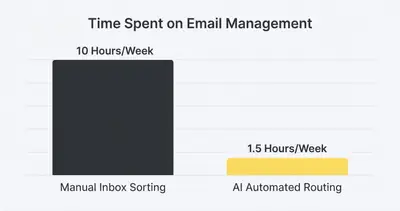
When you automate this process, you eliminate the cognitive load of context switching. You no longer have to decide what to do with every incoming message. The system decides for you.
Step 1: Audit and Categorize Your Traffic
You cannot automate a mess. The first step is to analyze what actually hits your inbox.
Open your email and look at the last 100 messages. You will notice clear patterns. Almost every email falls into one of four distinct categories:
- Action Required: Invoices to pay, client fires to put out, direct questions from your team.
- Reference Material: Receipts, software updates, login alerts.
- Routine Inquiries: Common questions about pricing, hours, or services.
- Noise: Newsletters, cold pitches, promotional blasts.
Quick Win: Grab a piece of paper and write down the top three questions you answer via email every single week. These are your prime candidates for auto-drafting in Step 4.
Create four main folders or labels in your email client to match these categories. Do not create 50 hyper-specific folders. A complex folder structure guarantees failure because it requires too much effort to maintain. Keep it simple.
Step 2: Build the Core Routing Rules (The "Dumb" Automation)
You do not need AI for everything. Start with reliable, rule-based automation built natively into Gmail or Outlook.
Rule-based automation operates on simple logic: If this happens, do that. It handles the predictable noise so your AI only processes the complex messages.
Set up these basic filters today:
- The Receipt Router: If the email contains "receipt", "invoice", or "order confirmation", automatically route it to your Reference folder and mark it as read.
- The Newsletter Bypass: If the email contains the word "unsubscribe" (and is not from a client domain), skip the inbox and route it to a "Reading List" folder.
- The VIP Lane: If the email comes from a top client or your accountant, star it and move it to a high-priority folder.
By setting up these simple rules, you instantly clear 40% of the clutter before you even wake up.
Reality Check: Do not skip this step. Many business owners try to use AI to sort receipts. That is a massive waste of API costs and processing time. Use free, native rules for predictable emails.
Step 3: Introduce AI for Contextual Sorting (The "Smart" Automation)
Now we tackle the remaining 60% of your inbox. These are the emails that require human-level context to understand. This is where AI automation platforms like n8n or Make step in.
Native rules fail when a client emails you to say, "Can we delay our meeting? Also, I have a quick question about the proposal." A dumb filter cannot read intent. AI can.
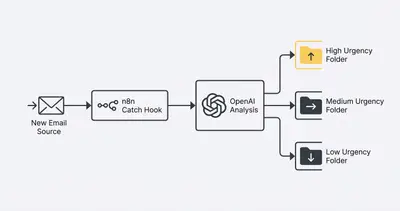
How the smart routing works:
- Connect your inbox to an automation platform (like n8n).
- Set a trigger to activate whenever a new email hits your main inbox.
- Pass the email content to an AI model (like GPT-4o or Claude 3.5 Sonnet).
- Give the AI a strict prompt: Read this email. Categorize it as Urgent, Lead, Support, or Spam. Output only the category name.
- Use the platform to move the email to the corresponding folder based on the AI's output.
Key Insight: The secret to reliable AI routing is a constrained prompt. Never ask the AI to "think about what to do." Give it exactly four options and force it to pick one. This drastically reduces errors and keeps your system stable.
With this setup, when you open your email, your leads are in one place, urgent client issues are in another, and support tickets are neatly stacked. You dictate the order of operations, not the inbox.
Step 4: Draft Responses for Routine Inquiries
Routing saves time. Auto-drafting saves mental energy.
You likely type the same five responses every week. You explain your pricing structure. You provide onboarding instructions. You send links to your booking calendar. AI can write these for you before you even see the request.
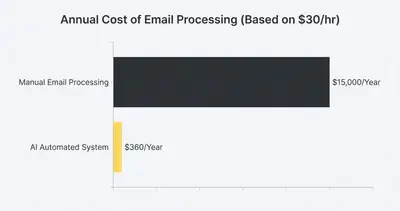
Building the auto-draft workflow:
Extend your smart routing setup from Step 3. When the AI categorizes an email as "Routine Inquiry" or "Lead," trigger a second action.
Provide the AI with a knowledge base document—a simple text file containing your pricing, FAQs, and business rules. Ask the AI to read the incoming email, consult your knowledge base, and write a polite, accurate response.
Finally, have the automation tool save that text as a Draft in your email client.
Pro Tip: Never configure the AI to send the email directly to the client. Always save it as a draft. This gives you ultimate control. You simply review the draft, tweak a sentence if needed, and hit send.
By auto-drafting responses, an email that normally takes five minutes to research and write now takes 15 seconds to review and approve.
Step 5: Establish the Daily 15-Minute Review Habit
Automation fails when business owners abandon the system completely. You cannot set up AI and ignore your inbox for a week. The goal is efficiency, not abdication.
You must build a new habit: The 15-Minute Daily Review.
Because your system has already filtered the noise, categorized the priorities, and drafted the routine replies, you only need to check your email twice a day.
Your new schedule looks like this:
- Morning (10 Minutes): Open your VIP/Urgent folder. Address immediate client needs. Then, open your Drafts folder. Review the AI-generated replies, make minor edits, and hit send.
- Afternoon (5 Minutes): Quickly scan the main inbox for any edge cases the AI missed. Check your "Reading List" folder if you have downtime.
That is it. You no longer live in your inbox. You visit it, execute the necessary actions, and leave.
Common Pitfalls and How to Fix Them
Even the best systems encounter friction. Here are three common mistakes you must avoid when automating your inbox.
1. Overcomplicating the AI Prompt
If you give the AI a massive, complex set of instructions, it will get confused. It might miscategorize an urgent client issue as spam. Keep your prompts short. If you need the AI to do two different things (like categorize and draft), use two separate AI nodes in your workflow.
2. Ignoring the False Positives
Occasionally, a newsletter will bypass your dumb filters and hit your smart AI router. The AI might try to draft a response to an automated marketing blast. To fix this, add a step before the AI node that checks if the email contains an unsubscribe link. If it does, stop the workflow immediately.
3. Forgetting to Update the Knowledge Base
If you raise your prices but forget to update the knowledge base document your AI uses, the AI will draft emails with outdated pricing. Treat your AI knowledge base like a living document. Whenever your business processes change, update the file.
Stop Letting Your Inbox Dictate Your Day
Your email inbox is a tool. It is supposed to serve you, not the other way around.
By implementing this 5-step system, you move from reactive scrambling to proactive management. You use simple rules for the predictable noise. You use AI to categorize the complex messages. You let AI draft the routine replies. And you reclaim 10 hours of your week to focus on actual business growth.
The technology to do this exists today. It is affordable, accessible, and completely transformative.
Ready to stop drowning in emails? Build this system yourself, or let us handle the heavy lifting. Book a demo with Evalics today, and we will show you exactly how custom AI workflows can streamline your specific daily operations.
Related Resources
- 5 Manual Tasks You Must Automate Before Hiring More Staff
- 5 Simple n8n Workflows Daily Productivity
- AI Chatbots vs Email Automation When to Use Each With Examples
- Are AI SEO Writers Worth It 2025
Official Sources
- Zapier: The State of Business Automation Report
- Harvard Business Review: How to Spend Way Less Time on Email Every Day
- n8n Official Documentation: Email Trigger Node
By Kevin Michael Schindler, AI Automation Expert at Evalics