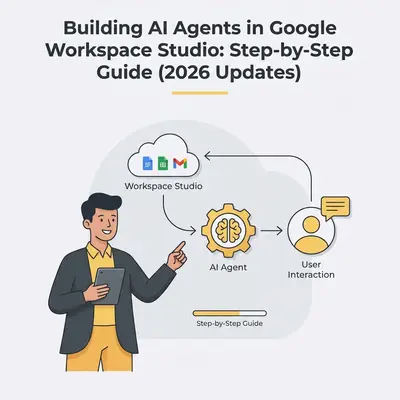
You manage a small team buried in repetitive tasks—sorting emails, updating spreadsheets, transcribing meetings. Automation tools exist, but they demand coding or complex setups. Google Workspace Studio changes that. Launched in late 2025 with key updates in February 2026, this no-code platform lets you build AI agents powered by Gemini to handle workflows intelligently.
Quick Win: Describe your automation in plain English—like "Summarize weekly meetings and assign tasks"—and Gemini creates the agent in minutes. No developer needed.
This guide walks you through setup, building, integrating, testing, and optimizing AI agents for 2026. Whether you're a Workspace admin or team lead, you can hand off a meaningful share of daily grunt work to a flow.
Understanding Google Workspace Studio and AI Agents
Google Workspace Studio, accessible at workspace.google.com/studio, is Google's answer to agentic AI for everyday work. Unlike rule-based tools, agents here reason through tasks, adapt to context, and integrate deeply with Workspace apps.
Core Components:
- Triggers: Events like new emails, file uploads, or scheduled times.
- Actions: Steps such as sending notifications, updating Sheets, or creating tasks in third-party apps.
- AI Decisions: Gemini analyzes data, makes choices (e.g., "Is this email urgent?"), and generates content.
- Connectors: Built-in for Gmail, Drive, Sheets, plus add-ons for Asana, Jira, Salesforce, and more.
In 2026, updates emphasize context-aware agents. They pull from your emails, docs, and web data for personalized outputs—think drafting reports or triaging support tickets.
Key Insight: Agentic AI shifts from rigid automation to adaptive workflows - but only if governance is in place to avoid failures.
Setup: Enabling Studio and Gemini Access
Before building, confirm access. Studio is now generally available with all Business and Enterprise Workspace plans, but whether you personally see it still depends on your Gemini license assignment and your admin's settings.
Step 1: Check Eligibility
- Log into your Workspace admin console.
- Navigate to Apps > Google Workspace > Settings for Studio.
- Confirm Gemini and Studio are enabled for your domain, and that eligible users have a Gemini license assigned.
If you don't see Studio yet, check licensing assignment and admin enablement first - see Get started with Google Workspace Studio.
Step 2: Integrate Gemini
- In Studio, connect Gemini AI (Flash or Pro modes based on complexity).
- Admins control which users can build and run flows via Workspace policies.
Step 3: Security Basics
- Set allow lists for third-party integrations.
- Limit agent permissions (e.g., read-only for sensitive data).
Once set up, head to workspace.google.com/studio and click "Create new."
Pro Tip: Rapid Release domains typically get new Workspace features - including future Studio step and Starter additions - before Scheduled Release domains do.
Building Your First AI Agent: Triggers, Actions, and Logic
Start simple. We'll build an email sorter—common for small teams.
Step 1: Describe the Task
- In Studio, select "Describe a task."
- Prompt: "Sort incoming emails: If urgent, notify in Chat; else, label and archive."
- Gemini generates the flow. Review and tweak.
For manual builds:
- Add Trigger: "New email in inbox."
- Add AI Step: Use Gemini to evaluate—"Does this require immediate action?" (Include examples in prompt for accuracy).
Step 2: Add Conditional Logic
- If true: Mark unread, send Chat notification with summary.
- If false: Apply "Filtered" label, archive.
Step 3: Customize with Context
- Enable context pull: Agent scans email history for relevance.
- Test prompt variations—2026 Gemini handles nuance better.
Example: For sales teams, build an agent that triggers when a lead email arrives, updates the record through the Salesforce connector, drafts a follow-up email for you to review and send, and books the follow-up call with Set up a meeting. Starters come from Google apps, so the flow cannot start on a change inside Salesforce itself.
Integration Examples: Gmail, Drive, and Third-Party Tools
Workspace Studio shines in connections.
Gmail Automation:
- Trigger: New email from key client.
- AI: Analyze sentiment, summarize.
- Action: Create Drive doc, notify yourself in Chat.
Drive Workflows:
- Trigger: New file in folder (e.g., Meet transcript).
- AI: Summarize content, extract action items.
- Action: Update Sheets task list, send Chat notes.
Third-Party Integrations:
- Asana: create tasks from labeled emails.
- Salesforce: triage leads, update records.
- Mailchimp: segment contacts based on Drive data.
These third-party connectors are still in Beta, and some - Salesforce and monday among them - need you or your admin to install a helper app.
Reality Check: While no-code, complex integrations may hit limits. Start with 2-3 apps.
| Integration Type | Example Use Case |
|---|---|
| Gmail | Email prioritization |
| Drive | File summarization |
| Asana | Task creation |
| Salesforce | Lead triage |
Testing and Debugging with 2026 Features
Don't deploy untested—agents can misfire.
Step 1: Sandbox Testing
- Run simulations in Studio.
- Input sample data (e.g., test emails).
- Check outputs: Did it notify correctly?
Step 2: Debug Common Issues
- Prompt Injection: Limit to trusted sources.
- Logic Errors: Use decision trees for clarity.
- Quotas: Monitor Gemini calls—Flash for speed, Pro for depth.
2026 updates add granular logging: Track agent runs in admin console.
Step 3: Iterate
- Review real runs weekly.
- Refine prompts based on failures (e.g., add "Ignore spam" clause).
Pro Tip: Test with edge cases before you trust an agent with real data - untested complexity is where most flows misfire.
Best Practices for Agentic Workflows
Maximize impact with these tips.
- Start Small: Automate one task per agent.
- Governance: Set admin policies for data access.
- Scale Securely: Share templates organization-wide.
- Measure ROI: Track time saved, and record which agent runs needed a human to step in.
- Human-AI Balance: Use agents for repetition, humans for oversight.
For small teams, focus on high-volume tasks like email handling first - the repetitive, rule-bound work is where a flow pays off fastest.
Key Insight: Agentic AI isn't set-it-and-forget-it. Regular reviews catch a flow that's drifted from what it was built to do.
Common Mistakes to Avoid
Overcomplicating prompts: Keep them concise—Gemini thrives on clarity.
Ignoring quotas: High-volume agents burn through limits; optimize with Flash mode.
Skipping security: Always use allow lists for add-ons.
Not testing integrations: Verify third-party connectors live.
Conclusion: Automate Smarter in 2026
Google Workspace Studio democratizes AI agents, turning ideas into automations without code. With 2026 updates like deeper Gemini integration, small teams can reclaim hours from mundane work.
Key takeaways:
- Setup is quick—enable and describe to build.
- Integrate across apps for adaptive workflows.
- Test rigorously and govern for success.
Ready to build your first agent? Book a demo with Evalics to optimize Workspace Studio for your team.
Related Resources
- Gemini 3 Thinking vs Pro: What's the Difference in Google Workspace
- Do You Really Need Gemini Pro? Flash vs Pro for Daily Tasks
- Google Gemini 3 Pricing Explained: What You Pay and What Actually Scales
Official Sources
- Google Workspace Studio Announcement - Rollout details.
- Get started with Google Workspace Studio - Studio help.
- BluePrism: Future of BPA Trends - Agentic AI insights.
- YouTube: Workspace Studio Demo - First-look tutorial.
By Kevin Michael Schindler, AI Automation Expert at Evalics