You stare at the blank canvas of an n8n workflow. You know what you want to do—take a lead from your website and put it into Google Sheets—but the nodes, connections, and JSON data structures look like a foreign language.
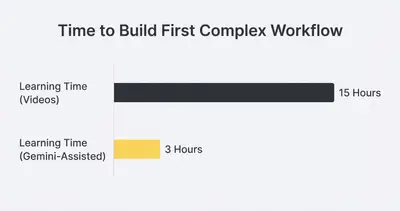
Usually, this is where you open YouTube and spend three hours watching tutorials that don't quite match your specific use case.
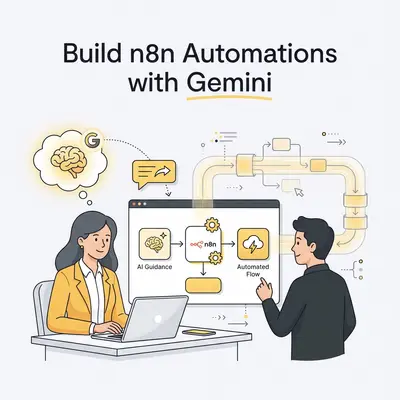
But there is a faster way. Instead of passively watching, you can actively build with an expert sitting right next to you. That expert is Google Gemini.
Using Gemini (or similar LLMs) transforms the learning curve of n8n from a wall into a staircase. You don't need to be a developer. You just need to know how to ask the right questions.
Here is how to use Gemini to build automations and actually understand how they work, without getting stuck in tutorial hell.
The "Pair Programming" Mindset
Most beginners use AI incorrectly. They say, "Build me an automation that does X," and then paste the result blindly. When it breaks, they are stuck.
To truly learn n8n, treat Gemini as a Senior Developer sitting at your desk. You are the Junior Developer. You drive the mouse, but you ask them for directions, explanations, and fixes.
Key Insight: The goal isn't just to get the workflow running. The goal is to understand why it works so you can fix it later.
Step 1: The Blueprint Prompt
Before you drag a single node onto the canvas, tell Gemini what you are trying to achieve. This helps you understand the logic flow before getting lost in the settings.
The Prompt:
"I am a beginner using n8n. I want to build a workflow that triggers when a user submits a form on my website (via Webhook), filters out anyone with a 'gmail.com' address, and adds the rest to a Google Sheet. Can you list the specific nodes I need in order and explain what each one does?"
What you learn: Gemini will likely tell you to use:
- Webhook Node: To receive the data.
- Filter (or If) Node: To check the email address.
- Google Sheets Node: To add the row.
Now you know exactly which nodes to search for in the n8n panel.
Step 2: mastering Data Mapping (The "Expression" Hurdle)
The hardest part of n8n for beginners is "Expressions." This is how you tell the Google Sheets node to use the Email field from the Webhook node.
If you drag and drop a variable and it looks wrong, or if you need to combine two fields (like First Name + Last Name), Gemini is your best friend.
The Strategy:
- Run your workflow once so the Webhook node has data.
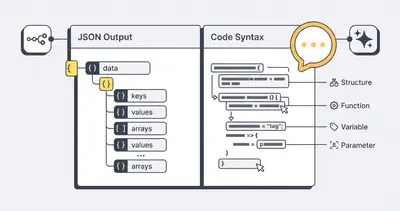
- Copy the JSON Output from the Webhook node (switch to JSON view in n8n).
- Paste it into Gemini.
The Prompt:
"Here is the JSON data output from my Webhook node: [PASTE JSON HERE]
I need an n8n expression to combine the 'first_name' and 'last_name' fields into a single 'Full Name' string. Please write the expression and explain how it works."
What you learn:
Gemini will give you something like {{ $json.body.first_name }} {{ $json.body.last_name }}. More importantly, if you ask for the explanation, it will teach you that $json.body refers to the data coming into the node. Suddenly, the syntax isn't scary anymore.
Step 3: The "Code Node" Shortcut
Sometimes, standard nodes aren't enough. You might need to format a date, calculate a tax rate, or clean up messy text. In n8n, this happens in the Code Node (JavaScript).
For a non-coder, this is terrifying. For a Gemini user, it's easy.
The Prompt:
"I have a date string looking like '2025-10-24T14:00:00Z'. I need to convert this into a readable format like 'October 24, 2025' to put into an email. Please write the JavaScript code for an n8n Code Node to do this."
Gemini will write the exact 4-5 lines of JavaScript you need. Paste it in, and it works.
Pro Tip: Always ask Gemini to "add comments to the code explaining what each line does." This turns a copy-paste job into a mini coding lesson.
Step 4: Debugging When Things Break
Your workflow will fail. It's inevitable. You'll see a red error box saying something cryptic like ERROR: parameter 'email' is missing.
Instead of panicking or Googling generic errors, use the context window.
The Strategy:
- Copy the error message.
- Copy the data going into the node that failed.
- Paste both into Gemini.
The Prompt:
"I am getting this error in my Google Sheets node: [PASTE ERROR]. Here is the data input I am sending to it: [PASTE JSON INPUT]. Why is this failing and how do I fix it?"
Gemini analyzes the data structure and might realize, "You are trying to send an 'Email' field, but your incoming data calls it 'User_Email'. You need to change the mapping."
Real-World Example: The "Explain It Like I'm 5" Method
Let's say you downloaded a template from the n8n library, but it's huge and complex. You don't want to run something you don't understand.
Take a screenshot of the workflow or copy the JSON of a specific complex node.
The Prompt:
"I am looking at an n8n workflow template. There is a 'Switch' node with complex logic. Can you explain in plain English what this node is checking for? Explain it like I'm 5."
This is how you deconstruct complex automations. You aren't just building; you are reverse-engineering expert workflows to learn their secrets.
Common Pitfalls to Watch Out For
While Gemini is powerful, it isn't perfect.
- Outdated Node Info: n8n updates frequently. Gemini might reference an old version of a node (e.g., telling you to click a button that moved in v1.0). If you can't find a setting, assume the UI changed and look for the equivalent.
- Hallucinated Functions: Rarely, it might invent a function that doesn't exist in n8n's specific JavaScript environment. If the code errors out, paste the error back to Gemini. It will usually catch its mistake.
- Over-Complication: Sometimes Gemini suggests a Code Node when a simple "Edit Fields" node would work. Always ask, "Is there a standard node that does this without code?"
Reality Check: AI helps you build faster, but you still need to verify the output. Always test your workflows with dummy data before connecting them to live customer emails.
Your Learning Path Forward
You don't need to master JavaScript or memorize every n8n node to be effective. You just need to master the feedback loop: Try -> Fail -> Ask AI -> Understand -> Fix.
Start small. Build a "Hello World" automation that sends a message to Slack every morning. Use Gemini to guide you through every click. By the time you finish, you won't just have an automation—you'll have a new skill.
Related Resources
- n8n vs Make 2025 AI Automation Comparison
- 5 Simple n8n Workflows for Daily Productivity
- Prompt Engineering for Automation
- How to Debug Automation When It Stops Working
Official Sources
- n8n Academy (Official Interactive Courses)
- Google Gemini Official Site