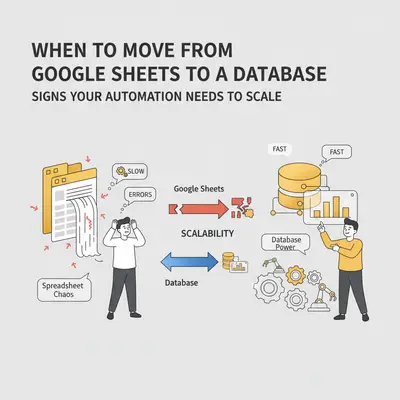
Your automation workflow hits Google Sheets rate limits at 9 AM. Your team can't access data simultaneously. Queries are slow to load. What started as a simple spreadsheet solution now bottlenecks your entire operation.
This scenario plays out daily for small businesses that outgrow Google Sheets without recognizing the warning signs. Google Sheets works perfectly until it doesn't. The transition from "this works fine" to "this is breaking everything" happens faster than most teams expect.
Quick Win: Recognizing the early warning signs of Google Sheets limitations can save weeks of troubleshooting and prevent automation failures. Most businesses wait until they're hitting rate limits daily before considering migration—by then, they've already lost productivity and customer trust.
Here's what most automation builders miss: Google Sheets isn't designed for production automation. It's a collaboration tool that happens to have an API. When your automations start making hundreds of requests per hour, or when multiple team members need simultaneous access, Sheets becomes a bottleneck that costs time and money.
This guide cuts through the confusion to give you clear criteria for when to migrate. We'll cover:
- When Google Sheets works (and when it doesn't)
- Five clear signs you've outgrown Sheets
- Core advantages of moving to a database
- A practical decision framework to evaluate your situation
- Step-by-step migration guide from Google Sheets to Supabase
- What advanced capabilities this unlocks
- Examples of when to migrate and when to wait
By the end, you'll know exactly when migration makes sense—and when it doesn't. You'll also have a clear path forward if you decide to make the switch.
Google Sheets for Automation: Where It Excels & Where It Falls Short
Google Sheets excels at collaboration, simple data entry, and lightweight automation. Understanding where it fits—and where it doesn't—prevents unnecessary migration costs and complexity.
When Google Sheets Works Perfectly
Small datasets: Under 10,000 rows with simple queries. Sheets handles this effortlessly.
Low-frequency automation: Workflows that run a few times per day, not hundreds of times per hour. A daily email digest that writes to Sheets? Perfect. An automation that processes 50 leads per hour? You'll hit limits.
Single-user or sequential access: When only one person needs to edit at a time, or when edits happen sequentially. Sheets works fine for personal dashboards or weekly reporting.
Simple data relationships: When you don't need complex joins or foreign key relationships. If your data fits in a single table with minimal relationships, Sheets is sufficient.
Example: A 5-person consulting firm uses Google Sheets to track client meetings. They add 20-30 rows per week, and one person updates it. This works perfectly. No migration needed.
When Google Sheets Becomes a Bottleneck
High-frequency API calls: When your automation makes more than 60 read requests per minute per user, or 300 per minute per project. According to Google's API documentation, these are hard limits that will cause failures.
Large datasets: Big sheets get slow. Queries slow down, formulas take longer to calculate, and the interface becomes sluggish. Google caps a spreadsheet at 20 million cells (Google Drive help).
Concurrent access needs: Multiple team members editing simultaneously causes conflicts, lost data, and frustration. Sheets wasn't designed for high-concurrency scenarios.
Complex data relationships: When you need proper foreign keys, joins, and relational data integrity. Sheets can simulate this with VLOOKUP, but it's fragile and slow at scale.
Example: A marketing agency's automation writes hundreds of leads an hour to Sheets while the team edits the same sheet. The automation starts hitting rate limits, and edits collide. This is a clear migration signal.
Reality Check: Most businesses can stay on Google Sheets longer than they think. If you're not hitting rate limits, experiencing slow queries, or having concurrent access issues, migration might be premature. Focus on optimizing your current setup first.
5 Clear Signs Your Automation Has Outgrown Google Sheets
These warning signs appear gradually, then suddenly. Recognizing them early prevents automation failures and data loss.
Sign 1: Rate Limits Are Hitting Daily
The problem: Google Sheets API enforces strict rate limits: 60 read requests per minute per user, and 300 per minute per project. When your automation exceeds these limits, requests fail with error messages like "Rate limit exceeded."
How to recognize it:
- Automation workflows fail intermittently with rate limit errors
- Errors cluster during peak hours (morning, end of day)
- You're implementing workarounds like delays or request batching
Example: A lead qualification automation that reads and writes several times per lead can pass 60 requests a minute at moderate volume. Each failed request means a lost lead or delayed processing.
The threshold: If you're making more than 50-60 API calls per minute consistently, you need a database.
Sign 2: Slow Queries with Large Datasets
The problem: Google Sheets slows down as datasets grow. Lookups and filters that a database answers quickly can take seconds in a large sheet.
How to recognize it:
- Filtering or sorting large ranges takes 10+ seconds
- VLOOKUP formulas across thousands of rows cause freezes
- The Sheets interface becomes unresponsive during operations
- Your automation workflows timeout waiting for Sheets to respond
Example: A support dashboard built on a large ticket sheet loads slowly, so team members stop using it.
The threshold: If queries consistently take more than 5 seconds, or if you have over 100,000 rows, migration will dramatically improve performance.
Sign 3: Data Relationship Limitations
The problem: Google Sheets doesn't support proper relational database features like foreign keys, joins, or referential integrity. You're forced to use VLOOKUP, INDEX/MATCH, or multiple sheets, which are fragile and slow.
How to recognize it:
- You're maintaining multiple sheets with manual relationships
- VLOOKUP formulas break when you add or remove rows
- Data inconsistencies appear because relationships aren't enforced
- You need complex queries that require multiple sheet lookups
Example: A CRM system in Sheets tracks customers, orders, and products across three sheets. Adding a new order requires manual VLOOKUP updates. When a product name changes, orders don't update automatically. Data becomes inconsistent.
The threshold: If you're managing relationships across multiple sheets, or if data integrity is critical, a database provides proper relational features.
Sign 4: Concurrent Access Issues
The problem: Google Sheets allows multiple users to edit simultaneously, but conflicts occur frequently. When two people edit the same cell, or when automations write while users are editing, data gets overwritten or lost.
How to recognize it:
- Team members report lost edits or conflicting changes
- Automation writes fail because a user has the sheet open
- You're implementing workarounds like "only edit during off-hours"
- Multiple users avoid editing because of conflicts
Example: A sales team of 8 people tracks deals in Sheets. Two people update the same deal simultaneously. One person's changes are lost. The team starts using email to coordinate edits, defeating the purpose of a shared system.
The threshold: If more than 2-3 people need to edit simultaneously, or if automations and users conflict regularly, a database handles concurrency properly.
Sign 5: Security and Permission Limitations
The problem: Google Sheets permissions are all-or-nothing. You can't grant fine-grained access to specific rows or columns. Everyone with edit access can see and modify everything.
How to recognize it:
- You need row-level or column-level security
- Sensitive data is mixed with public data in the same sheet
- You're creating duplicate sheets with different permissions
- Compliance requirements demand granular access controls
Example: A client management system stores both public contact info and private financial data. You want sales reps to see contact info but not financials. In Sheets, you'd need separate sheets and manual sync. In a database, you can set row-level permissions.
The threshold: If you need granular permissions, or if compliance requires access controls, a database provides proper security features.
Key Insight: These signs don't appear in isolation. If you're experiencing 2-3 of these issues simultaneously, migration isn't just beneficial—it's necessary. Waiting until all five signs appear means you've already lost significant productivity.
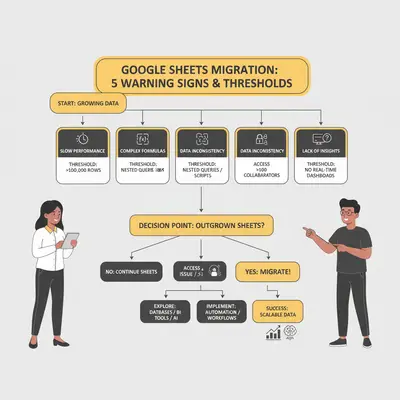
Database Advantages: Why It Outperforms Google Sheets for Scale
Moving from Google Sheets to a database like Supabase unlocks capabilities that transform how you work with data. Understanding these advantages helps justify the migration effort.
Speed and Performance
What databases do better: Databases are optimized for fast queries, even with millions of rows. They use indexing, query optimization, and efficient data structures that Sheets can't match.
The difference: Databases use indexes, so a lookup on a large table stays fast as the table grows. Sheets scans rows and recalculates formulas.
Why it matters: Slow queries mean slow automations. When your lead qualification workflow takes 30 seconds per lead because it's querying Sheets, you process 120 leads per hour. A faster lookup raises that ceiling.
Scalability
What databases do better: Databases are built to handle millions of rows, using indexes to keep queries fast. Google Sheets caps a spreadsheet at 20 million cells, and performance degrades long before that.
Why it matters: Your business grows. Your data grows. A solution that works today but breaks at 200,000 rows isn't a solution—it's technical debt waiting to cause problems.
Data Relationships
What databases do better: Proper foreign keys, joins, and referential integrity ensure data consistency automatically. You define relationships once, and the database enforces them.
The difference: In Sheets, changing a product name requires manually updating all related orders (or hoping VLOOKUP works). In a database, you update the product name once, and all related orders automatically reflect the change.
Why it matters: Data integrity prevents costly errors. When customer data, orders, and products are properly related, you eliminate inconsistencies that cause billing mistakes or customer service issues.
Concurrent Access
What databases do better: Databases handle thousands of simultaneous reads and writes using transaction isolation and locking mechanisms. Multiple users and automations can work simultaneously without conflicts.
The difference: In Sheets, two people editing the same row causes conflicts. In a database, the system queues edits and applies them sequentially, preventing data loss.
Why it matters: As your team grows, concurrent access becomes essential. A system that requires coordination to avoid conflicts doesn't scale with your business.
Security and Access Control
What databases do better: Row-level security, column-level permissions, and role-based access control provide granular security that Sheets can't match.
The difference: In Sheets, everyone with edit access can see everything. In a database, you can grant sales reps access to customer contact info while restricting financial data to managers only.
Why it matters: Compliance requirements, client confidentiality, and internal security all demand granular access controls. Databases provide this out of the box.
API Capabilities
What databases do better: Databases provide REST APIs, GraphQL APIs, and real-time subscriptions that are designed for automation. They're built to handle high-frequency, programmatic access.
The difference: Google Sheets API has strict rate limits and isn't optimized for automation. Database APIs are designed for this use case, with higher limits and better performance.
Why it matters: When automation is core to your operations, you need an API that's built for it. Database APIs provide the reliability and performance that automation requires.
Pro Tip: The advantages compound. Faster queries mean faster automations. Better relationships mean fewer errors. Concurrent access means better collaboration. Don't evaluate these benefits in isolation—they work together to create a system that scales with your business.
Decision Framework: When to Migrate Google Sheets to a Database
Use this framework to evaluate whether migration makes sense for your situation. Answer these questions honestly—most businesses can stay on Sheets longer than they think, but some need to migrate immediately.
Question 1: Are You Hitting Rate Limits?
Check your automation logs for rate limit errors:
- More than 5-10 rate limit errors per week? → Migration likely needed
- Occasional errors during peak hours? → Monitor closely, plan migration
- No rate limit errors? → Stay on Sheets for now
Threshold: If you're consistently making 50+ API calls per minute, migration will eliminate rate limit issues.
Question 2: Are Queries Slow?
Test query performance:
- Queries take 10+ seconds consistently? → Migration will dramatically improve performance
- Queries take 3-10 seconds? → Migration will help, but not urgent
- Queries are fast (<3 seconds)? → Performance isn't a migration driver
Threshold: If you have over 100,000 rows and queries are slow, migration provides immediate performance benefits.
Question 3: Do You Need Data Relationships?
Evaluate your data structure:
- Managing relationships across multiple sheets? → Database provides proper relational features
- Simple single-table data? → Sheets might be sufficient
- Need referential integrity? → Database is required
Threshold: If data integrity is critical and you're using multiple sheets with manual relationships, migration provides proper database features.
Question 4: Do Multiple People Edit Simultaneously?
Assess concurrent access needs:
- 5+ people editing simultaneously? → Database handles concurrency better
- 2-3 people with occasional conflicts? → Migration will help
- Single user or sequential edits? → Sheets is fine
Threshold: If concurrent editing causes regular conflicts or data loss, migration eliminates these issues.
Question 5: Do You Need Granular Permissions?
Evaluate security requirements:
- Need row-level or column-level security? → Database provides this
- All-or-nothing permissions are fine? → Sheets might work
- Compliance requires access controls? → Database is necessary
Threshold: If security or compliance demands granular permissions, migration is required.
Decision Matrix
| Scenario | Recommendation | Why |
|---|---|---|
| Hitting rate limits daily | Migrate immediately | Automation failures cost productivity and customer trust |
| 100,000+ rows with slow queries | Migrate soon | Performance will only get worse as data grows |
| Multiple sheets with relationships | Migrate when convenient | Database provides proper relational features |
| 5+ concurrent editors with conflicts | Migrate soon | Data loss from conflicts is costly |
| Need granular permissions | Migrate when convenient | Security requirements demand database features |
| None of the above | Stay on Sheets | Migration adds complexity without clear benefits |
Reality Check: Migration isn't free. It requires time, effort, and potentially costs for database hosting. Only migrate when the benefits clearly outweigh the costs. If you're not experiencing clear pain points, optimizing your current Sheets setup might be more cost-effective.
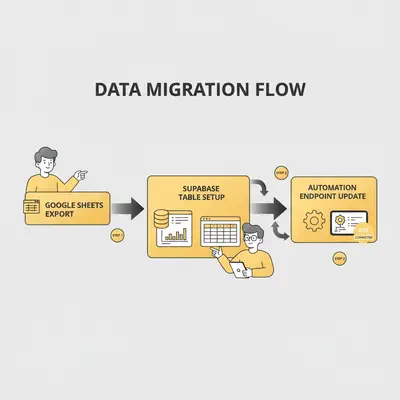
Practical Migration Guide: Google Sheets to a Scalable Database
This step-by-step guide walks you through migrating a workflow from Google Sheets to Supabase. We'll use a lead tracking system as an example, but the process applies to any use case.
Step 1: Export Your Data from Google Sheets
What to do:
- Open your Google Sheet
- Go to File → Download → Comma-separated values (.csv)
- Save the CSV file locally
- Review the data structure and note any relationships or dependencies
Important considerations:
- Export during low-usage hours to avoid conflicts
- Verify data integrity before exporting
- Note any formulas or calculated fields—these won't transfer automatically
- Document any data relationships that exist across multiple sheets
Common pitfalls:
- Forgetting to export all related sheets if you have multiple
- Not cleaning data before export (remove empty rows, fix formatting)
- Assuming formulas will work the same way in a database
Step 2: Set Up Your Supabase Project
What to do:
- Go to supabase.com and create a free account
- Create a new project (free tier includes 500 MB database, 5 GB egress)
- Note your project URL and API keys (found in Settings → API)
Supabase free tier includes:
- PostgreSQL database (up to 500 MB)
- REST API and GraphQL API
- Real-time subscriptions
- Row-level security
- 5 GB egress per month
For small businesses: The free tier handles many small automation use cases. You can upgrade to Pro (from $25/month) when you need more storage or egress.
Step 3: Create Your Database Table
What to do:
- In Supabase, go to Table Editor
- Click "New Table"
- Name your table (e.g., "leads" or "customers")
- Add columns matching your Google Sheets structure:
- Column name (matches your sheet headers)
- Data type (text, number, timestamp, etc.)
- Default values if needed
- Constraints (required fields, unique values)
Example table structure for leads:
id(uuid, primary key, auto-generated)name(text, required)email(text, required, unique)company(text, optional)status(text, required)created_at(timestamp, auto-generated)updated_at(timestamp, auto-updated)
Important considerations:
- Use proper data types (not everything should be text)
- Add indexes on columns you'll query frequently (email, status, created_at)
- Set up foreign keys if you have relationships with other tables
- Enable Row Level Security if you need permissions
Step 4: Import Your Data
What to do:
- In Supabase Table Editor, click "Insert" → "Import data from CSV"
- Upload your exported CSV file
- Map columns from CSV to database columns
- Review the import preview
- Click "Import" to complete the migration
Alternative method (for large datasets):
- Use Supabase's REST API to import data programmatically
- Write a simple script that reads your CSV and posts to the API
- This method handles errors better and provides progress tracking
Common pitfalls:
- Not mapping columns correctly (check data types match)
- Importing duplicate data (verify unique constraints)
- Forgetting to import related tables if you have relationships
- Not testing the import with a small sample first
Step 5: Set Up Row Level Security (Optional but Recommended)
What to do:
- In Supabase, go to Authentication → Policies
- Create policies for your table:
- SELECT policy: Who can read data
- INSERT policy: Who can add data
- UPDATE policy: Who can modify data
- DELETE policy: Who can remove data
Example policy for leads table:
- Sales team can read all leads
- Sales team can update leads assigned to them
- Managers can update all leads
- Only admins can delete leads
Why this matters: Row Level Security provides granular permissions that Google Sheets can't match. You can grant different access levels to different users without creating duplicate tables.
Step 6: Update Your Automation Workflow Endpoint
What to do:
- Find where your automation writes to Google Sheets (in Make.com, n8n, Zapier, etc.)
- Replace the Google Sheets action with an HTTP request to Supabase
- Use Supabase's REST API endpoint from your project settings (see the Supabase REST API docs). It will look similar to
SUPABASE_URL/rest/v1/[table-name] - Add headers:
apikey: [your-anon-key]Authorization: Bearer [your-anon-key]Content-Type: application/jsonPrefer: return=representation
- Update the request body to match your new table structure
Example HTTP request (Make.com or n8n):
Method: POST
URL: SUPABASE_URL/rest/v1/leads
Headers:
  apikey: [your-anon-key]
  Authorization: Bearer [your-anon-key]
  Content-Type: application/json
  Prefer: return=representation
Body:
{
  "name": "{{lead.name}}",
  "email": "{{lead.email}}",
  "company": "{{lead.company}}",
  "status": "new"
}
Common pitfalls:
- Using the wrong API endpoint (check Supabase docs for the correct format)
- Not including required headers (especially Authorization)
- Forgetting to update field names if they changed during migration
- Not testing the new endpoint before disabling the old Sheets workflow
Step 7: Test and Validate
What to do:
- Run a test automation that writes to Supabase
- Verify data appears correctly in the Supabase table
- Test queries to ensure performance is acceptable
- Verify concurrent access works (multiple users/automations)
- Check that permissions work as expected
- Run both systems in parallel for 1-2 weeks to ensure stability
Validation checklist:
- Data imports correctly with no errors
- Automation writes work without rate limits
- Queries are fast (<1 second for typical queries)
- Multiple users can access simultaneously
- Permissions restrict access appropriately
- No data loss during migration
- All relationships work correctly (if applicable)
Common pitfalls:
- Not testing thoroughly before switching over
- Assuming everything will work the same way
- Forgetting to update documentation or training materials
- Not having a rollback plan if something goes wrong
Pro Tip: Run both systems in parallel for at least one week. This gives you time to catch issues, compare results, and build confidence before fully switching over. It also provides a safety net if you need to roll back.
Unlocking Advanced Automation & Data Capabilities with a Database
Moving to a database doesn't just solve current problems—it unlocks capabilities that weren't possible with Google Sheets. Understanding these possibilities helps justify the migration effort.
Building Internal Tools on Your Data
What becomes possible: With data in a database, you can build custom dashboards, admin panels, and internal tools using tools like Retool, Tooljet, or custom React apps.
Example: A marketing agency builds a custom dashboard in Retool that shows lead sources, conversion rates, and revenue by campaign. This dashboard queries the Supabase database in real-time and updates automatically. In Sheets, this would require manual updates and complex formulas.
Why it matters: Internal tools built on your data provide insights that generic spreadsheets can't match. You can create exactly what your team needs, when they need it.
Real-Time Dashboards
What becomes possible: Databases support real-time subscriptions that update dashboards instantly when data changes. No refresh needed.
Example: A sales team dashboard shows live deal pipeline updates. When a new lead is added via automation, the dashboard updates immediately. Team members always see current data without manual refreshes.
Why it matters: Real-time data means better decisions. When your team sees current information instantly, they can respond faster and more accurately.
Complex Queries and Reporting
What becomes possible: SQL queries can join multiple tables, aggregate data, filter complex conditions, and generate reports that would be impossible or extremely slow in Sheets.
Example: A customer support team generates a weekly report showing average response time by agent, ticket volume by category, and customer satisfaction scores. This requires joining three tables and aggregating data—trivial in SQL, nearly impossible in Sheets at scale.
Why it matters: Better reporting means better insights. When you can query your data flexibly, you discover patterns and opportunities that spreadsheets hide.
API Integrations
What becomes possible: Database APIs are designed for automation. You can integrate with any tool that supports REST APIs, webhooks, or GraphQL.
Example: A CRM system built on Supabase integrates with email marketing tools, accounting software, and customer support platforms. Each integration uses the same API, making it easy to connect new tools as needed.
Why it matters: APIs enable automation at scale. When every tool can access your data programmatically, you can build workflows that weren't possible with spreadsheets.
Future Scalability
What becomes possible: Databases scale from thousands to millions of rows without architectural changes. Your system grows with your business.
Example: A startup starts with 10,000 customers in Supabase. As it grows, the same Postgres database keeps working. The team adds indexes and upgrades the plan instead of migrating again.
Why it matters: Technical debt compounds. A solution that works today but breaks at 200,000 rows forces another migration later. Starting with a database prevents this problem.
Key Insight: The migration isn't just about solving current problems—it's about enabling future capabilities. When your data lives in a database, you can build tools, integrations, and workflows that transform how your business operates.
Three Signals It Is Time to Move to a Database
Three worked examples of the pain that actually forces a migration. Each one names the symptom, the underlying cause, and what changes structurally once the data moves.
Signal: Rate Limits Break the Automation
The symptom: A lead qualification workflow starts failing part way through its runs. It worked yesterday, and nothing in the workflow changed.
The cause: Google Sheets enforces API rate limits, and an automation reading and writing per record hits them once volume rises. Failures cluster during your busiest hours, which is exactly when a lost lead costs the most.
The fix: Move the data to a database such as Supabase. The migration itself is usually the small part, since the workflow logic does not change, only where it reads and writes.
What changes structurally:
- Rate limits stop being the ceiling on how fast the automation can run
- Per-record read and write time drops by orders of magnitude, because a database lookup is not an API call
- Multiple people and multiple workflows can hit the data at once without write conflicts
The lesson: Rate limits do not degrade gracefully. They work until they do not, so they tend to surface as a sudden outage rather than a slow decline.
Signal: Queries Get Slow Enough That People Stop Using the System
The symptom: An inventory sheet that has grown to tens of thousands of rows takes many seconds to answer anything. The team quietly goes back to tracking stock by hand.
The cause: A spreadsheet scans. It has no indexes, so every lookup walks the whole sheet, and the cost grows with every row you add.
The fix: Move to a database and index the columns you filter on.
What changes structurally:
- Indexed lookups do not slow down as the table grows, which is the actual difference between a sheet and a database
- The system gets used again, and automated alerts on stock levels become possible because a query is cheap enough to run continuously
The lesson: A slow system gets abandoned no matter how good its features are, and abandonment is the real cost, not the seconds.
Signal: Relationships Between Sheets Cause Data Errors
The symptom: Clients, projects, and invoices live in three separate sheets, wired together with VLOOKUP. Invoices go out wrong.
The cause: A VLOOKUP is a lookup, not a relationship. Nothing stops a project pointing at a client that was renamed, or an invoice pointing at a project that no longer exists.
The fix: Move to a database with real foreign keys.
What changes structurally:
- A foreign key makes the broken reference impossible rather than merely unlikely, which removes a whole class of billing error at the source
- Reports that need to join across all three tables become straightforward instead of a manual assembly job
The lesson: This migration is the most work of the three, because relationships must be mapped rather than copied. It is also the one that eliminates errors permanently instead of catching them faster.
Reality Check: Migrate when you have a clear pain point that a database solves, not on principle. If Sheets is working fine for your volume, optimizing what you have is cheaper than moving.
Common Mistakes When Migrating from Google Sheets to a Database
Learning from others' mistakes prevents costly errors during migration. These patterns appear repeatedly in failed migrations.
Mistake 1: Migrating Too Early
The mistake: Migrating before experiencing clear pain points, "just in case" or "to be future-proof."
Why it's a problem: Migration adds complexity, costs, and maintenance overhead. If you're not experiencing problems, you're solving a problem that doesn't exist.
How to avoid it: Only migrate when you're experiencing 2-3 of the warning signs consistently. If Sheets works fine, optimize your current setup instead.
Example: A small team migrates to a database "to scale" with 2,000 rows and no automation. They spend time and a monthly fee for no benefit. Sheets would have been fine.
Mistake 2: Migrating Too Late
The mistake: Waiting until automation is completely broken, data is corrupted, or team productivity is severely impacted.
Why it's a problem: By the time migration becomes urgent, you're already losing money and customer trust. Urgent migrations are rushed, error-prone, and stressful.
How to avoid it: Monitor for warning signs proactively. When you see 2-3 signs appearing, plan migration during a low-stress period, not during a crisis.
Example: A company waits until rate limits break its automation daily, then migrates in a rush. Leads get lost while the fix is underway. Planning earlier avoids this.
Mistake 3: Not Planning for Data Relationships
The mistake: Migrating data without understanding relationships, then discovering that related data is broken.
Why it's a problem: Fixing broken relationships after migration is harder than planning them upfront. You might need to re-import data or rebuild relationships manually.
How to avoid it: Map all data relationships before migration. Document which sheets reference which other sheets, and plan how these will work in a database with proper foreign keys.
Example: A company migrated customer data and order data separately. Orders referenced customers by name, but customer names weren't unique. The relationship broke, and they spent a week fixing it manually.
Mistake 4: Underestimating Migration Time
The mistake: Assuming migration is "just exporting and importing data," then discovering it takes weeks.
Why it's a problem: Underestimating time leads to rushed work, missed steps, and errors. You might cut corners that cause problems later.
How to avoid it: Plan for 1-2 weeks for a simple migration, 3-4 weeks for complex migrations with relationships. Test thoroughly, run in parallel, and don't rush.
Example: A team plans 2 days for migration but forgets relationship mapping, permissions, automation updates, and testing. The rushed timeline causes data errors.
Mistake 5: Not Testing Concurrent Access
The mistake: Testing migration with single-user access, then discovering concurrent access issues in production.
Why it's a problem: Concurrent access is often the main reason for migration. If you don't test it, you might not solve the problem you're trying to fix.
How to avoid it: Test with multiple users and automations accessing data simultaneously. Verify that edits don't conflict and that permissions work correctly.
Example: A team migrated to solve concurrent access issues but only tested with one user. In production, conflicts still occurred because they didn't set up proper database transactions. They had to fix this after launch.
Pro Tip: The best migrations happen when you're not under pressure. Monitor for warning signs, plan migration during a calm period, and test thoroughly. Rushed migrations create more problems than they solve.
FAQ: Your Questions on Google Sheets to Database Migration
How much does it cost to migrate from Google Sheets to a database?
Migration costs vary:
- Supabase free tier: $0/month (500 MB database, 5 GB egress) - enough for many small automations
- Supabase Pro: from $25/month (8 GB disk per project, 250 GB egress) - for larger datasets (Supabase pricing)
- Migration time: 1-2 weeks for simple migrations, 3-4 weeks for complex migrations with relationships
- Opportunity cost: Factor in the time you spend on migration
Most small businesses can migrate for $0-25/month plus their time investment. The free tier handles most automation use cases. You only need to upgrade when you exceed free tier limits.
How long does migration take?
Timeline depends on complexity:
- Simple migration (single table, no relationships): 3-5 days
- Standard migration (multiple tables, some relationships): 1-2 weeks
- Complex migration (many relationships, custom logic): 3-4 weeks
Factors that affect timeline:
- Number of tables and relationships
- Data cleaning requirements
- Automation workflow complexity
- Testing and validation time
- Team availability for testing
Plan for 1-2 weeks for most migrations, and add buffer time for unexpected issues.
Do I need technical skills to migrate?
Basic technical skills help, but aren't required:
- Exporting from Sheets: No technical skills needed
- Setting up Supabase: Basic web skills (following documentation)
- Importing data: Can use Supabase's CSV import (no coding)
- Updating automations: Depends on your automation tool (Make.com/n8n are visual, no coding)
For simple migrations, you can do it yourself with documentation. For complex migrations with relationships, consider hiring help or using an agency.
What are alternatives to Supabase?
Popular database alternatives:
- Airtable: Spreadsheet-database hybrid, easier migration from Sheets, with its own paid plans (Airtable pricing)
- PostgreSQL (self-hosted): More control, but requires technical expertise
- Firebase: Google's database, good if you're already in Google ecosystem
- MongoDB Atlas: NoSQL database, good for unstructured data
Supabase is recommended for most small businesses because it's free to start, uses PostgreSQL (industry standard), and provides excellent APIs for automation.
When should I NOT migrate?
Don't migrate if:
- You have under 10,000 rows and no performance issues
- You're not hitting rate limits
- Only 1-2 people use the system
- You don't need data relationships
- Your current Sheets setup works fine
Migration adds complexity. Only migrate when you have clear pain points that a database will solve. If Sheets works, optimize your current setup instead.
Can I use both Google Sheets and a database?
Yes, this is a common approach:
- Use Sheets for collaboration and manual data entry
- Use database for automation and programmatic access
- Sync data between them (database → Sheets for reporting, Sheets → database for automation)
This hybrid approach works well when you need Sheets for collaboration but database for automation. However, it adds complexity and requires keeping data in sync.
What happens if migration goes wrong?
Mitigation strategies:
- Run in parallel: Keep Sheets working while you test database
- Test thoroughly: Validate data, test automations, verify permissions
- Have a rollback plan: Keep Sheets data until you're confident in migration
- Start small: Migrate one workflow first, then expand
Most migration issues are fixable if you catch them early. Running in parallel and testing thoroughly prevents major problems.
Conclusion: Scale Your Automation Beyond Google Sheets
Google Sheets works perfectly until it doesn't. The transition from "this works fine" to "this is breaking everything" happens faster than most teams expect. Recognizing the warning signs early—rate limits, slow queries, data relationship issues, concurrent access conflicts, and security limitations—prevents costly automation failures and lost productivity.
Key takeaways:
Migration makes sense when you're experiencing 2-3 warning signs consistently. Rate limits breaking automation, queries taking 10+ seconds, or concurrent access causing data loss are clear signals that it's time to move to a database.
Databases unlock capabilities that weren't possible with Sheets. Real-time dashboards, complex queries, proper data relationships, and API integrations transform how you work with data. The migration isn't just about solving current problems—it's about enabling future capabilities.
Migration doesn't have to be complex or expensive. With tools like Supabase, you can migrate for free and complete the process in 1-2 weeks for most use cases. The step-by-step guide in this post walks you through the entire process.
Don't migrate too early or too late. Only migrate when you have clear pain points that a database will solve. But don't wait until automation is completely broken—plan migration during a calm period, not during a crisis.
If you're experiencing rate limits, slow queries, or concurrent access issues, migration will solve these problems and unlock new capabilities. The question isn't whether to migrate—it's when.
Ready to evaluate whether migration makes sense for your automation? Book a free consultation to get personalized recommendations for your situation.
Related Resources:
- Your First AI Automation: Complete Step-by-Step Guide
- The 5-Minute Automation Test: Find Your First Win
- AI Agents vs Automations: Key Differences and When to Use Each
By Kevin Michael Schindler, Evalics.