Sales teams that split their day between Gmail, Google Calendar, and Salesforce lose time to context-switching. They manually copy email threads into CRM records. They duplicate calendar events. They export data to Sheets for analysis, then re-import changes back to Salesforce.
This context-switching costs productivity. It creates data silos. It leads to missed follow-ups and incomplete customer records.
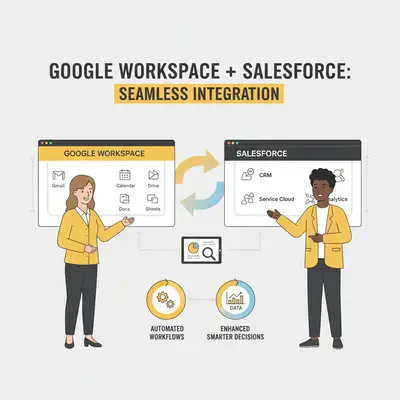
Salesforce and Google Workspace can work together. Official integrations connect Gmail, Calendar, Drive, and Sheets directly with your CRM. You can view Salesforce records inside Gmail. You can log emails and events automatically. You can sync data between Sheets and Salesforce without manual exports.
This guide explains what integration options exist, how they work, and when they make sense for your team.
Quick Win: Start with the Salesforce Connector for Gmail. It's the fastest way to reduce context-switching and gives your team CRM access directly inside their inbox.
Integration Options: What's Available
Salesforce offers three main integration paths for Google Workspace: native connectors, Marketplace apps, and automatic sync services.
Salesforce Connector for Gmail & Google Calendar
The Salesforce Connector for Gmail adds a CRM sidebar directly inside your Gmail interface. It displays related Salesforce records, logs emails with one click, creates new records from Gmail, and syncs calendar events between Google Calendar and Salesforce.
Setup: Requires Google Workspace admin approval for Marketplace installation and Salesforce admin configuration. Users need appropriate Salesforce permissions.
Best for: Sales teams that spend most of their day in Gmail and need quick CRM access without switching tabs.
Pro Tip: Configure the connector to automatically suggest related Salesforce records based on email addresses. This reduces manual lookup time.
Google Sheets + Salesforce Connectors
Marketplace connectors like G-Connector enable bidirectional sync between Google Sheets and Salesforce. Pull Salesforce data into Sheets for analysis, make bulk edits, and push changes back to Salesforce.
Setup: Install from Google Workspace Marketplace, authenticate with Salesforce (OAuth), configure field mappings, and set sync frequency.
Best for: Teams needing bulk data operations, custom reporting, or spreadsheet-based workflows.
Limitations: Most connectors have row limits per sync. Complex field mappings may require technical configuration. Some charge per user or per sync operation.
Einstein Activity Capture
Einstein Activity Capture automatically syncs emails and calendar events from Google Workspace into Salesforce. It runs in the background and requires minimal user interaction.
What it does: Automatically logs emails to related Salesforce records, syncs Google Calendar events, captures email thread history, and maintains activity timelines.
Setup: Salesforce admin enables Activity Capture, connects Google Workspace account (OAuth), and configures sync rules.
Best for: Teams wanting automatic activity logging without manual steps. Especially useful for high email volume sales teams.
Limitations: Requires Salesforce licenses that include Einstein Activity Capture. Some email sync features have daily limits.
Reality Check: Einstein Activity Capture requires proper configuration. Without clear sync rules, it can create duplicate activities. Start with conservative rules and expand gradually.
Salesforce for Gemini Extension
The Salesforce for Gemini extension integrates Salesforce CRM data directly into Google Workspace AI workflows. It surfaces CRM insights and enables actions within Gmail and Workspace Studio when using Gemini AI features.
What it does: When you use Gemini in Gmail or Workspace Studio, the extension accesses Salesforce data to provide context-aware assistance. It can show related Salesforce records, suggest actions based on CRM data, and help create leads, contacts, or cases directly from AI conversations.
Setup: Install from Google Workspace Marketplace, authenticate with both Salesforce and Google Workspace accounts, and configure which Salesforce data the extension can access.
Best for: Teams using Workspace AI features who want CRM context in their AI workflows. Especially useful for sales teams that use Gemini to draft emails or analyze customer communications.
Limitations: Requires both Salesforce and Google Workspace accounts with appropriate permissions. Some features may require specific Salesforce licenses. AI-generated actions may need review before execution.
Integration Capabilities Comparison
Here's a comparison table showing what each integration type can do:
| Integration Type | Gmail Access | Calendar Sync | Sheets Sync | Automatic Logging | AI Integration | Setup Complexity |
|---|---|---|---|---|---|---|
| Salesforce Connector for Gmail | Yes (sidebar) | Yes | No | Manual (one-click) | No | Medium |
| Google Sheets Connectors | No | No | Yes (bidirectional) | No | No | Medium-High |
| Einstein Activity Capture | Yes (background) | Yes | No | Yes (automatic) | No | Low-Medium |
| Salesforce for Gemini | Yes (via AI) | No | No | No | Yes (Gemini) | Medium |
| Marketplace Workflow Tools | Varies | Varies | Varies | Varies | Varies | High |
Key differences:
- Gmail access: Connector provides in-email CRM access. Activity Capture logs emails automatically but doesn't add a sidebar.
- Calendar sync: Both Connector and Activity Capture sync calendar events, but Connector offers more manual control.
- Sheets sync: Only Marketplace connectors provide bidirectional Sheets sync. Native options don't support this.
- Automatic logging: Activity Capture is fully automatic. Connector requires one-click actions. Sheets connectors require manual sync triggers.
- AI integration: Salesforce for Gemini extension enables AI-powered workflows with CRM context. Other integrations don't include AI capabilities.
Typical Workflow Examples
Here are specific, actionable workflows you can implement after setting up integrations.
Workflow 1: Sync Emails to Salesforce Lead Records Automatically
Scenario: A sales team receives inquiries via email. They want all customer emails automatically synced to Salesforce Lead records.
How it works: Einstein Activity Capture is enabled and connected. When a sales rep receives an email from a potential customer, Activity Capture identifies if the sender exists in Salesforce. If the sender matches a Lead record, the email thread is automatically logged. If no match exists, Activity Capture can create a new Lead record. Sales reps see complete email history in Salesforce without manual logging.
Best for: High-volume sales teams receiving many customer inquiries via email
Workflow 2: Edit Salesforce Data from Sheets and Push Changes Back
Scenario: A marketing team needs to update 500 contact records with new campaign data. They want to work in Google Sheets for flexibility, then sync changes back to Salesforce.
How it works: Install a Google Sheets connector from the Marketplace. Import Salesforce contacts into Sheets, add new campaign data columns, map Sheet columns to Salesforce fields, and run sync to push all changes back. Verify updates in Salesforce records.
Best for: Bulk data operations, custom reporting, data analysis workflows requiring spreadsheet flexibility
Workflow 3: Use Workspace AI to Generate CRM Insights on Sales Emails
Scenario: A sales manager wants AI to analyze incoming sales emails and generate insights about customer sentiment, urgency, and recommended actions based on Salesforce history.
How it works: Salesforce for Gemini extension is installed and connected. Sales rep receives a customer email in Gmail and uses Gemini AI to ask: "Analyze this email and tell me about this customer's history in Salesforce. What's their sentiment, and what should I do next?" Gemini accesses Salesforce data via the extension to provide context-aware analysis. AI generates insights about customer relationship, recent interactions, and recommended next steps. Rep can create follow-up tasks or update Salesforce records based on AI recommendations.
Best for: Teams using Workspace AI who want CRM-aware assistance in their workflows
Key Insight: The best integration depends on your workflow. High email volume teams benefit from Activity Capture. Teams needing CRM access in Gmail prefer the Connector. Bulk operations require Sheets connectors. AI-powered workflows need the Salesforce for Gemini extension.
Business Value: Why Integration Matters
Connecting Salesforce with Google Workspace delivers three main benefits: reduced context-switching, better data sync, and faster workflows.
Teams stay in their primary tools (Gmail, Sheets) while accessing CRM data. This eliminates tab-switching and reduces mental overhead. Automatic or simplified data flow keeps Salesforce records current. One-click logging and in-app CRM access speed up common tasks.
What You Can Do After Integration
Once integrations are set up, here are the specific capabilities you gain:
View Salesforce data inside Workspace apps: See contacts, accounts, and opportunities directly in Gmail sidebar without switching tabs. View related Salesforce records when composing emails or scheduling meetings. Access CRM data in Google Calendar to see customer context for meetings.
Automatically log activities: Sync emails to Salesforce records with one click or automatically. Log calendar events and meetings to Salesforce activities. Capture email thread history and attachments in CRM records. Maintain complete activity timelines without manual entry.
Work with Salesforce data in Sheets: Pull Salesforce reports or custom query data into Google Sheets. Make bulk edits to contact records, opportunities, or custom objects. Sync changes back to Salesforce with live updates. Create custom reports and analysis using spreadsheet tools.
Take actions via Workspace AI: Use Gemini in Gmail to create leads, contacts, or cases based on email content. Generate CRM insights on incoming sales emails with AI assistance. Get context-aware AI responses that reference Salesforce data. Automate follow-up actions based on AI analysis of customer communications.
Quick Win: Start with viewing Salesforce data in Gmail. This single capability eliminates most context-switching and provides immediate value with minimal setup.
Setup & Requirements
Setting up Salesforce and Google Workspace integration requires coordination between Salesforce and Workspace admins.
Admin Privileges Required
Salesforce admin: Must configure integration settings, enable features like Einstein Activity Capture, and set up OAuth connections. Controls which Salesforce data integrations can access.
Google Workspace admin: Must approve Marketplace app installations, grant OAuth permissions, and configure user access. Controls which Workspace apps can connect to external services.
User permissions: Individual users need appropriate Salesforce permissions to view and create records through integrations. Without proper permissions, integrations may fail silently or show limited data.
Installation Steps
Salesforce Connector for Gmail: Workspace admin installs from Marketplace, grants OAuth permissions. Salesforce admin configures connector settings. Users authenticate accounts. Connector appears in Gmail sidebar.
Google Sheets connectors: Workspace admin approves Marketplace installation. Install connector, authenticate with Salesforce (OAuth), configure field mappings, set sync frequency. Test with sample data before deployment.
Einstein Activity Capture: Salesforce admin enables in settings, connects Google Workspace account (OAuth), configures sync rules, sets data retention policies. Test with sample emails and monitor for duplicates.
Salesforce for Gemini extension: Workspace admin approves Marketplace installation. Install extension, authenticate with both accounts, configure data access. Test AI features to verify CRM context access.
OAuth Permission Details
All integrations use OAuth to securely connect accounts. Users must authenticate with Salesforce, grant permissions for data access, and approve access to Gmail/Calendar/Sheets. Some organizations restrict OAuth for security—work with IT to enable if needed.
Common Configuration Steps
Field mapping: For Sheets connectors, map Sheet columns to Salesforce fields. Complex mappings may require technical expertise.
Sync rules: For Activity Capture, define rules for which emails and events to capture (filter by sender, subject, calendar type, or Salesforce record matching).
Permission scoping: Configure which Salesforce objects and fields integrations can access. Limit to necessary data for security.
Error handling: Set up notifications for sync failures. Monitor integration health regularly.
Potential Limitations During Setup
- OAuth restrictions may block setup
- Admin approval delays can slow deployment
- Complex field mappings require technical knowledge
- Permission conflicts may prevent data access
- Some connectors have trial periods or usage limits
Limitations and Best Practices
Understanding integration limitations helps you set realistic expectations and avoid common pitfalls.
Setup Requirements
Admin coordination: Most integrations require both Salesforce admin and Google Workspace admin approval. Coordination between admins can cause delays. Users need appropriate Salesforce permissions—without them, integrations may fail silently or show limited data.
OAuth authentication: All integrations use OAuth to connect accounts securely. Some organizations restrict OAuth for security reasons, which can block integration setup. Work with IT to enable OAuth if needed.
Functional Limits
Data volume limits: Some connectors limit data per sync operation, and Activity Capture's email volume limits vary by Salesforce edition. Check your connector's documentation and your Salesforce edition's limits before planning a large migration.
Sync frequency: Automatic sync services run on schedules, not real-time. Sheets connectors require manual sync triggers or scheduled syncs. Real-time sync isn't always available.
Field mapping complexity: Sheets connectors require field mapping configuration. Complex custom objects or unusual field types may not map cleanly. This can require technical expertise or vendor support.
Data Sync Timing and Delays
Real-time vs batch: Most integrations use batch processing rather than real-time updates. Sheets connectors sync on-demand or on schedule. Expect delays between data changes and sync completion.
Sync delays: Changes in Salesforce are not instant in Workspace apps, and the reverse is also true. Plan workflows accordingly—don't expect instant updates.
Peak time delays: During high usage periods, sync delays can increase. Activity Capture may take longer to process emails during business hours.
Conflict Handling
What happens when data conflicts: If the same record is edited in both Salesforce and Google Sheets simultaneously, conflict resolution depends on the connector. Some use "last write wins" (most recent change overwrites). Others may flag conflicts for manual resolution.
Preventing conflicts: Use clear data ownership rules. Designate which system is the "source of truth" for each data type. Avoid editing the same records in multiple systems simultaneously.
Conflict resolution: Most connectors don't automatically resolve conflicts. You may need to manually review and resolve conflicting changes. Some connectors provide conflict logs for review.
Workspace Native Tools vs Third-Party Connectors
Native tools (official connectors): Reliable, supported by Salesforce and Google, regular updates, better security. Limited to specific use cases, may have fewer customization options.
Third-party connectors (Marketplace apps): More flexibility and customization, may support specialized workflows. Vary in quality and support, may require additional subscriptions, require due diligence on security and data handling.
When to use each: Start with official connectors for core use cases. Use Marketplace tools when you need functionality native connectors don't provide, require custom workflows, or need specialized features.
Permission Complexity
Admin vs user roles: Admin setup is required for initial configuration. Users need appropriate permissions to use integrations. Permission mismatches are common—users may see errors if their Salesforce permissions don't match integration requirements.
Permission scoping: Configure which Salesforce objects and fields integrations can access. Limit to necessary data for security. Over-permissioning can create security risks.
Troubleshooting: If integrations fail, check both Salesforce and Workspace permissions. Verify OAuth tokens are valid. Review admin logs for permission errors.
Reality Check: Third-party Marketplace apps require due diligence. Review security practices, data handling, support quality, and pricing before committing. Start with official connectors and expand to Marketplace tools only when necessary. Expect sync delays and plan workflows accordingly.
Conclusion: Getting Started
Salesforce and Google Workspace integration reduces context-switching, improves data sync, and speeds up workflows. The right integration depends on your team's primary tools and workflow patterns.
Key takeaways:
-
Start with the Gmail Connector if your team lives in email. It provides immediate value with minimal setup.
-
Add Activity Capture for automatic email and calendar logging. This works best for high-volume teams that struggle with manual logging.
-
Use Sheets connectors when you need bulk operations or custom reporting. These require more setup but offer flexibility for data workflows.
-
Evaluate Marketplace tools only after exhausting native options. Third-party tools add complexity but can address specific needs.
Most teams benefit from starting with one integration (typically the Gmail Connector) and expanding based on actual workflow needs. Avoid over-integrating before understanding what your team actually uses.
The goal isn't to connect everything. It's to eliminate the friction points that slow down your team's daily work.
Official Sources
- Salesforce Google Integrations - Official Salesforce page on Google Workspace integrations
- Google Workspace Salesforce Partnership - Google's overview of Salesforce integration capabilities
- Salesforce Extension for Gemini in Gmail - Workspace Updates blog post about Salesforce for Gemini extension
Related Resources
- Google Workspace Flows Use Cases and Implementation Guide - Learn how to build automation workflows in Google Workspace
- Google Workspace Studio Flows + Zapier: The Hybrid Setup That Works Today - Combine Workspace automation with third-party tools
- 5 Simple n8n Workflows for Daily Productivity - Workflow automation examples using n8n
- n8n Workflow Optimization Techniques - Advanced techniques for building reliable automations