
n8n workflow optimization techniques help teams running n8n in production reduce failures, speed up execution, and cut costs. This guide covers 10 best practices for 2025 that address common production issues like debugging workflow errors, handling API rate limits, preventing duplicate executions, and optimizing AI costs. Whether you're troubleshooting existing workflows or building new automations, these techniques will help you create more reliable, maintainable n8n workflows.
Quick Win: Five core n8n practices carry most of the reliability gain: Execute Once, environment variables, error triggers, Switch nodes, and rate limiting. Each one removes a common cause of workflow failure, which is time you currently spend fixing broken automations.
The workflow automation market is projected to surpass $26 billion by 2025, up from less than $5 billion in 2018, driven by businesses adopting tools like n8n to eliminate repetitive tasks and supercharge efficiency (Source: Quixy 2025 Workflow Statistics).
Production Best Practices Checklist
Before diving into the detailed tips, here's a quick checklist of n8n workflow best practices for production:
- Use Execute Once to prevent duplicate executions during testing and production
- Replace nested If statements with Switch nodes for faster conditional routing
- Implement error triggers connected to notification systems (Slack, email, PagerDuty)
- Store all credentials in Environment Variables, never hardcode API keys
- Add data validation early in workflows to filter invalid records before expensive operations
- Use batch processing (SplitInBatches) for large datasets to avoid timeouts
- Optimize AI API calls by batching records and choosing appropriate models (GPT-4o Mini or Claude Haiku 5.5 for most tasks)
- Document complex workflows with sticky notes explaining logic and dependencies
- Use modular sub-workflows with Execute Workflow nodes for reusable components
- Monitor workflow performance and set up alerts for failures or slowdowns
- Implement rate limiting between API calls to prevent lockouts
- Test workflows thoroughly before deploying to production
Table of Contents
- Tip 1: Use Execute Once to Prevent Duplicate Executions
- Tip 2: Replace Nested If Statements with Switch Nodes
- Tip 3: Optimize AI API Calls with Batch Processing
- Tip 4: Implement Proper Error Handling with Error Triggers
- Tip 5: Leverage Environment Variables for Credentials
- Tip 6: Use SplitInBatches for Large Dataset Processing
- Tip 7: Optimize Token Usage in AI Workflows
- Tip 8: Add Data Validation Before Processing
- Tip 9: Use Code Nodes for Custom Data Transformation
- Tip 10: Document Workflows with Sticky Notes
10 n8n Workflow Optimization Tips for 2025
These tips are battle-tested by teams processing thousands of records daily. Each one saves time, reduces errors, and makes your workflows more maintainable.
Tip 1: Use Execute Once to Prevent Duplicate Executions
The Problem: Testing webhook-triggered workflows can fire multiple times during development, sending duplicate emails or creating duplicate records. A team testing an email campaign workflow had the webhook fire 10 times—customers received 10 duplicate emails, requiring 4 hours of damage control.
The Solution: Toggle "Execute Once" in workflow settings during testing. This ensures each execution only processes new data, preventing duplicate runs. In production, keep it enabled if you want duplicate prevention.
Setup:
- Open workflow settings
- Enable "Execute Once" toggle
- Test workflow safely
Why it matters: Execute Once is the setting that stops a node from running per-item when you meant it to run once, which is the usual cause of duplicate records during testing and in production.
Reality Check: One duplicate email campaign to a 1,000-person list costs 1–2 hours in damage control and can reduce email deliverability. Always test with "Execute Once" enabled.
Tip 2: Replace Nested If Statements with Switch Nodes
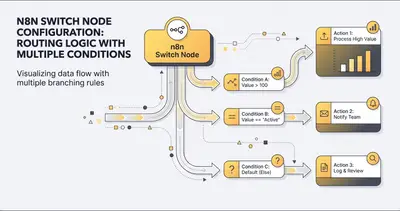
Nested If nodes are hard to read, slow to execute, and difficult to maintain. Switch nodes are cleaner, faster, and easier to debug.
The problem: A workflow routes leads based on 4 conditions (source, budget, industry, company size). With nested Ifs, you have 16 branches to maintain. One logic change requires updating multiple nodes.
The solution: Use a Switch node with expression matching. One node handles all routing logic clearly.
Example:
Lead source = "LinkedIn" AND Budget > "$10K" → Route to Senior Sales
Lead source = "Google Ads" AND Industry = "Tech" → Route to Tech Team
Default → Route to General Queue
Benefits:
- Faster execution: Switch nodes evaluate conditions more efficiently
- Easier debugging: See all routes in one node instead of nested branches
- Simpler maintenance: Change routing logic in one place
Example: Replacing a chain of nested If nodes with one or two Switch nodes puts all routing logic in one place, which makes it far easier to debug.
Tip 3: Optimize AI API Calls with Batch Processing
AI API calls are expensive. Calling OpenAI or Claude for every single record wastes money and hits rate limits.
The inefficiency: Calling the API once per lead repeats the same instructions in every request, and a high request count hits rate limits.
The solution: Use the SplitInBatches node to process records in groups. Send batch prompts to AI models that handle multiple records per call.
Example: Instead of:
Lead 1 → OpenAI → Enriched Lead 1
Lead 2 → OpenAI → Enriched Lead 2
...
Lead 100 → OpenAI → Enriched Lead 100
Use:
Leads 1-10 → Batch OpenAI Prompt → Enriched Leads 1-10
Leads 11-20 → Batch OpenAI Prompt → Enriched Leads 11-20
...
What batching saves:
- The shared instructions are sent once per batch instead of once per record
- 10 records per call means 10x fewer requests against your rate limit
- The record data itself still costs the same tokens, so the saving depends on how long your instructions are compared to each record
Pro Tip: Most AI models handle several records in one prompt. Structure your prompt to handle multiple records: "Analyze these 10 leads and return a JSON array with enrichments for each." Fewer requests also keep you under rate limits.
Tip 4: Implement Proper Error Handling with Error Triggers
Workflows fail silently if you don't set up error handling. One API outage can break your entire automation without notification.
The silent failure problem: A workflow sends 50 daily email campaigns. The email service API goes down for 2 hours. The workflow fails, but no one notices. 50 campaigns never send, and customers never receive follow-ups.
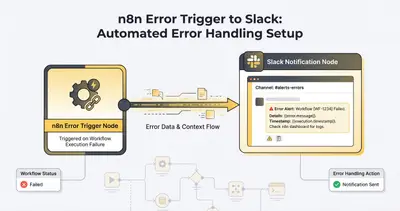
The error trigger solution: Add an Error Trigger node connected to a notification system (Slack, email, or PagerDuty).
Step-by-step setup:
- Add Error Trigger node at the end of your workflow
- Connect to a notification node (Slack, email, etc.)
- Include error details in notification:
{{ $json.error.message }} - Optionally, add a retry mechanism for transient failures
Example error notification:
⚠️ Workflow Failed: Daily Email Campaign

Error: Email API rate limit exceeded
Timestamp: 2025-10-13 14:32:15
Failed at node: Send Email (node ID: abc123)
Workflow: Daily Campaign Automation
Example: An error trigger that posts to Slack turns a failure customers would report weeks later into one you see the same day.
Tip 5: Leverage Environment Variables for Credentials
Hardcoding API keys, database passwords, or webhook URLs in workflows is a security risk and makes workflows hard to maintain.
The security risk: You hardcode your OpenAI API key in 10 workflows. A team member exports workflows to share with a consultant. All API keys are exposed in the exported JSON file.
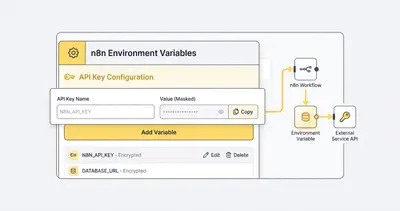
The environment variable solution: Store all sensitive data in n8n's Environment Variables (or credential manager) and reference them with {{ $env.API_KEY }}.
Setup process:
- Go to Settings → Environment Variables
- Add variables:
OPENAI_API_KEY,DATABASE_PASSWORD,WEBHOOK_SECRET - In workflows, reference with:
{{ $env.OPENAI_API_KEY }}
Benefits:
- Security: Credentials never stored in workflow JSON
- Easy rotation: Change API key once, updates across all workflows
- Team collaboration: Share workflows without exposing secrets
- Environment-specific: Use different keys for dev/staging/production
Reality Check: Rotating hardcoded credentials means updating 10+ workflows manually. With environment variables, you update once and all workflows automatically use the new key. This saves 2–4 hours per credential rotation.
Tip 6: Use SplitInBatches for Large Dataset Processing
Processing 10,000 records in one workflow execution can cause timeouts, memory issues, and API rate limit problems.
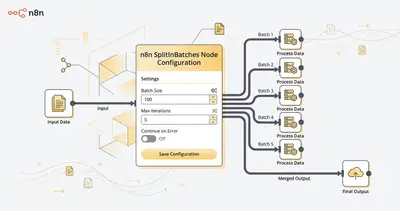
The batch processing solution: Use SplitInBatches node to process records in chunks (typically 100–500 records per batch).
Example workflow:
Webhook receives 5,000 leads
  ↓
SplitInBatches (batch size: 100)
  ↓
For each batch:
  - Validate emails
  - Enrich with company data
  - Score leads
  - Save to database
Configuration:
- Batch size: 100–500 records (depends on API limits and processing time)
- Options: Continue on error (process remaining batches even if one fails)
Benefits:
- Avoids timeouts: Each batch processes in under 60 seconds
- Prevents memory issues: Only loads batch size records at once
- Resilient to failures: One bad batch doesn't stop entire processing
- Progress tracking: See which batch is processing in execution logs
Example: A workflow that processes thousands of leads in one execution can hit your instance's execution timeout. With SplitInBatches, each batch finishes well inside the limit, and a failure only affects one batch.
Tip 7: Optimize Token Usage in AI Workflows
AI API costs are based on tokens (input + output). Unoptimized prompts waste money on unnecessary tokens.
The token waste problem: A workflow calls OpenAI to analyze leads. The prompt includes full company descriptions (500 words each), so most of what you pay for is input the model does not need.
Optimization strategies:
1. Minimize input context: Only include relevant data in prompts:
Bad: "Analyze this lead: {{ $json.full_company_profile }} [500 words]"
Good: "Score this lead (1-10): Email: {{ $json.email }}, Company: {{ $json.company }}, Industry: {{ $json.industry }}"
2. Use specific models:
- GPT-5.2: Stronger reasoning, higher cost ($1.75 per 1M input tokens)
- GPT-4o Mini: Good enough for many tasks ($0.15 per 1M input tokens)
- Claude Haiku 5.5: Fast and cheap for simple tasks (from $0.10 per 1M input tokens)
3. Set max_tokens on output: Limit response length to what you actually need:
Max tokens: 100 (instead of default 4,096)
Cost effect: caps the most you can pay for each response
Pro Tip: For most business automation tasks (lead scoring, categorization, data extraction), GPT-4o Mini or Claude Haiku 5.5 are often accurate enough at a fraction of premium rates. Test them on a sample of real records first, and reserve premium models for tasks requiring deep reasoning or complex analysis.
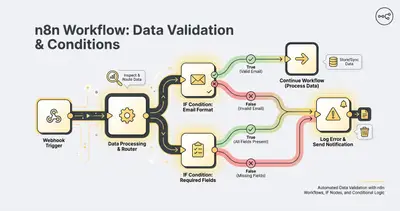
Tip 8: Add Data Validation Before Processing
Validating data early prevents downstream errors and wasted API calls.
The validation problem: A workflow processes leads without checking email validity. Some leads have invalid emails, and the workflow pays for enrichment calls on data it will discard anyway.
The validation solution: Add validation checks early in the workflow:
- Email validation: Check format with Regex or validation node
- Required fields: Ensure all critical data exists
- Data types: Verify numbers are numeric, dates are valid
Example validation workflow:
Webhook receives lead
  ↓
IF node: Is email valid? (Regex check)
  ├─ Yes → Continue processing
  └─ No → Send to "Invalid Leads" database, Stop workflow
  ↓
IF node: Does lead have company name?
  ├─ Yes → Continue processing
  └─ No → Stop workflow, log error
  ↓
Continue with enrichment and scoring
Benefits:
- Saves API costs: Don't enrich invalid data
- Prevents errors: Catch problems before they cascade
- Improves data quality: Invalid leads logged for review
Example: Adding email validation at the start of a lead workflow stops it from paying to enrich records it will throw away. It can also expose the source of bad data, such as a broken form.
Tip 9: Use Code Nodes for Custom Data Transformation
n8n's built-in nodes handle most transformations, but complex logic requires the Code node. Don't avoid it—use it strategically.
When to use Code nodes:
- Complex calculations: Revenue forecasting, lead scoring algorithms
- Data formatting: Converting between API response formats
- Custom validation: Business logic that doesn't fit standard nodes
Example: A workflow receives lead data in 5 different formats from 5 sources. Instead of 20 IF nodes checking formats, use a Code node to normalize all inputs:
// Normalize lead data regardless of source format
function normalizeLead(data) {
  return {
    email: data.email || data.Email || data.contact_email || '',
    company: data.company || data.Company || data.company_name || '',
    budget: parseFloat(data.budget || data.Budget || data.annual_revenue || 0),
    source: data.source || data.Source || 'unknown',
  };
}

return items.map((item) => ({
  json: normalizeLead(item.json),
}));
Benefits:
- Single point of logic: All normalization in one place
- Easier testing: Test the function independently
- Better performance: One code execution vs 20 node evaluations
Key Insight: Code nodes aren't just for developers. Simple JavaScript functions (like the example above) can be copied from documentation or AI assistants. The time saved by consolidating complex logic makes it worth learning basic code patterns.
Tip 10: Document Workflows with Sticky Notes
Complex workflows become unmaintainable without documentation. Six months later, you'll forget why a specific node exists or what a complex expression does.
The documentation problem: You built a workflow 3 months ago with 25 nodes. A team member needs to modify it but can't understand the logic. They spend 4 hours reverse-engineering your workflow.
The sticky note solution: Add sticky notes explaining:
- Workflow purpose: "This workflow processes leads from LinkedIn ads and routes them based on budget and industry."
- Complex logic: "This IF node checks if lead is from Enterprise account (company size > 500 employees)."
- API dependencies: "This node calls our internal API that's rate-limited to 100 requests/hour."
- Known issues: "This workflow fails if CRM API is down for > 5 minutes. Monitor error logs."
Example sticky note:
📌 Lead Qualification Logic

Budget ranges:
- < $10K → Route to Junior Sales
- $10K - $50K → Route to Mid-Market
- > $50K → Route to Enterprise

Note: Budget field may be missing for 15% of leads.
Default to Mid-Market if budget is null.
Benefits:
- Faster onboarding: New team members understand workflows immediately
- Reduced maintenance time: Documentation explains why, not just what
- Knowledge preservation: When you leave, your workflows are self-documenting
Key Insight: The person debugging this workflow in six months is you, and you will not remember why you built it that way. The few minutes you spend adding sticky notes saves hours of debugging later. Treat documentation as an investment, not overhead.
Additional Optimization Strategies
Use Modular Workflows with Execute Workflow Nodes
Instead of building massive 50-node workflows, break complex automations into smaller, reusable sub-workflows. A 10-person agency with 3 workflows that all need to qualify leads created a single "Qualify Lead" sub-workflow and called it from all three.
Before: 45 total nodes (15 × 3 workflows)
After: 18 nodes (3 sub-workflow calls + 15 nodes in sub-workflow)
Time saved: 2 hours/week on maintenance
Create a library of common sub-workflows: "Validate Email," "Enrich Lead Data," "Send Notification," "Archive to Database." Reuse these across all your workflows to cut duplication.
Handle API Rate Limits
Workflows making rapid API calls without delays hit rate limits, causing failures and lockouts. A workflow that sends 200 requests in 30 seconds to an API limited to 50 requests a minute gets blocked.
The solution: Add Wait or Delay nodes between API calls, or use batch processing when the API supports it:
- Individual calls: 200 requests (4 minutes of rate limit)
- Batch calls (10 leads per request): 20 requests (24 seconds of rate limit)
- Time savings: 90% reduction in processing time
Pro Tip: Most APIs document their rate limits. Check documentation before building workflows. Add rate limiting from the start—it's much harder to add later when workflows are already in production.
Conclusion
The future of automation is intelligent, scalable, and human-centered. With these n8n tips and tricksyou can eliminate repetitive tasks, integrate AI seamlessly, and achieve measurable ROI.
Key takeaways:
- Execute Once prevents duplicate executions during testing and production
- Switch nodes replace nested IFs for cleaner workflows that are easier to debug
- Batch processing sends shared instructions once per batch and keeps you under rate limits
- Error handling with error triggers prevents silent failures that damage customer relationships
- Environment variables make credential management secure and easy (saves 2–4 hours per rotation)
- Data validation early in workflows stops you paying to process bad records
- Documentation cuts the time it takes to maintain and hand over workflows
Quick Implementation Checklist:
- Enable "Execute Once" on all webhook-triggered workflows
- Replace nested IF nodes with Switch nodes
- Add Error Trigger nodes to critical workflows
- Move all credentials to Environment Variables
- Implement batch processing for AI workflows
- Add data validation before expensive operations
- Document complex workflows with sticky notes
Start implementing: Pick one tip that addresses your biggest pain point. For most teams, that's error handling or modular design. Add error triggers to your most critical workflows first, then expand to others.
Smart automation isn't about doing more—it's about doing better, faster, and securely.
Want your n8n workflows optimized by experts? Book your free consultation with Evalics to get personalized recommendations for your automation needs.
Related Reads
- Make vs n8n 2025: In-Depth Comparison — Choose the right automation platform for your needs
- Building vs Buying AI in 2025 — Learn when to build custom vs buy off-the-shelf automation solutions
- How to Choose the Best AI Model for Your Use Case — Optimize your AI model selection for better automation results